Text on photos • iPhone, iPad & Mac

Scritta: Text on Photo & Story

You bring the photos and the words. Scritta handles the small adjustments you would otherwise make slide by slide.

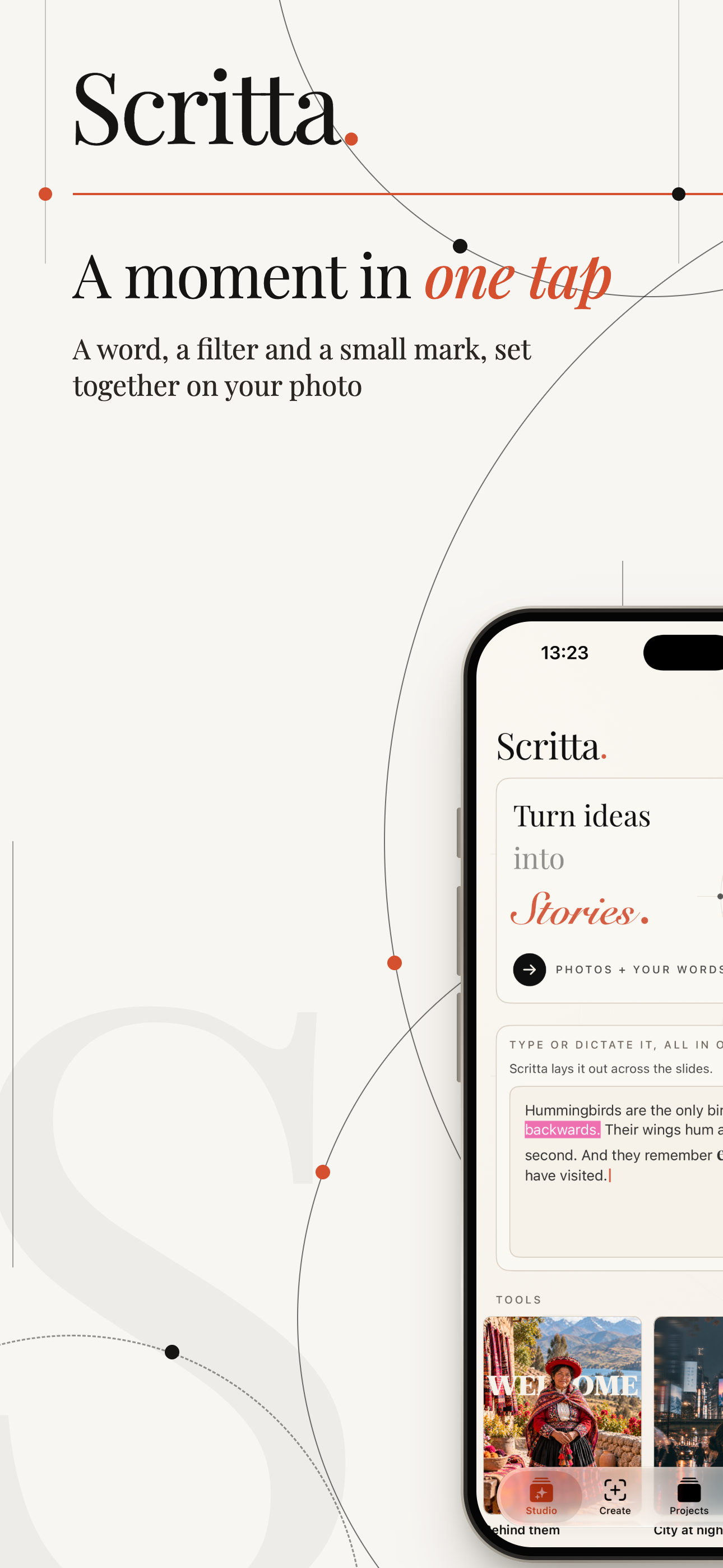
Write the whole story in one box, or say it out loud. Scritta splits it into slides, sets each line in the calm part of its photo, brings the set to one consistent look and pairs fonts that belong together. You can move anything it placed.

Download on the App Store
iPhone, iPad & Mac Font pairs Type or dictate No account, no tracking
Scritta app icon

From a paragraph to a carousel

The part that usually takes an evening - fitting words onto ten different photos so they read as one post - is the part Scritta does for you.

Pick photos Write or dictate Scritta lays it out Adjust anything Export

One box for the whole story

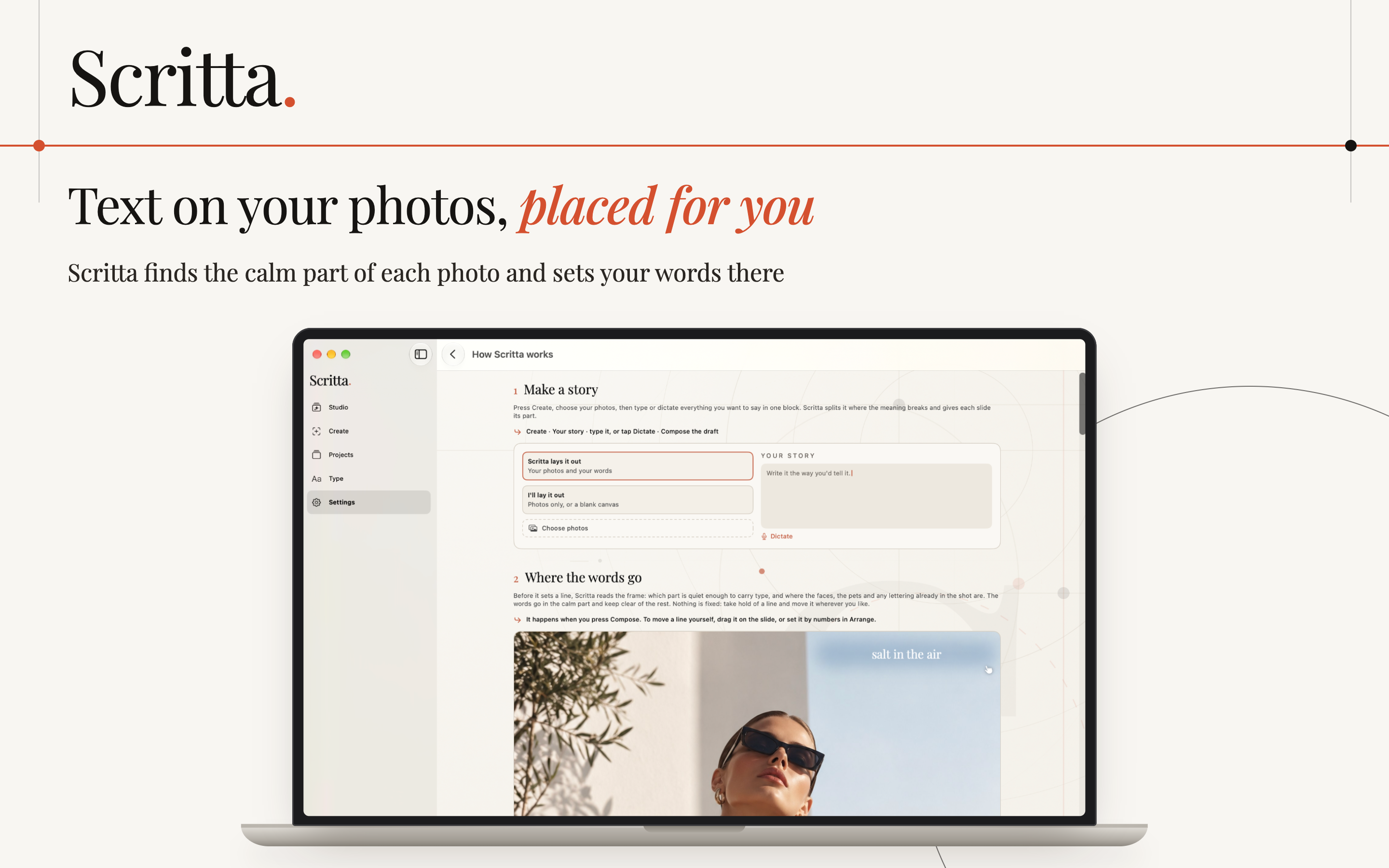
Type everything you want to say in one place, or dictate it the way you would tell it to a friend. Scritta finds the breaks between phrases and gives each one its own slide.

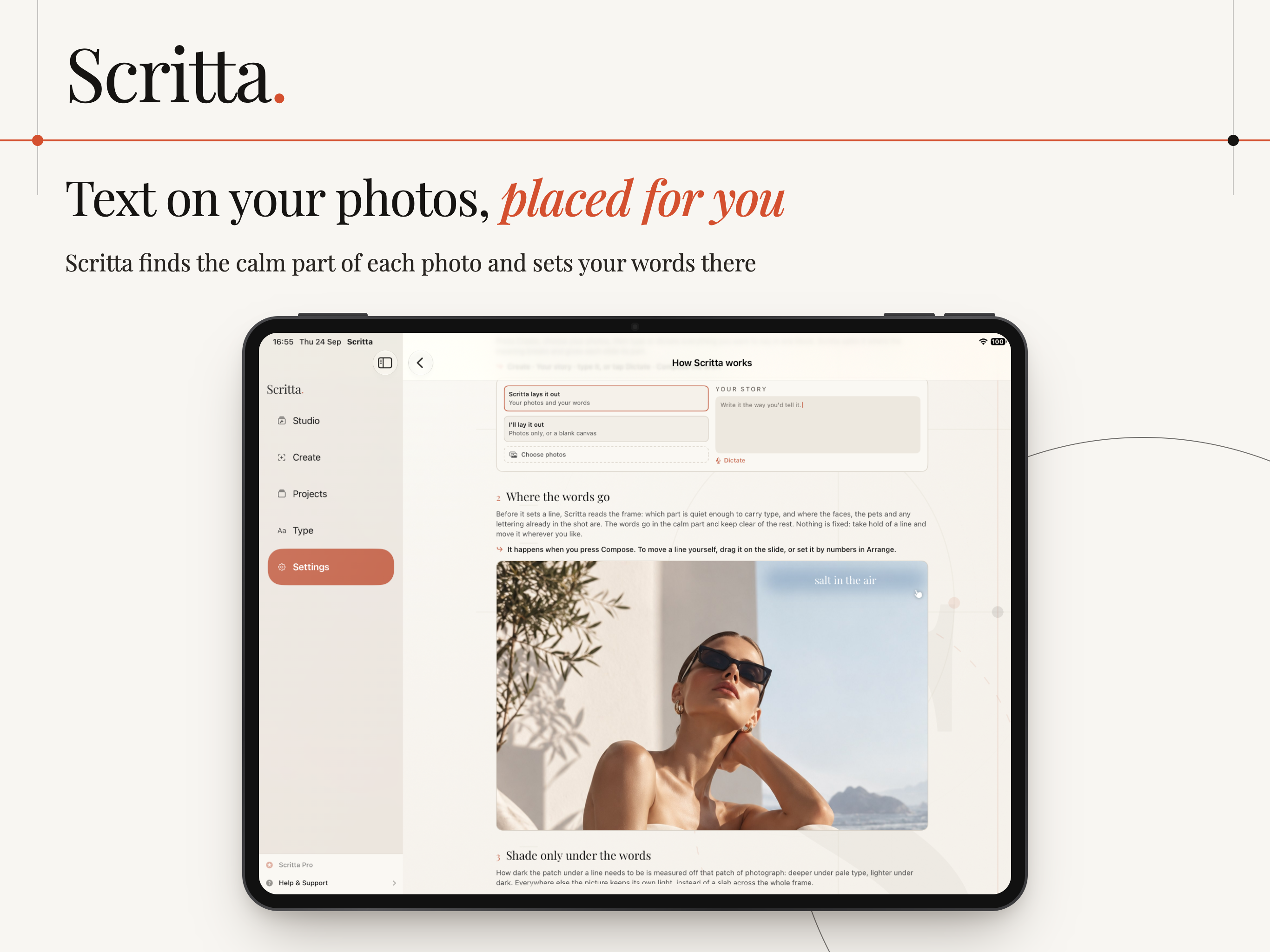
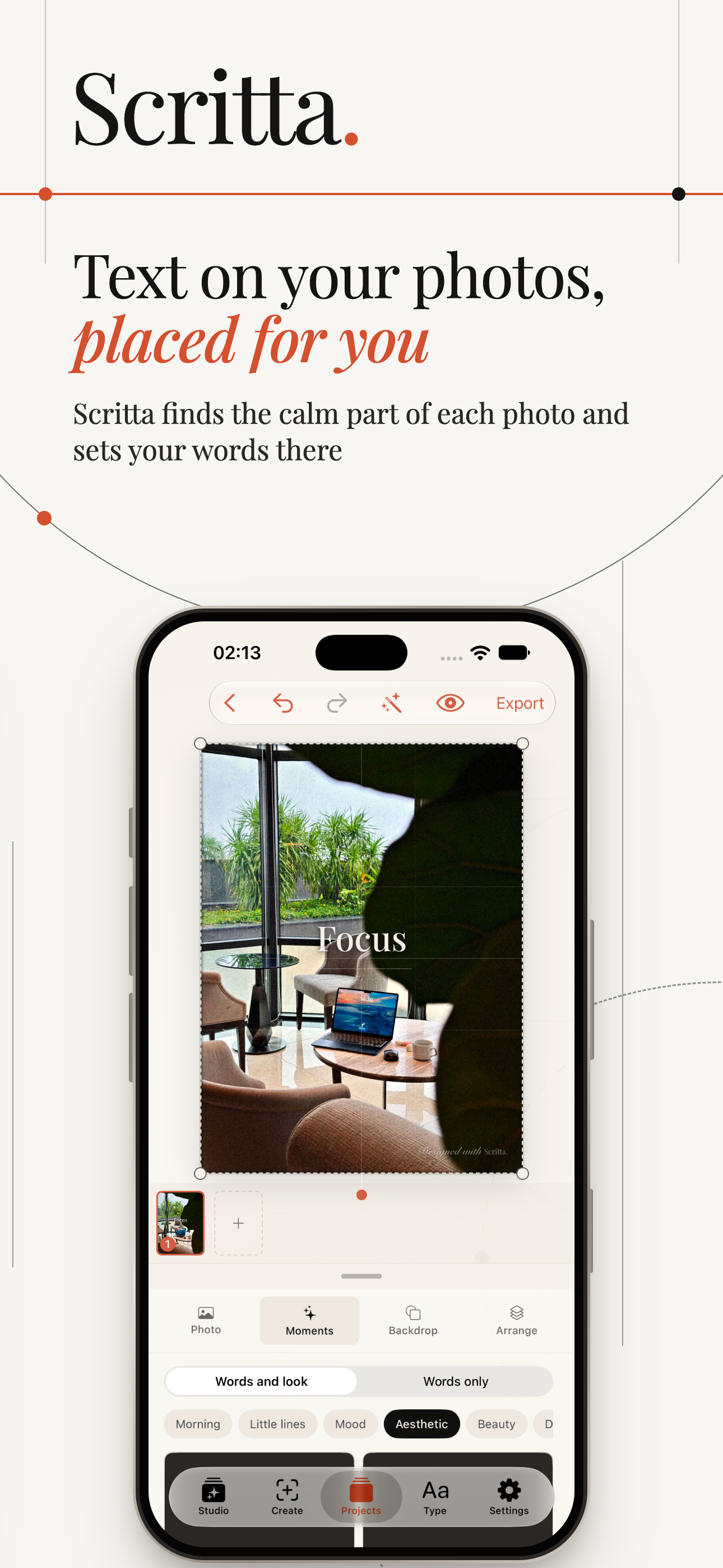
Words go where the photo is quiet

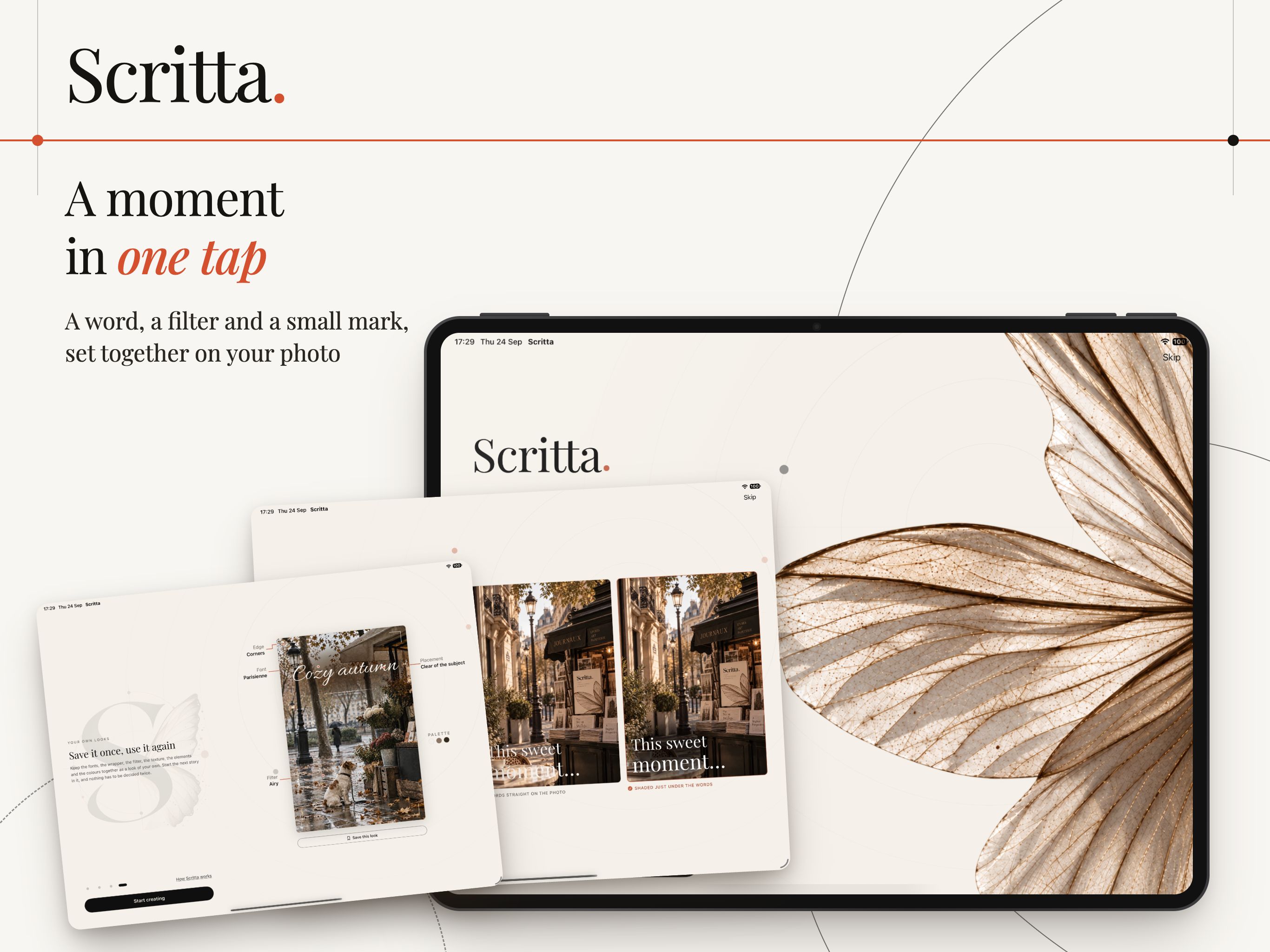
Each photo is read for its calm areas - sky, wall, sand, an empty table - and the line is placed there, away from faces and busy detail. It is a suggestion: drag the line anywhere.

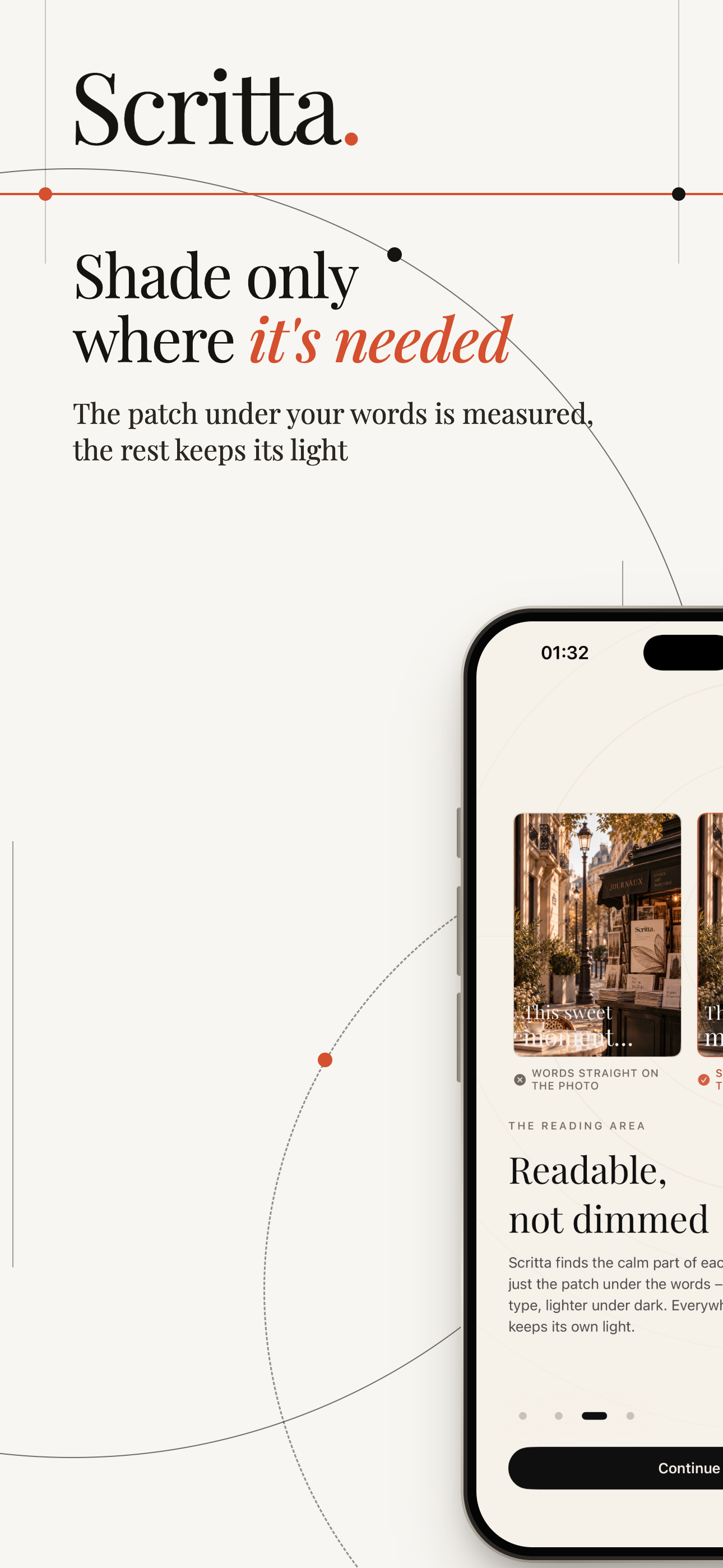
Readable, not dimmed

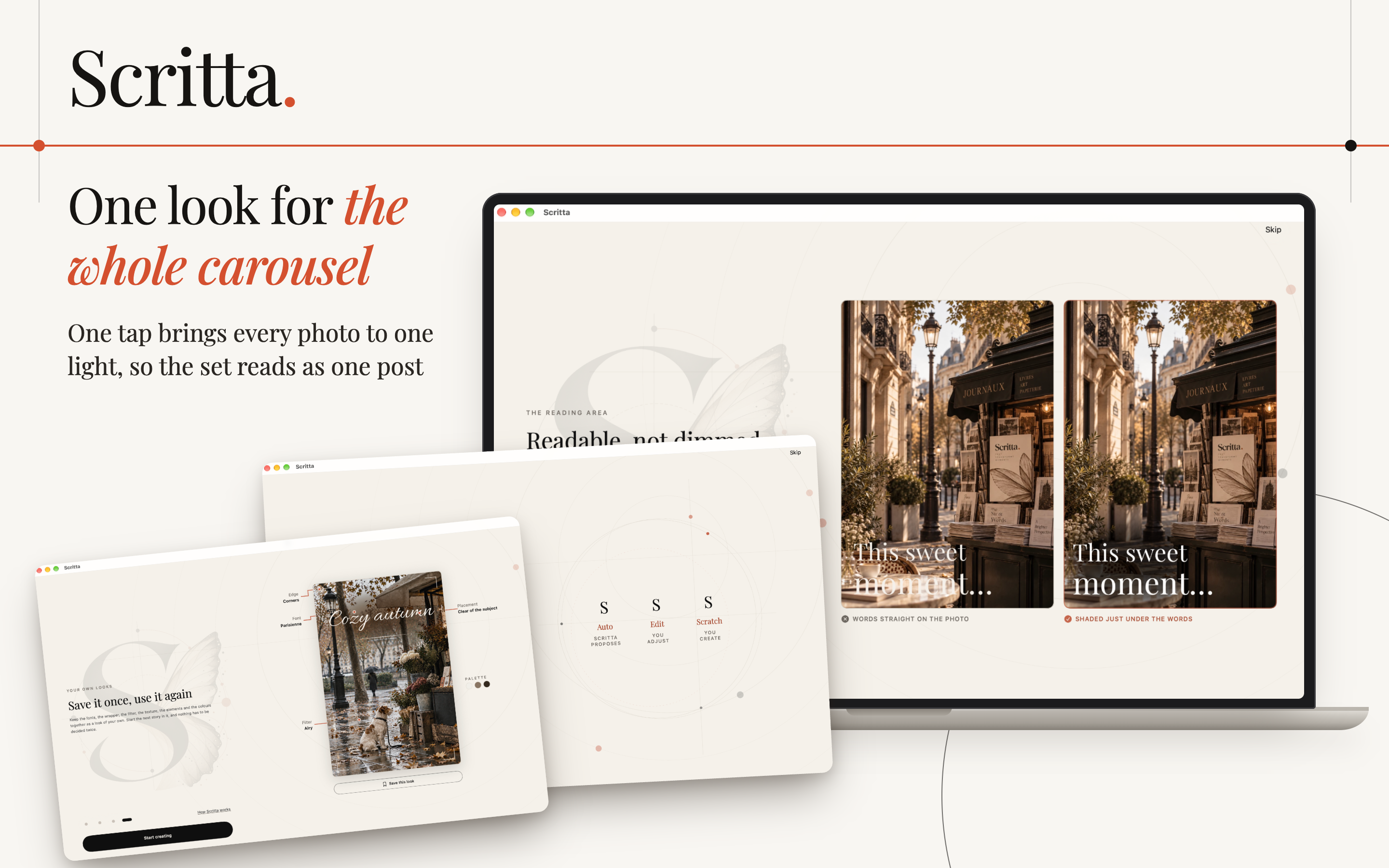
Under your words Scritta adds a small shaded patch in a tone picked from the photograph. The patch is measured to the text; the rest of the picture keeps its light.

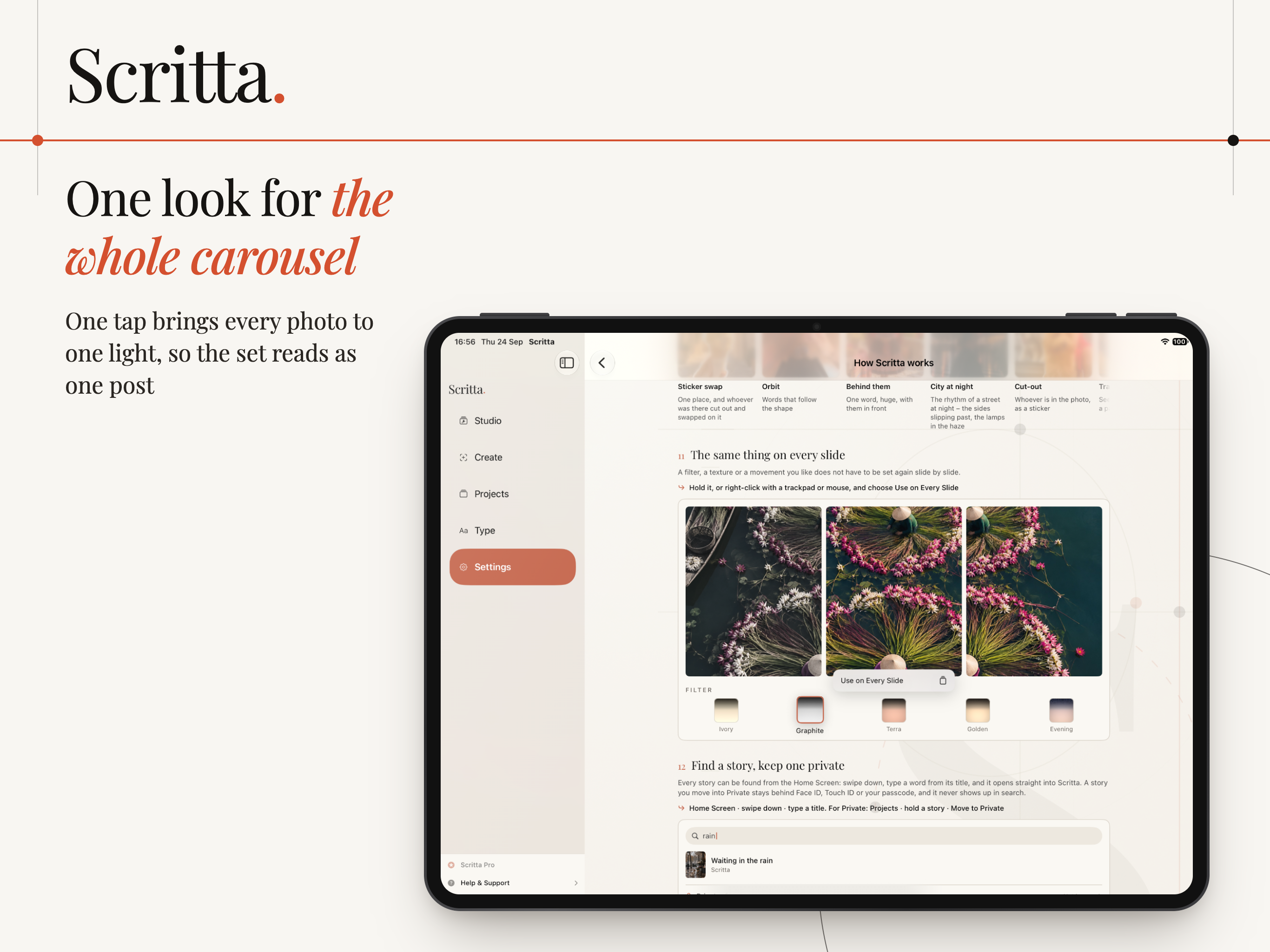
One look for the whole set

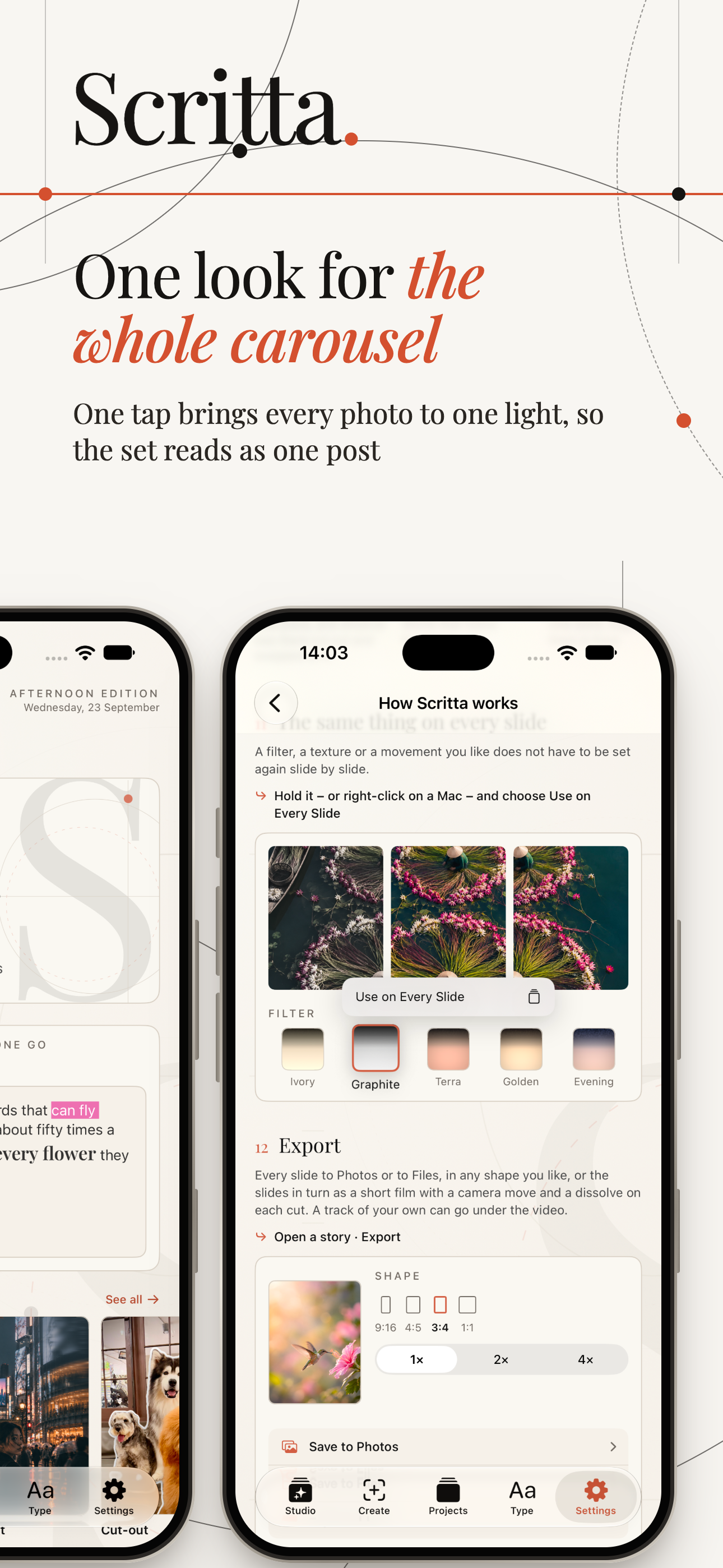
One tap brings every photo in the carousel to the same light, so ten pictures taken on different days read as a single post.

Lines that line up

Move a line and quiet guides show where the lines sit on the other slides, so titles land at the same height from one slide to the next.

Or lay it out yourself

Prefer to decide everything? Start on a blank canvas or your own photos and place the words where you want them from the first slide.

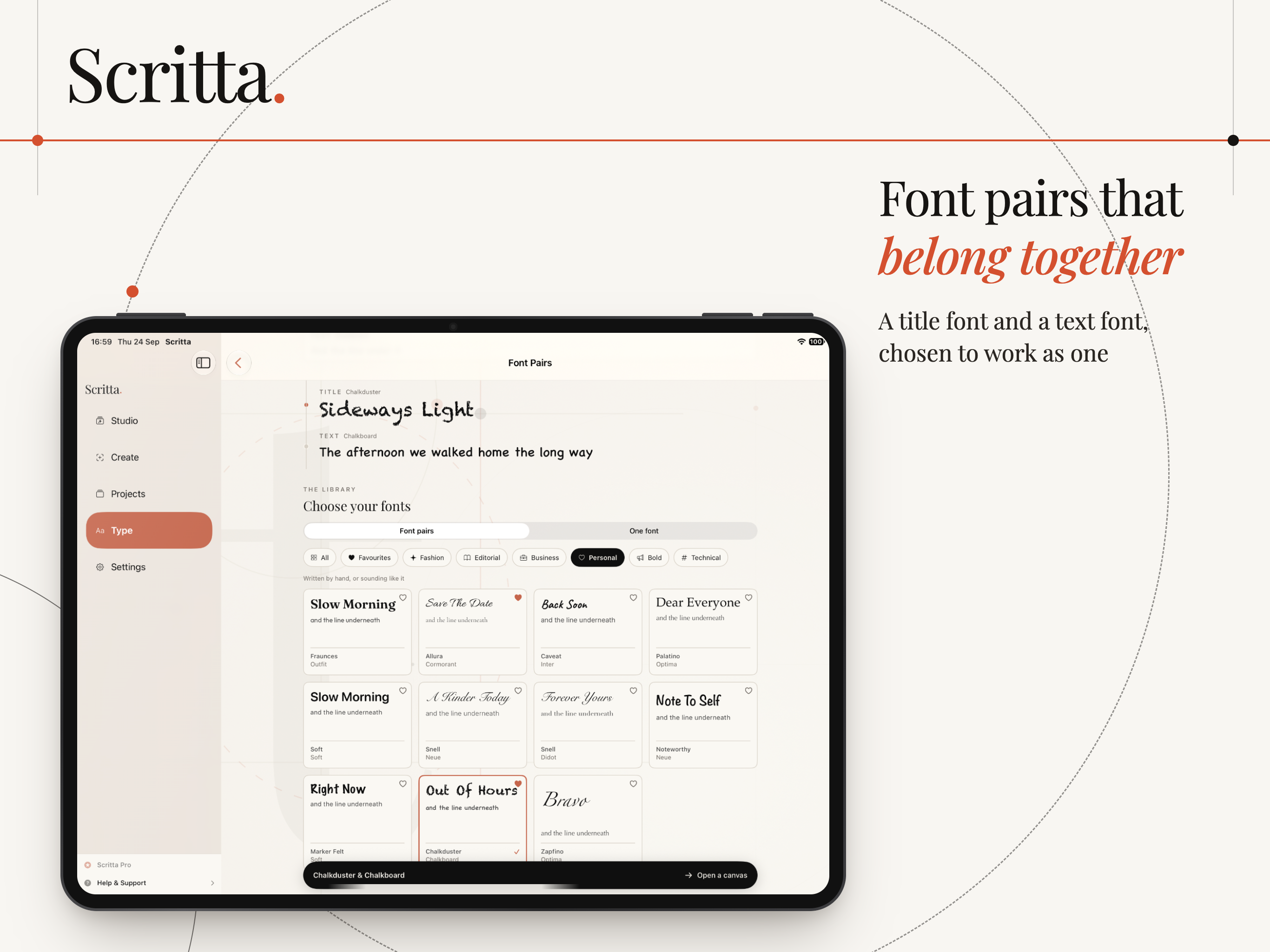
Font pairs that belong together

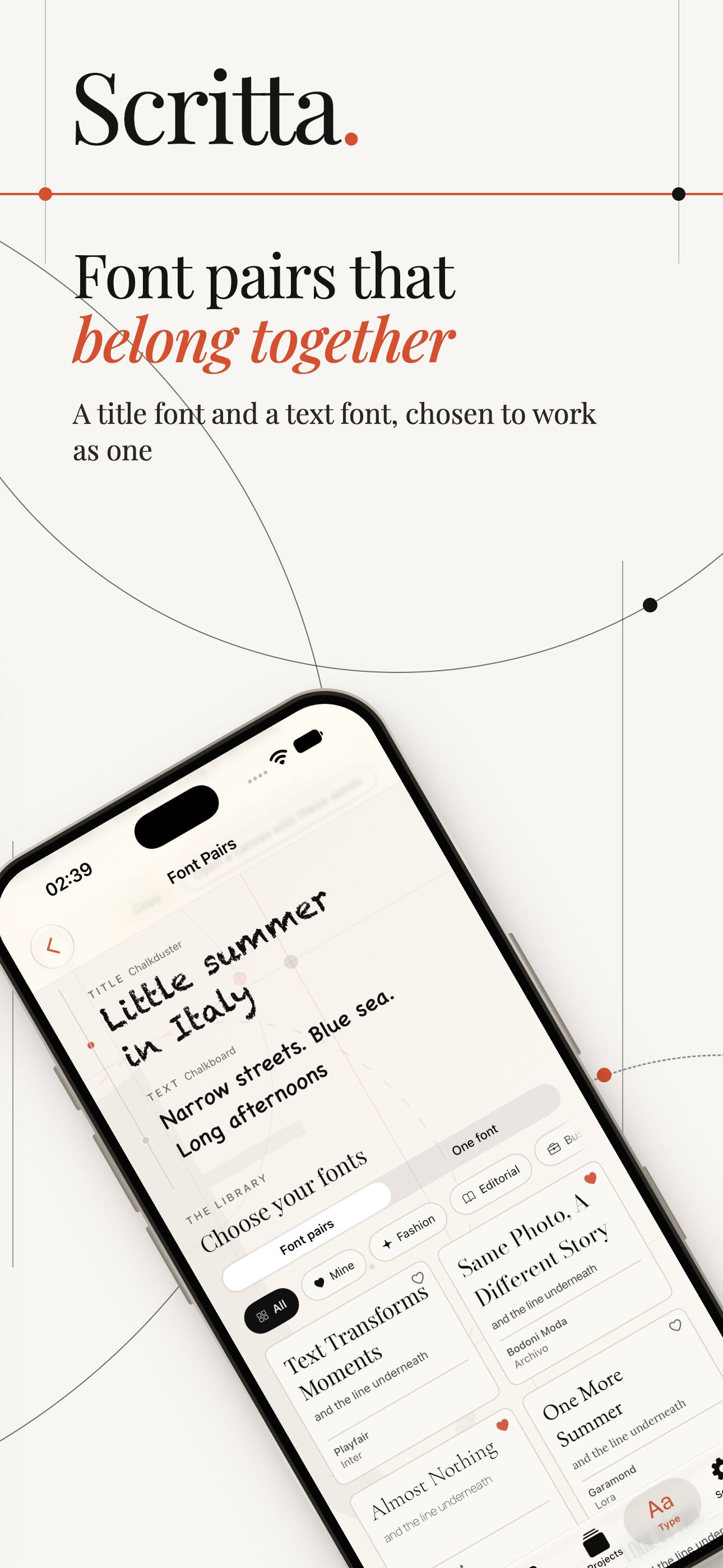
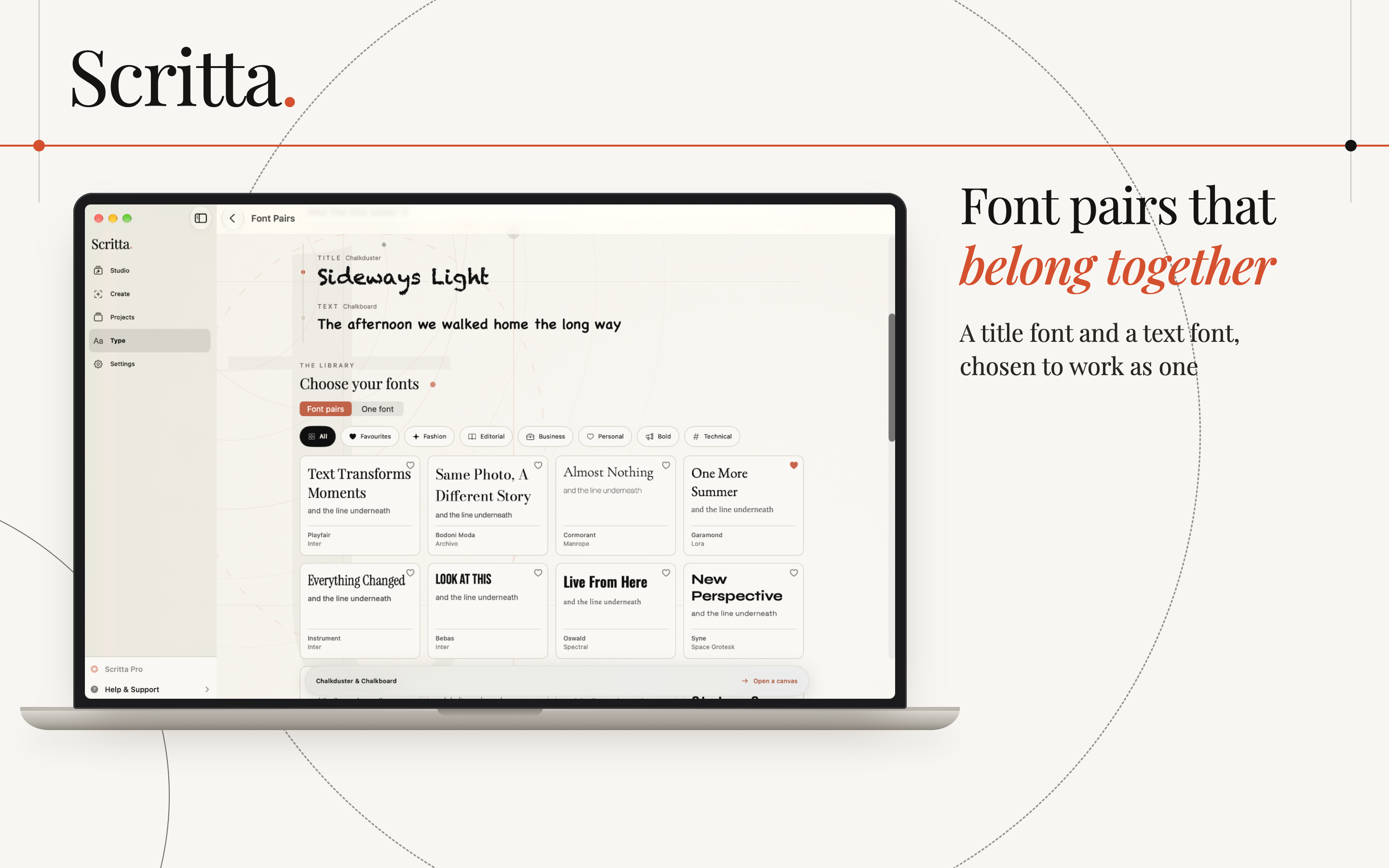
Most story apps hand you a long list of fonts and leave the matching to you. Scritta starts from pairs: a title font and a text font chosen to work as one, so a headline and the line beneath it look like they were set by the same person.

  • Pairs grouped by mood - fashion, editorial, business, personal, bold, technical.
  • Mark favourites and they stay at the top of the library.
  • Bring in your own fonts with Scritta Pro, and use them alongside the library.
  • Pull colours straight from the photograph, so the text belongs to the picture.

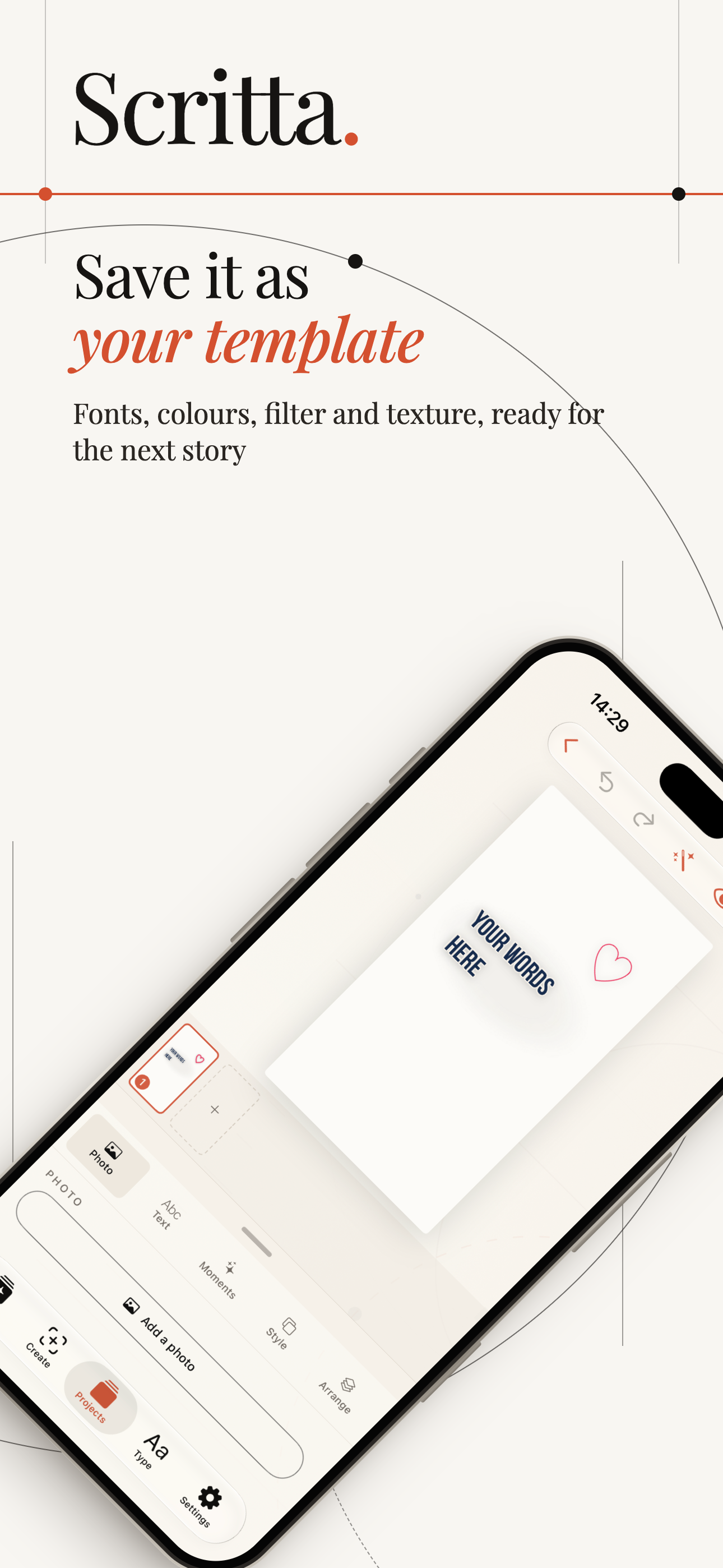
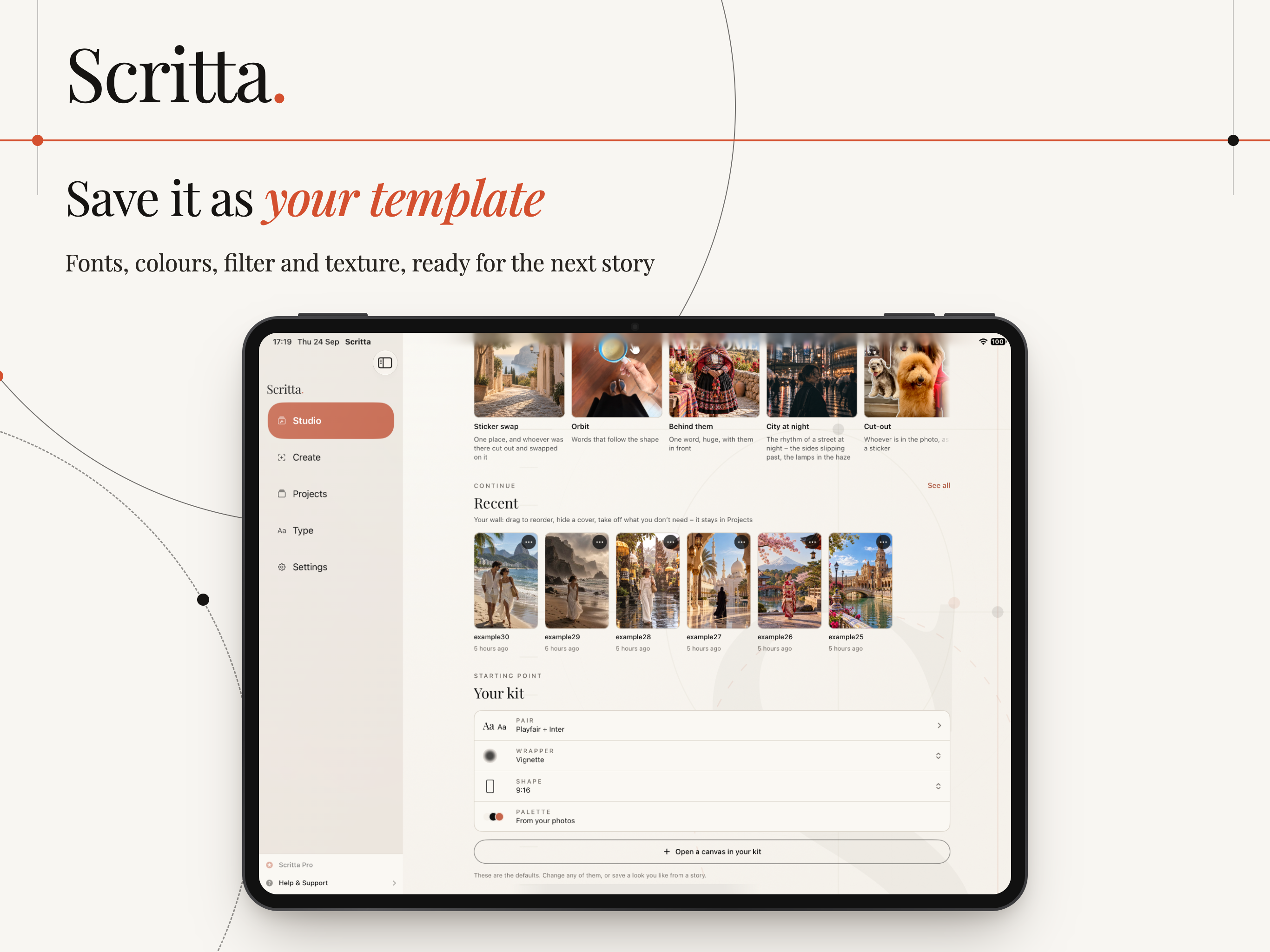
Save a look, start from it next time

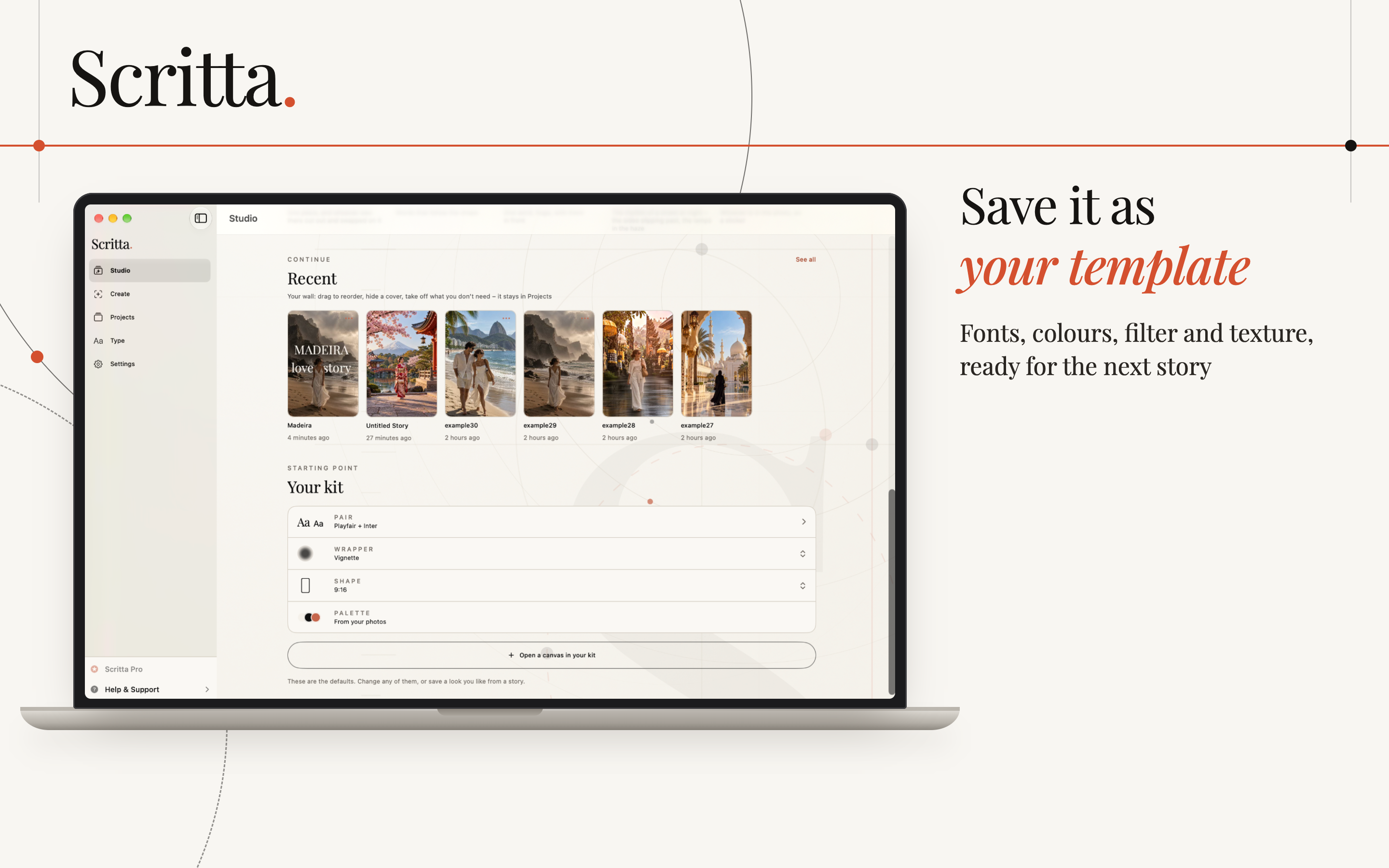
Found a combination you love? Save it as a template: fonts, colours, filter and texture. The next story starts with the same style already in place.

  • No more rebuilding the visual language from zero for every post.
  • Consistency across carousels, which is what makes a profile look like one person's.
  • Or skip templates entirely and give each story its own mood.

Then play with the image

Once the words are in place, there is plenty to do with the photograph itself.

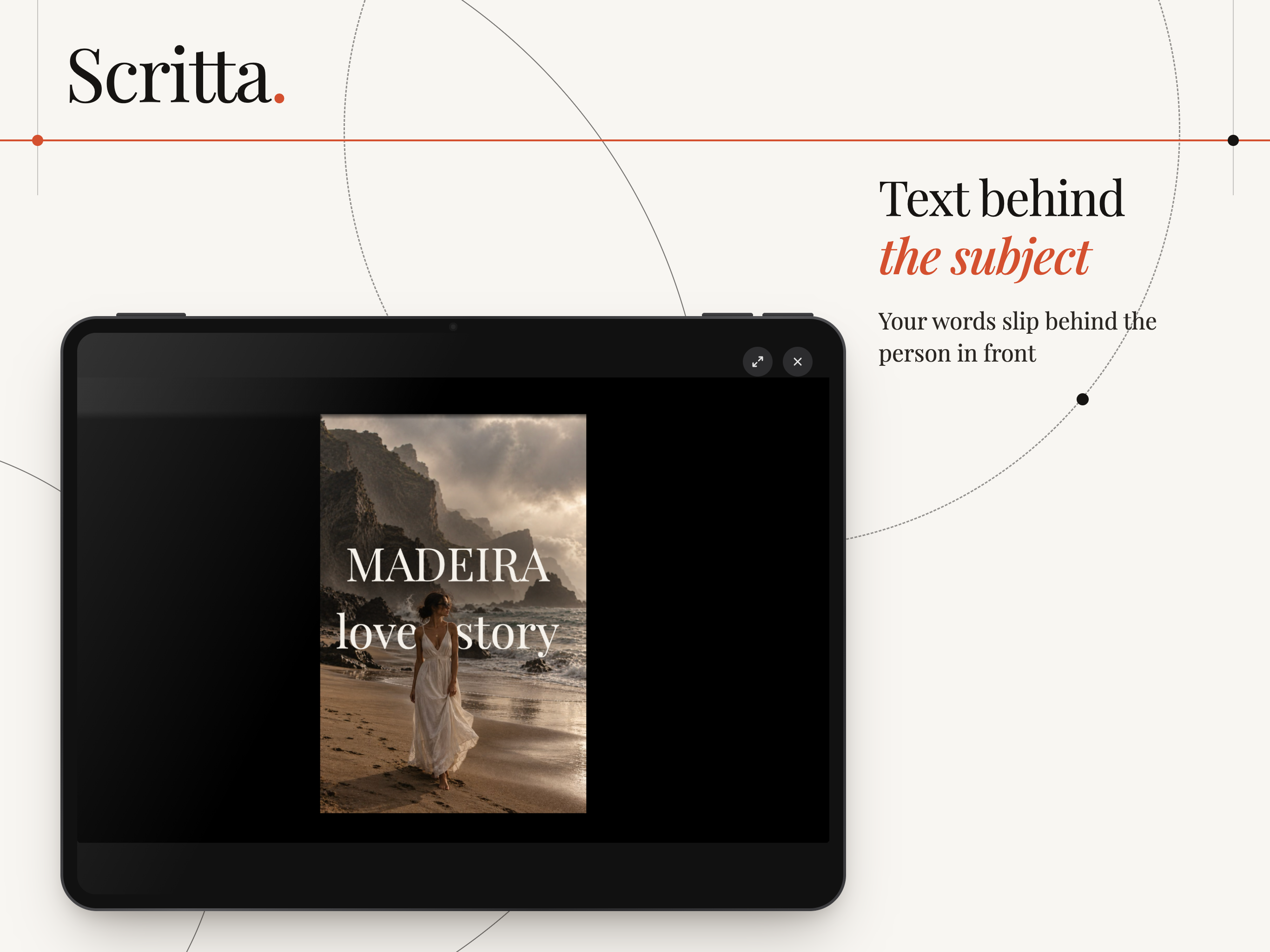
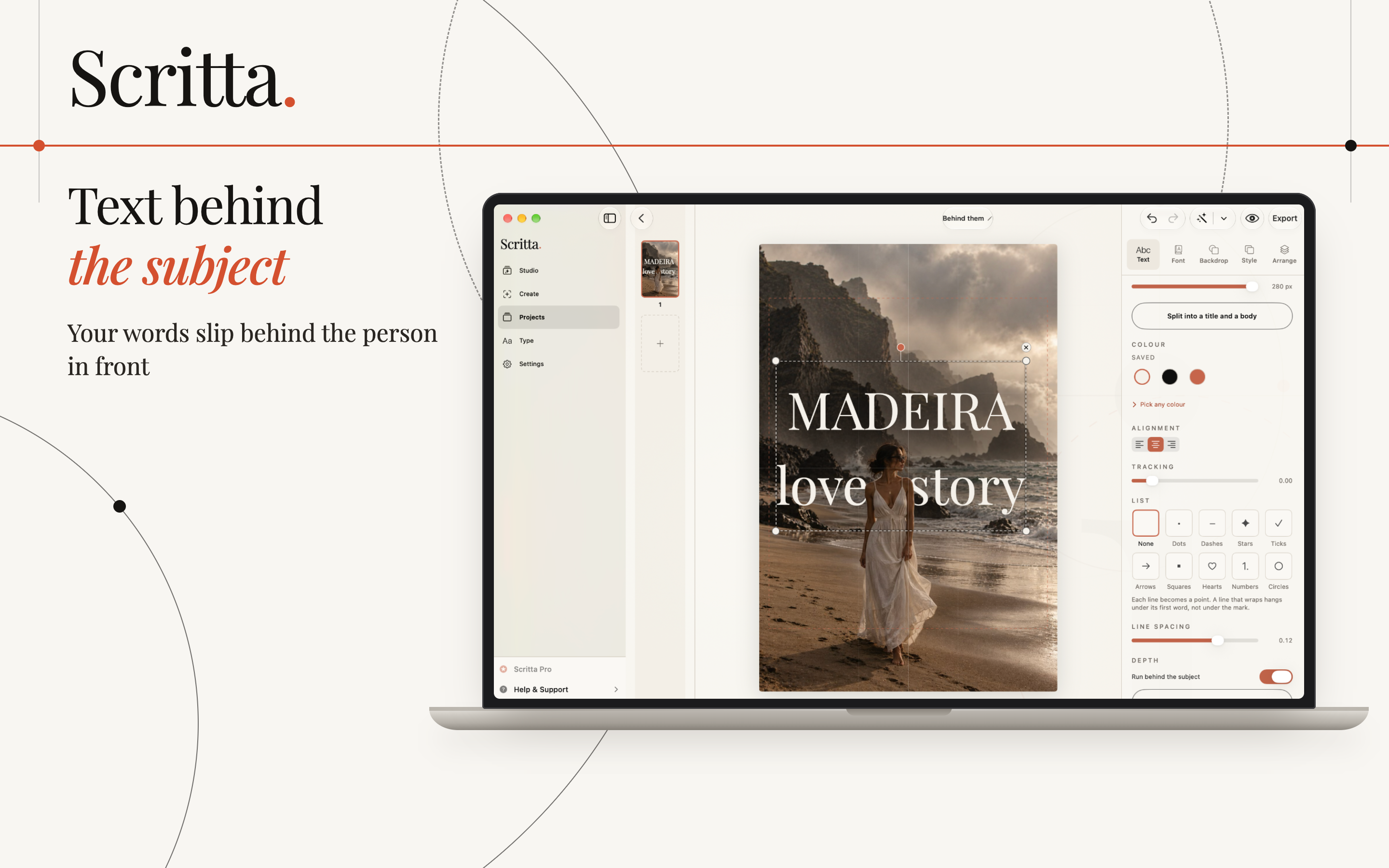
Text behind the subject

Put a huge word behind a person, so it reads as part of the scene rather than a sticker on top of it.

Cut out and swap

Cut someone out of one photo and place them on another slide. Keep the same background and change who is standing in it.

Letters filled with the photo

Fill the letters with your photograph, then let the image open until the whole picture appears.

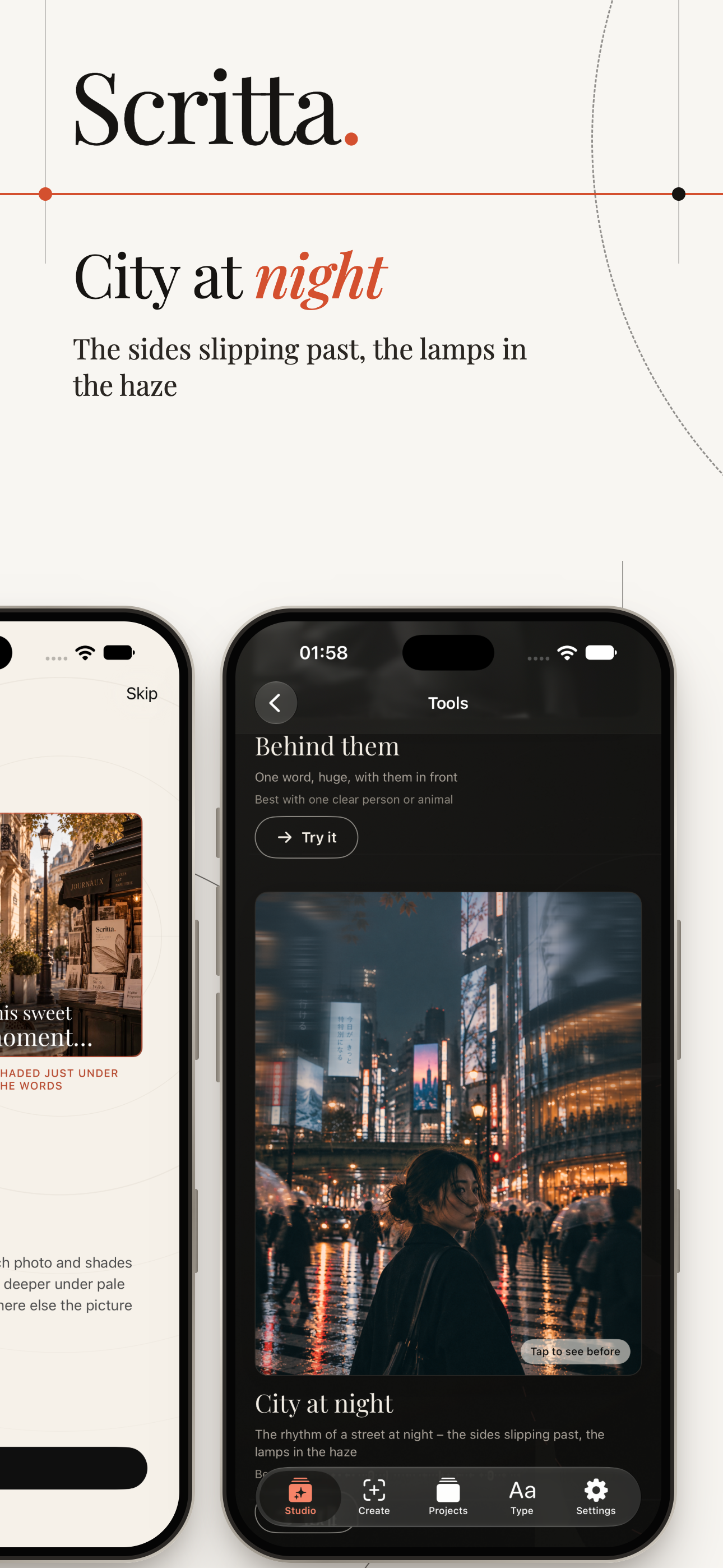
City at night

Shadows, trails, or a moving night street with the lamps dissolving into the haze.

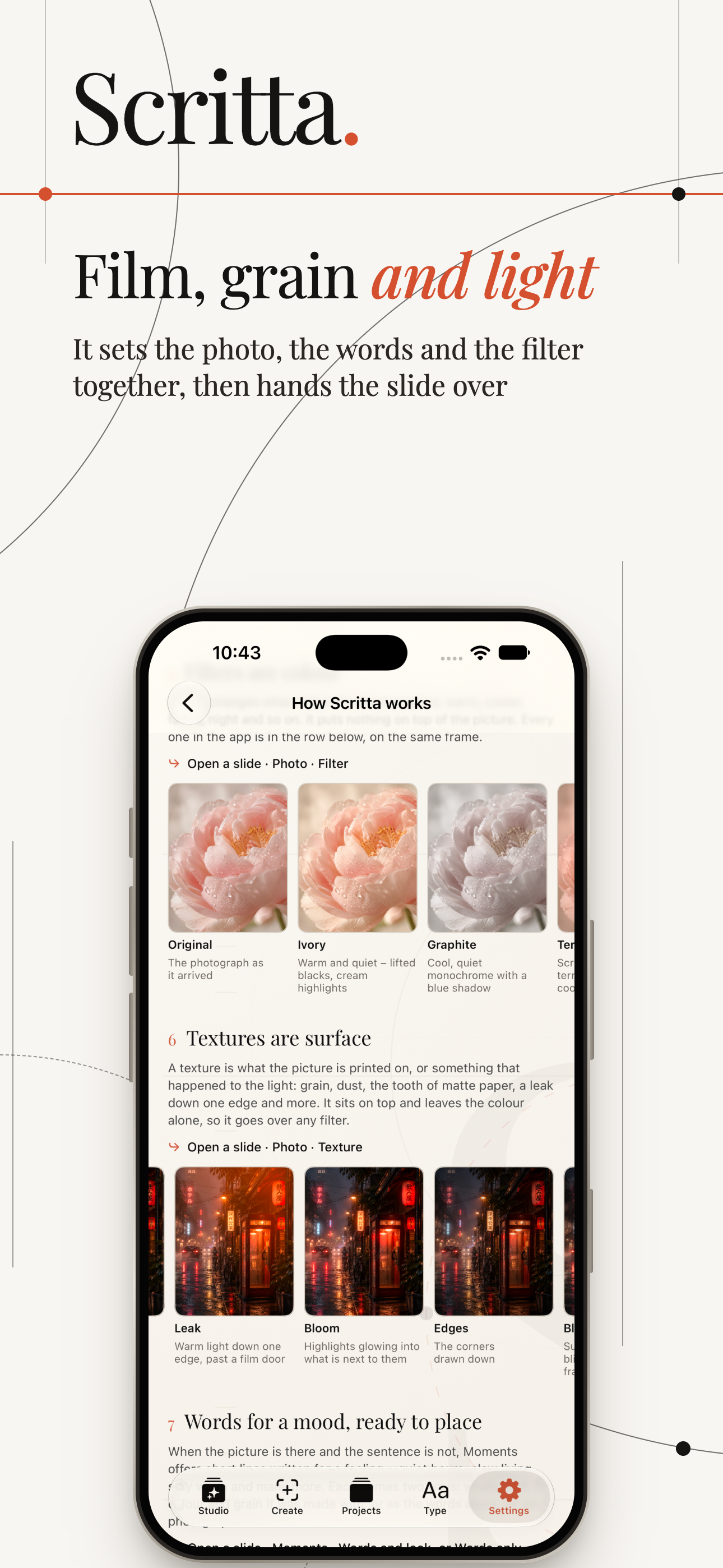
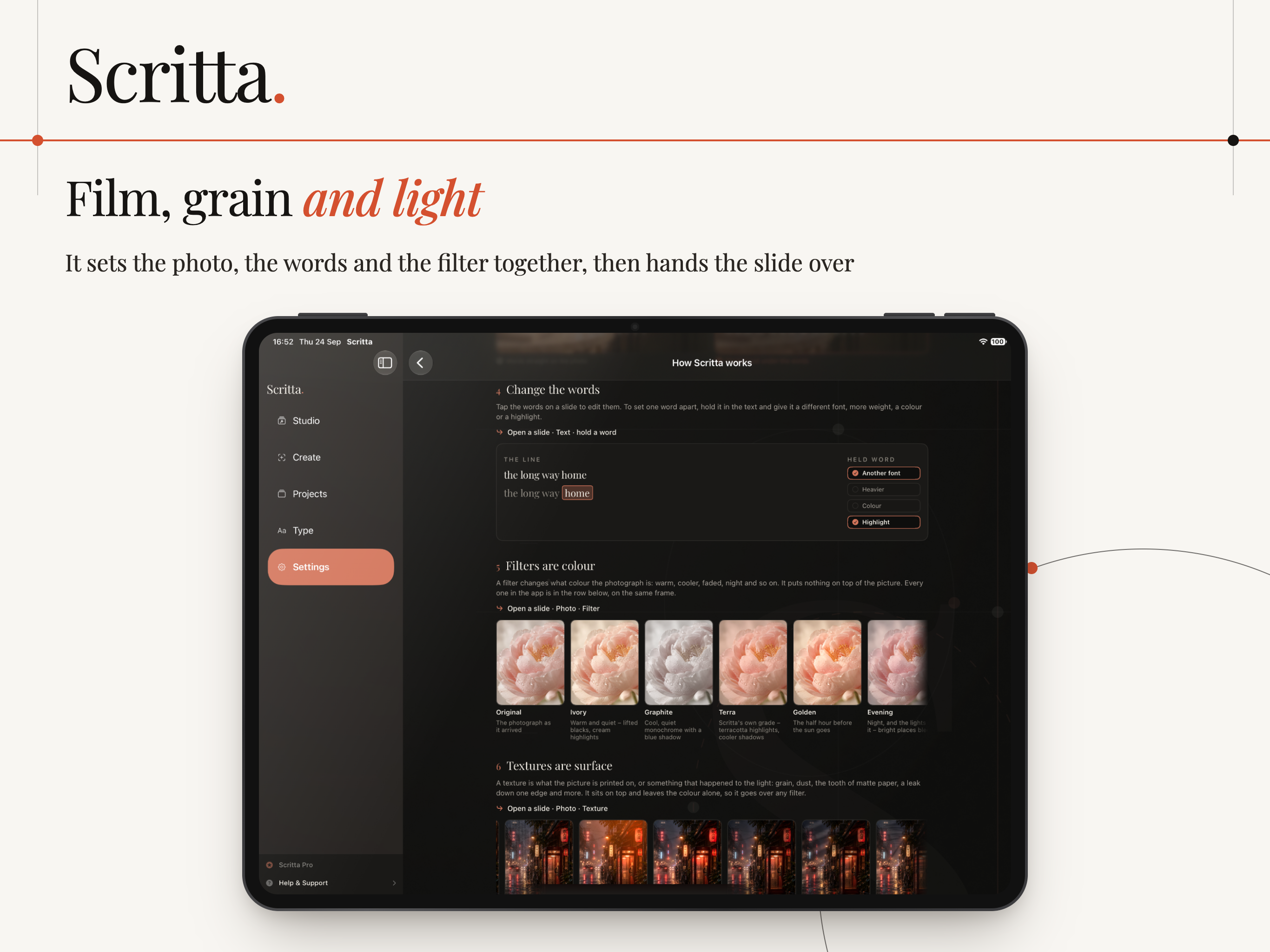
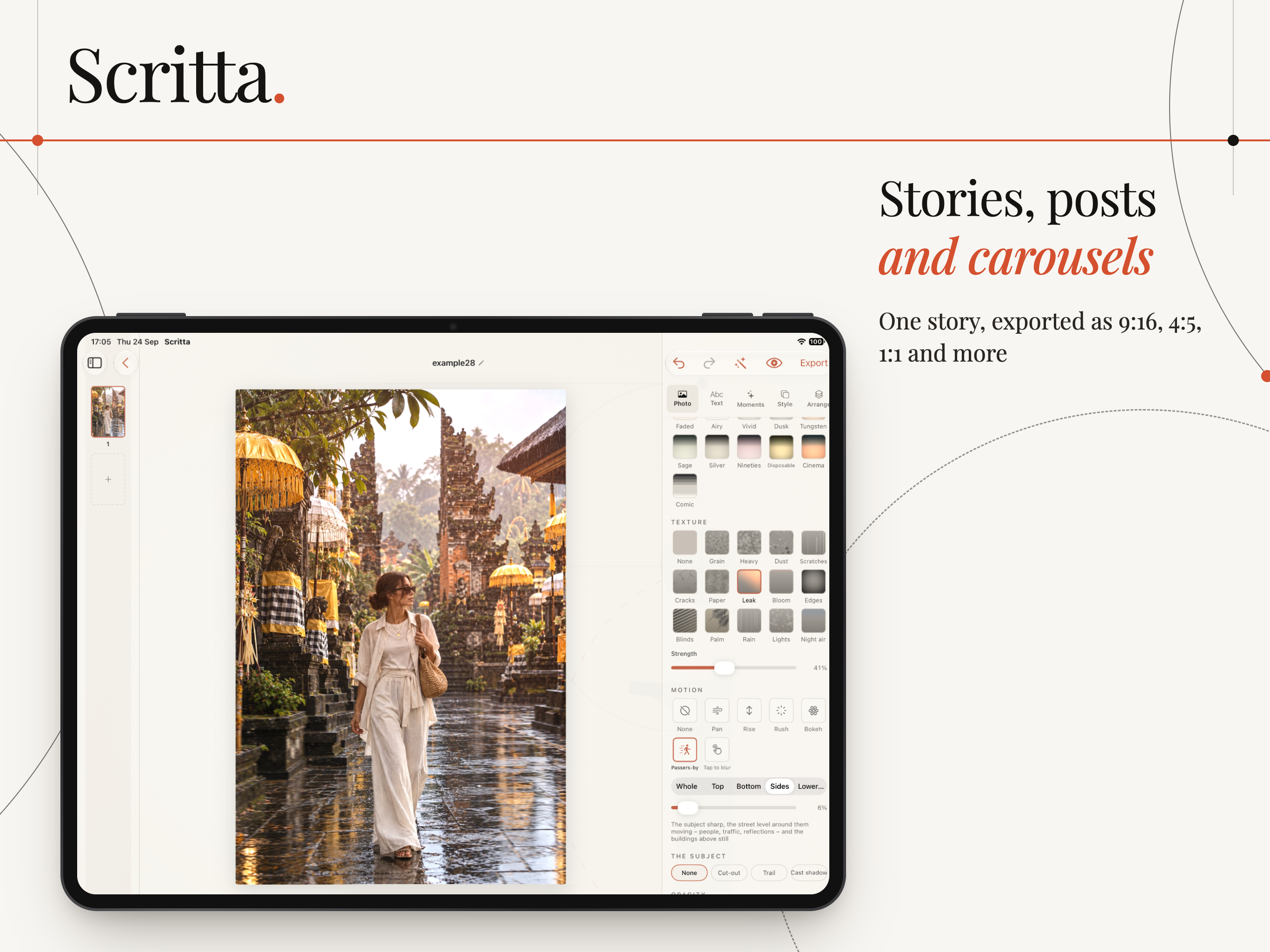
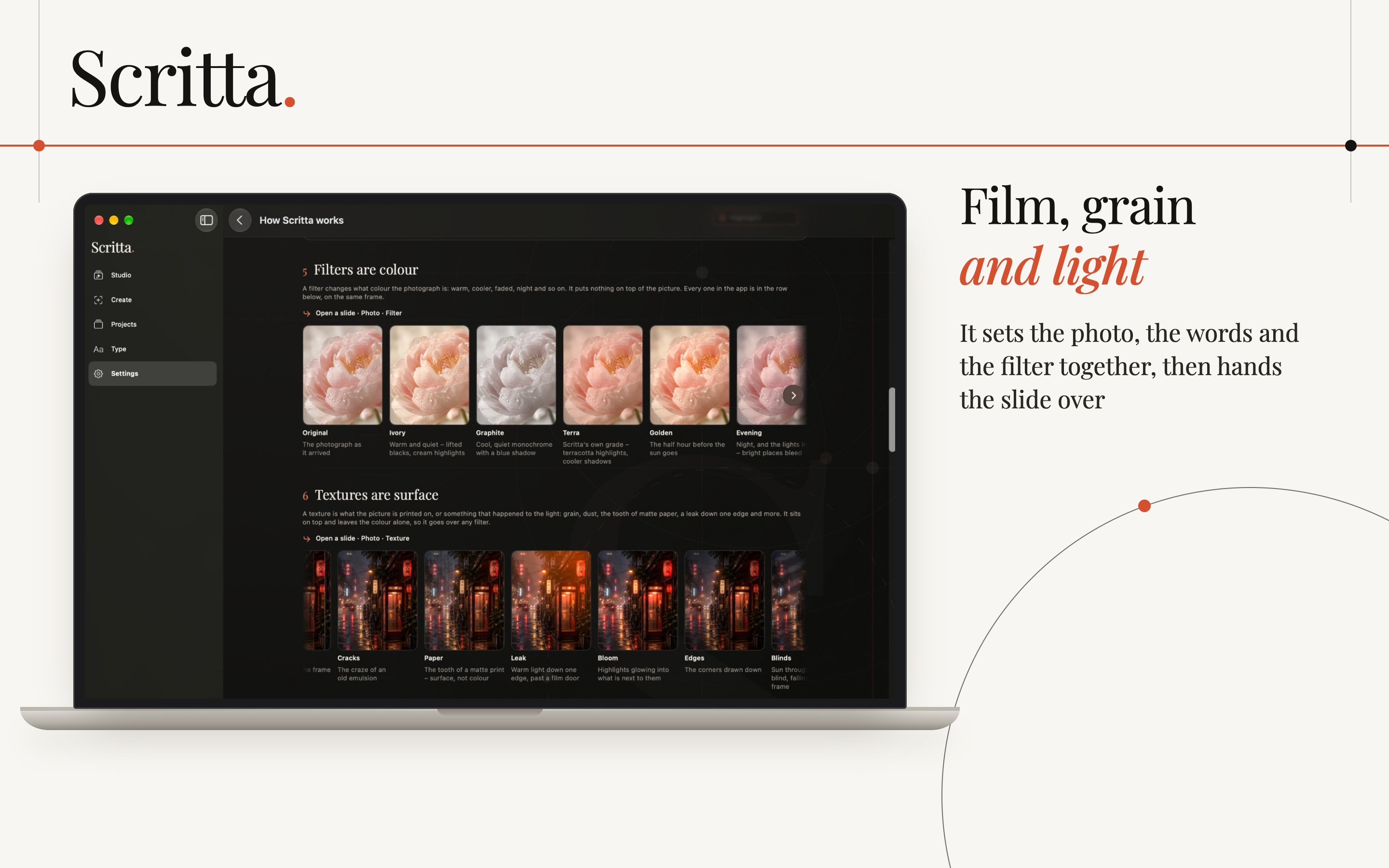
Film, grain and light

Filters change the colour; textures add surface - light leaks, bloom, paper, cracks. Make your own on the phone.

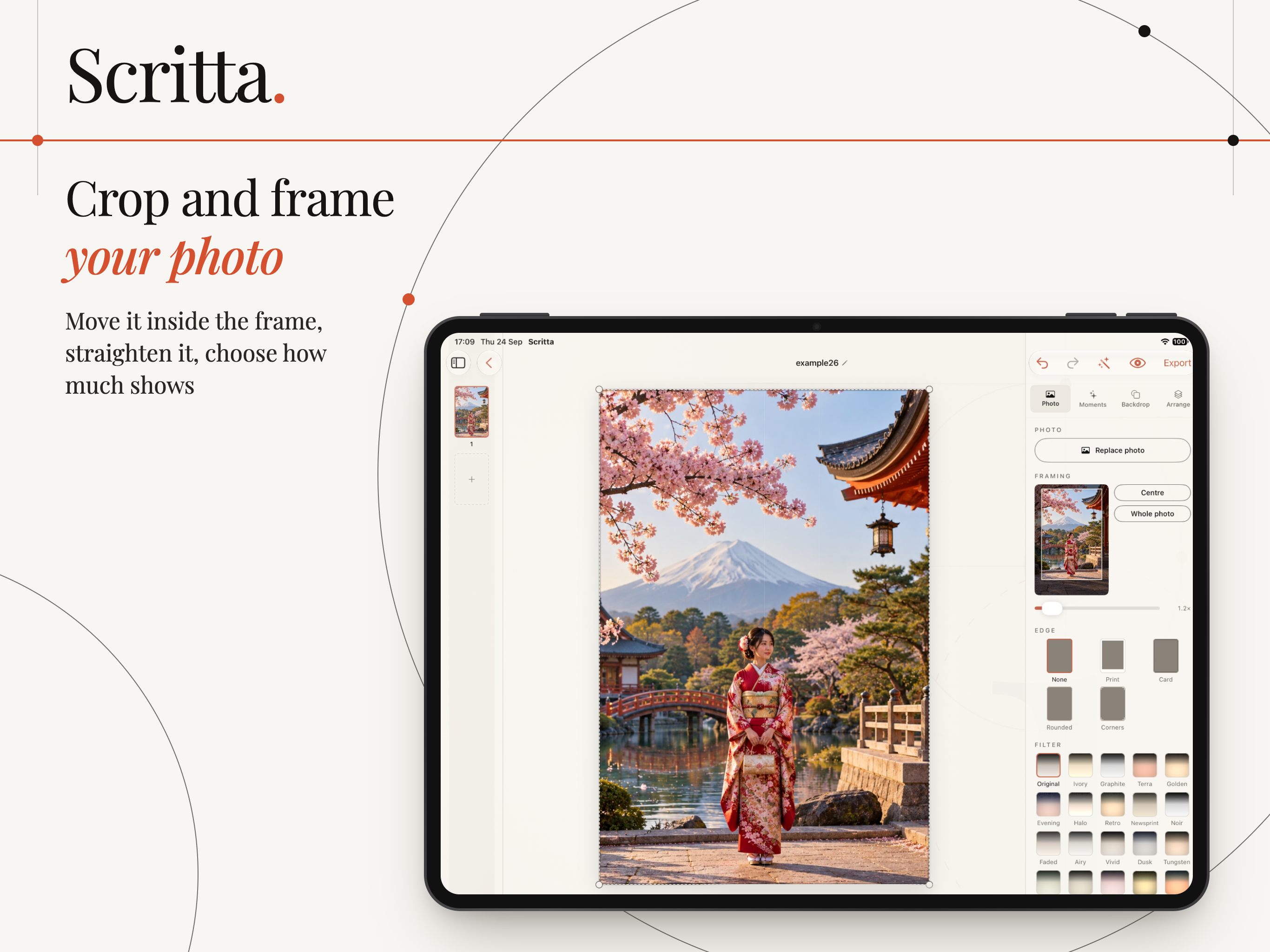
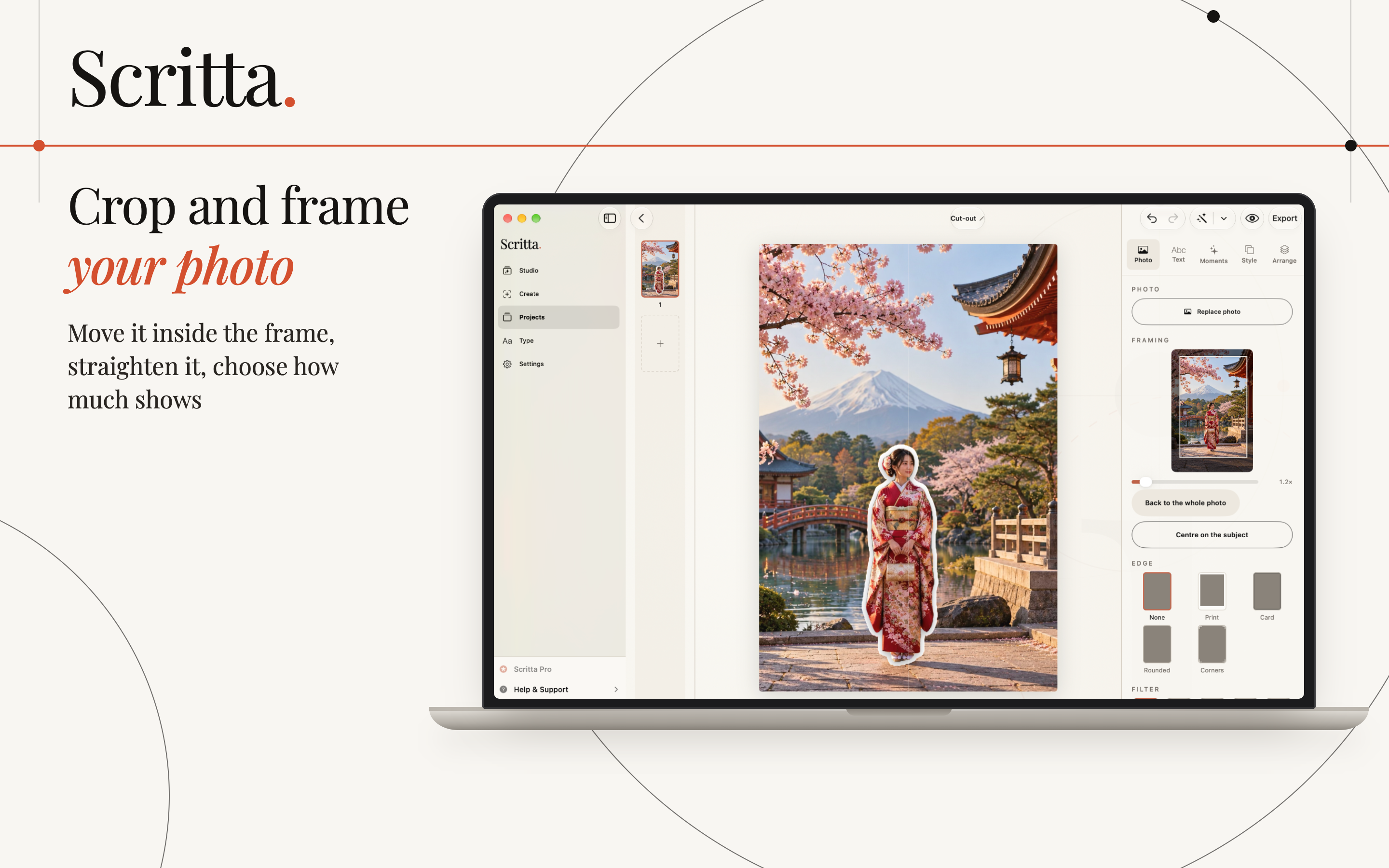
Crop, edge and frame

Move the photo inside the frame, straighten it, choose how much shows, and add an edge or a frame around it.

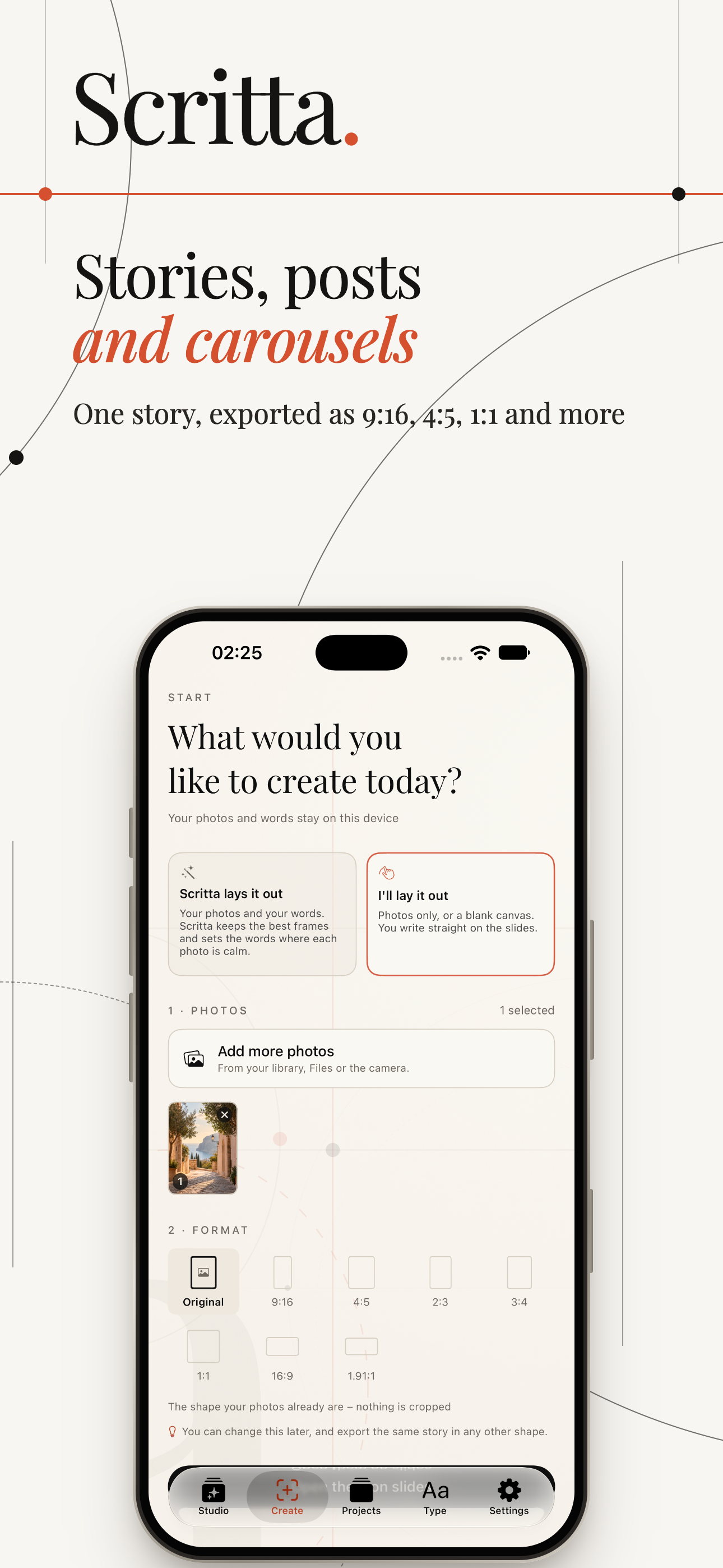
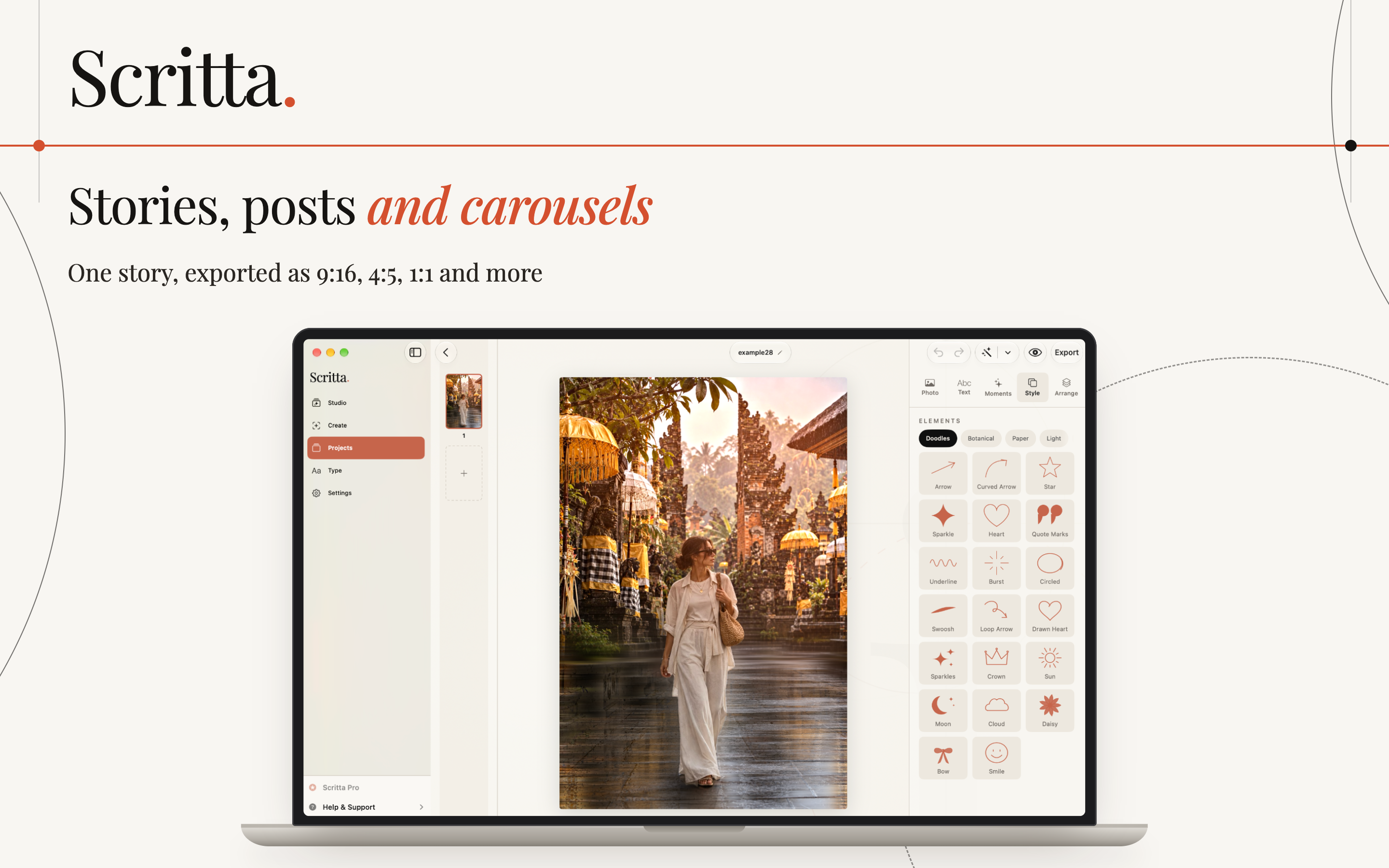
Stories, posts and carousels

When it is ready, export the same story in the shape each place wants: 9:16 for stories and reels, 4:5 for a portrait feed post, 1:1 for a square, and more.

Save it as a set of images, or as a short video with a slow camera move between the slides.

On iPhone

Where most stories start: the photos are already in your library, and the words can be dictated on the way home.

On iPad

The whole carousel down the side, the slide in the middle and every tool beside it - room to fine-tune a set of ten.

On Mac

A large screen for the photos you edited on the Mac anyway, with your stories already there through iCloud.

Private by design

Your photos and your words are yours. Scritta does not need to see them anywhere but on your device.

  • No account. No tracking. No analytics.
  • Turn on iCloud and your stories travel between your iPhone, iPad and Mac.
  • Stories you would rather keep to yourself can stay in a private drawer behind Face ID.

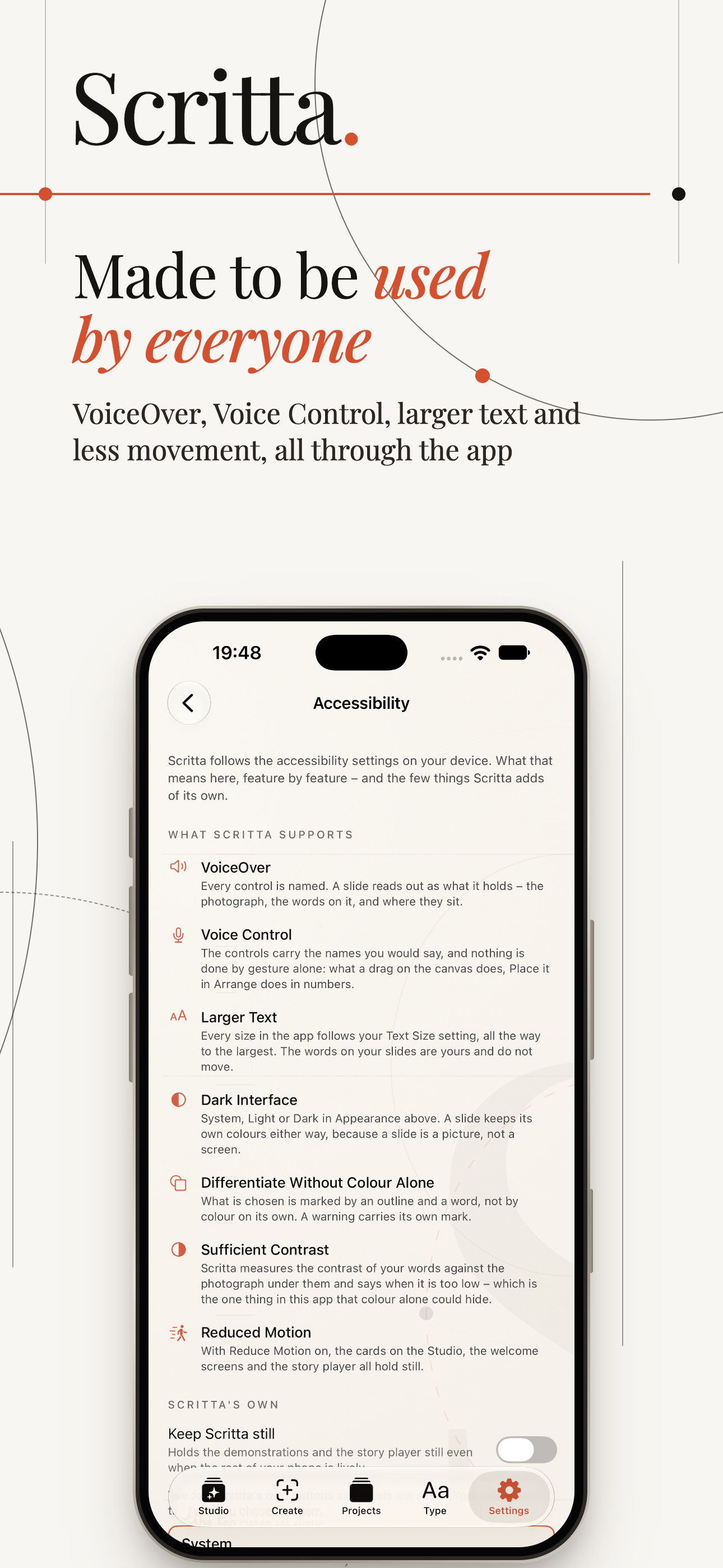
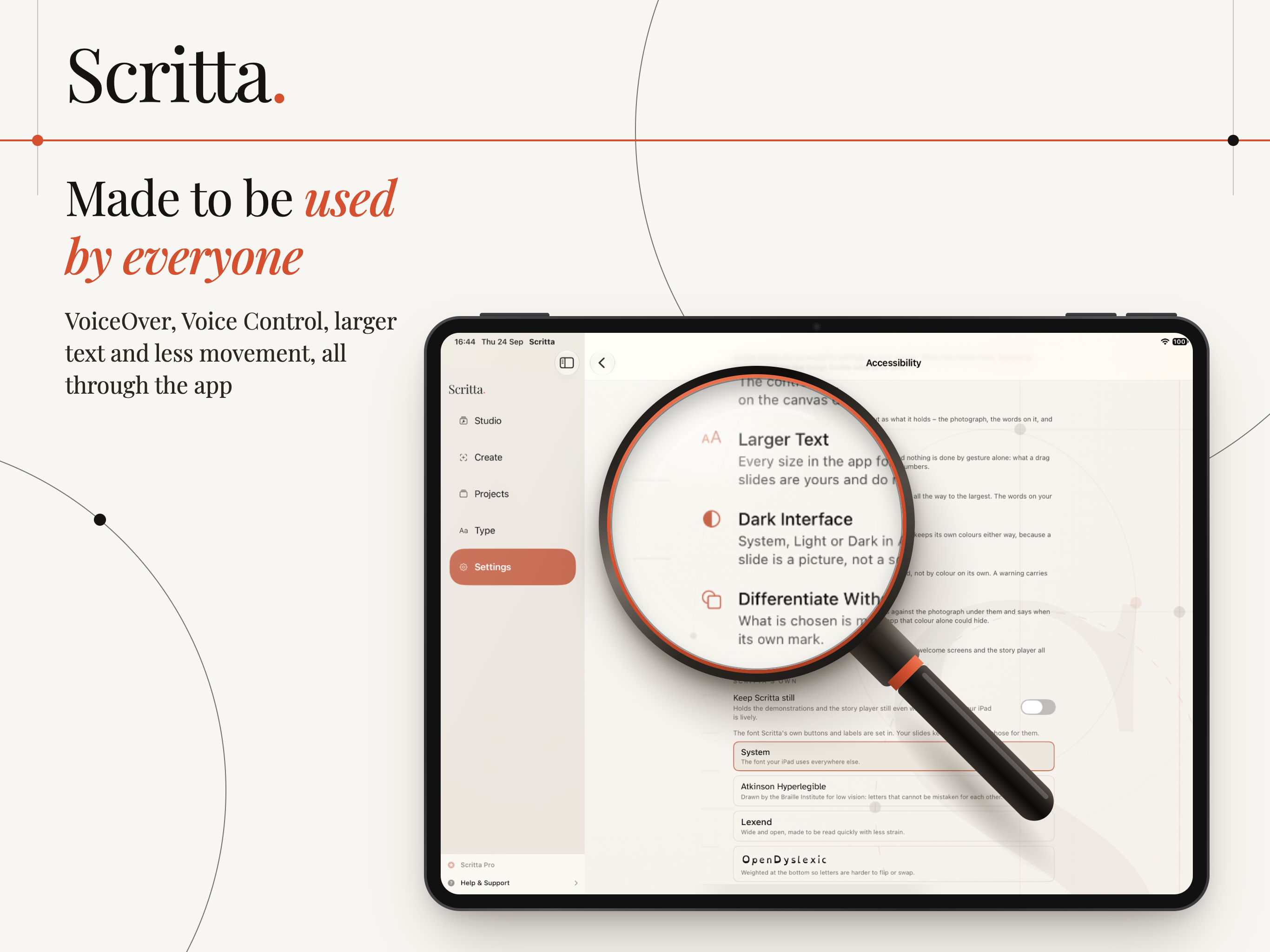
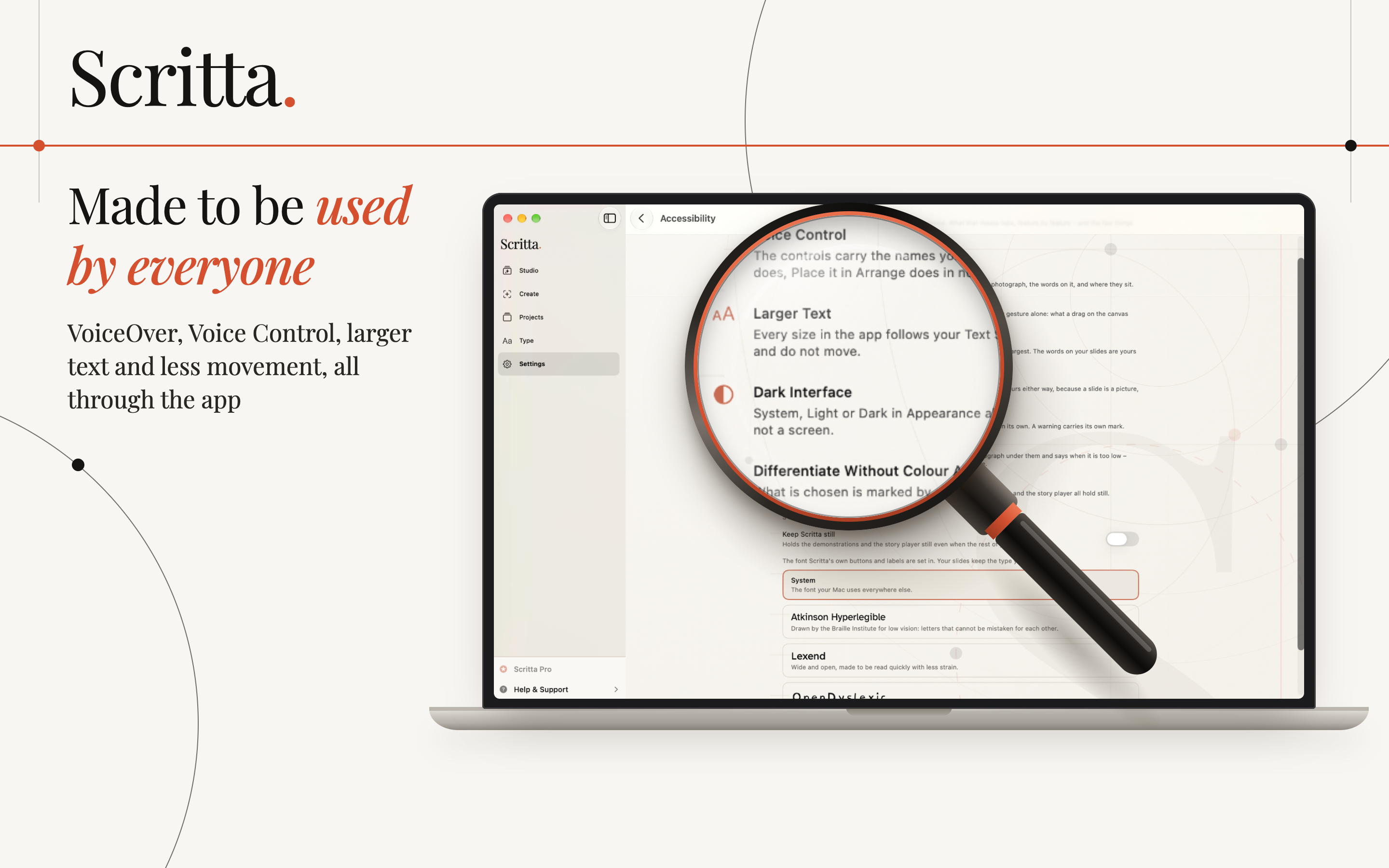
Made to be used by everyone

  • VoiceOver and Voice Control through the whole app.
  • Usable at the largest text sizes.
  • Keeps the screen still when Reduce Motion is on.
  • Nineteen interface languages, and dictation in every language your device understands.

Free to make stories

  • Write or dictate a story
  • Automatic layout on every slide
  • A selection of font pairs
  • Export as a set of images

Scritta Pro

  • Longer stories
  • Your story as a video
  • The full font library and your own fonts
  • Saved looks
  • The private drawer

Works on iPhone, iPad and Mac. One purchase covers all three.
Who it suits

Anyone with a camera roll full of good photos and a story they keep meaning to post.

Travellers

Turn a trip into one carousel with a line on each photo, without spending the last evening of the holiday on layout.

Photographers

Put words on your own pictures without covering the part you worked hardest on.

Small brands

Keep every post in the same fonts and colours with a saved look, so the feed reads as one voice.

People who write

Captions, quotes and short essays set over photographs, dictated or typed in one go.

Available On

Works on iPhone, iPad and Mac. One purchase covers all three.
iPhone

iOS 17.0 or later

iPad

iPadOS 17.0 or later

Mac

macOS 14.0 or later

Frequently asked questions

How does Scritta decide where the text goes?

It looks at each photo for the calm areas - sky, a plain wall, sand, an empty table - and sets the line there, away from faces and busy detail. Under the words it adds a small shaded patch in a tone taken from the photograph, so the text stays readable without dimming the whole picture. It is a recommendation: you can drag any line wherever you like.

Can I write the whole story at once?

Yes. Type everything in one box, or dictate it as you would tell it to a friend, and Scritta splits the phrases into slides. Dictation works in every language your device can understand.

Which sizes can I export?

9:16 for stories and reels, 4:5 for portrait feed posts, 1:1 for squares, and more. You can save the story as a set of images, or with Scritta Pro as a short video with a slow camera move between slides. See story and post sizes explained.

Does Scritta upload my photos?

No. There is no account, no tracking and no analytics. If you turn on iCloud, your stories sync between your own iPhone, iPad and Mac through your iCloud account. Stories you want to keep to yourself can stay in a private drawer behind Face ID.

What is free, and what does Scritta Pro add?

Scritta is free to make stories with. Scritta Pro adds longer stories, video export, the full font library and your own fonts, saved looks and the private drawer.

Which devices does it run on?

iPhone and iPad on iOS 17 or later, and Mac on macOS 14 or later. One purchase covers all three.