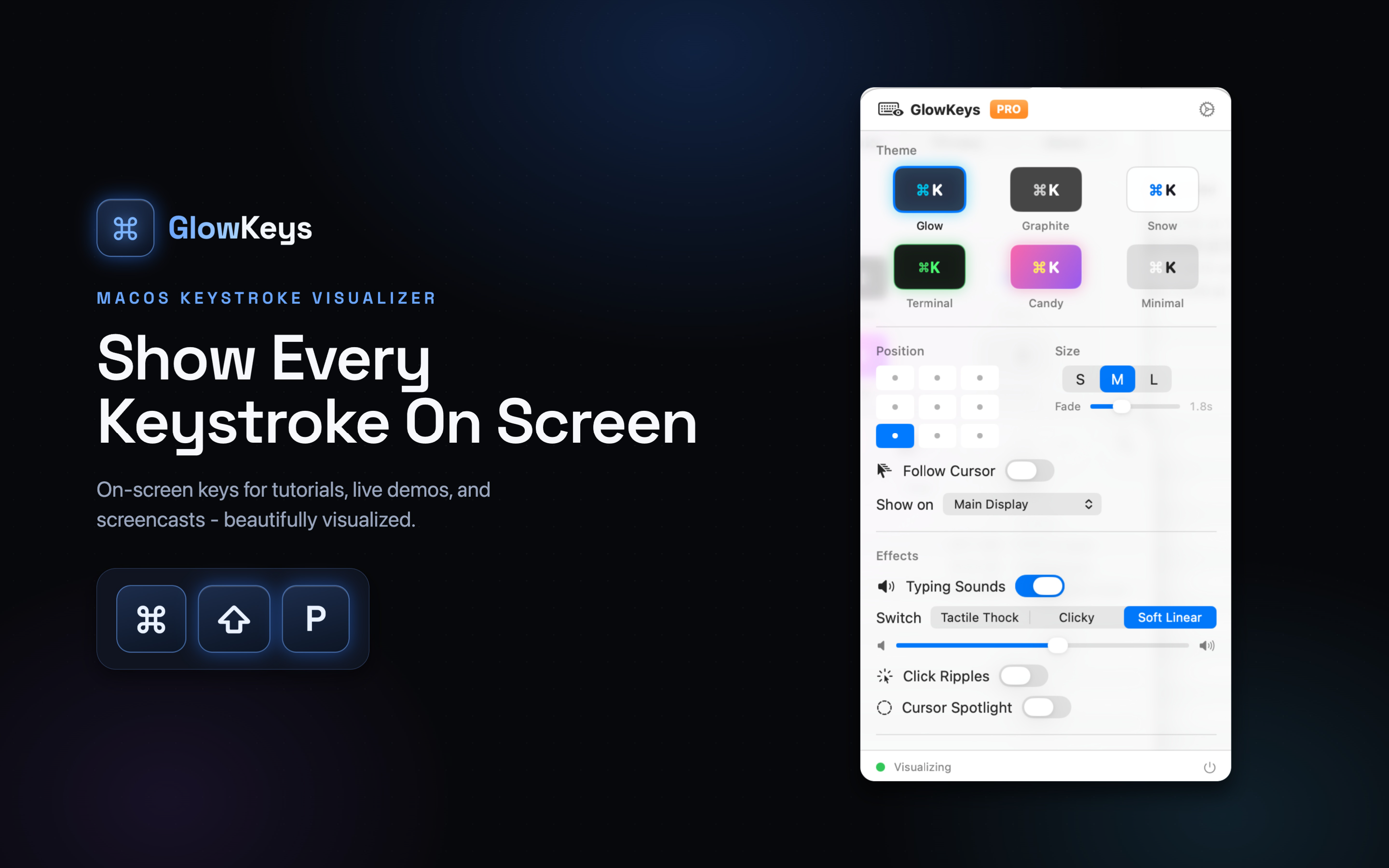
Show every key you press right on screen - so viewers can follow the shortcut instead of guessing what just happened.
Built for screencasts, tutorials, live streams, and classrooms. Six themes, typing sounds, click ripples, and a shortcuts-only mode that stays out of the way. Everything runs on-device - nothing you type ever leaves your Mac.
macOSSix themesTyping soundsOn-device
6
Overlay themes built in
2
Modes: all keys or shortcuts
Menu bar
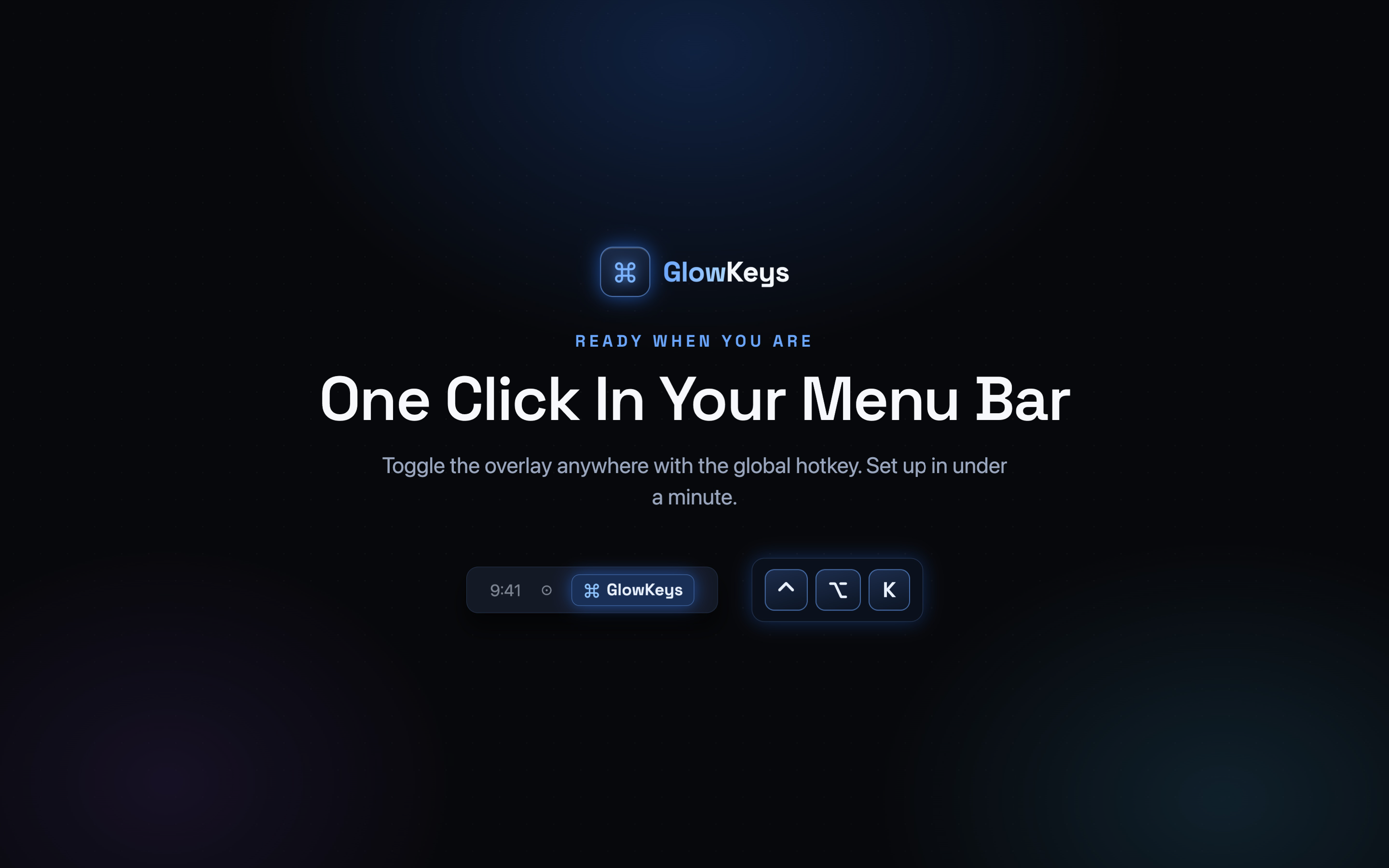
Toggle without leaving your app
On-device
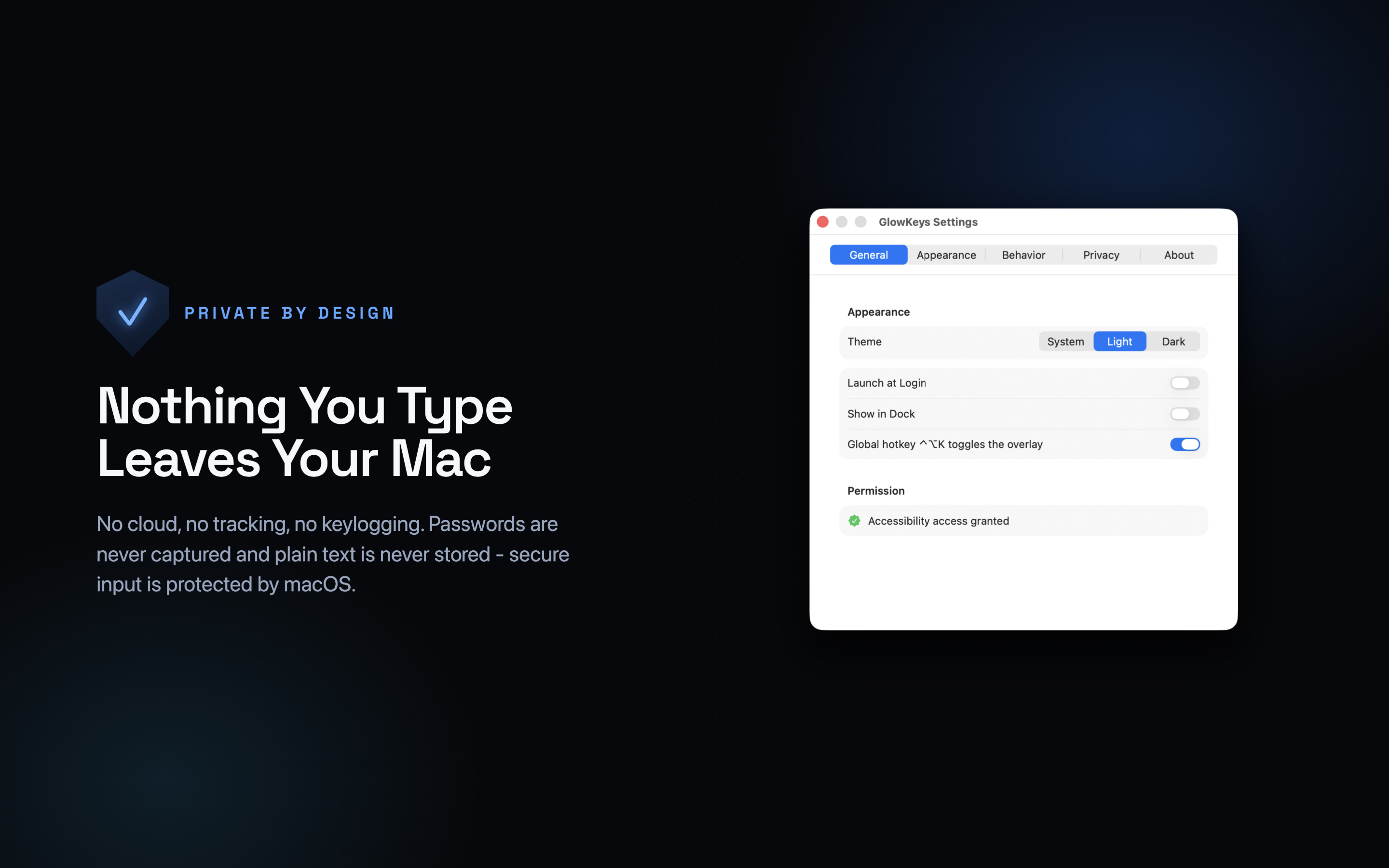
No logging, no cloud
Everything a Screencast Needs
Your audience sees the shortcut the moment you press it - no narration, no rewinding, no "wait, what did you just do?"
Show Every Keystroke
Every key you press appears as a clean, readable overlay - modifiers, letters, arrows, and function keys included.
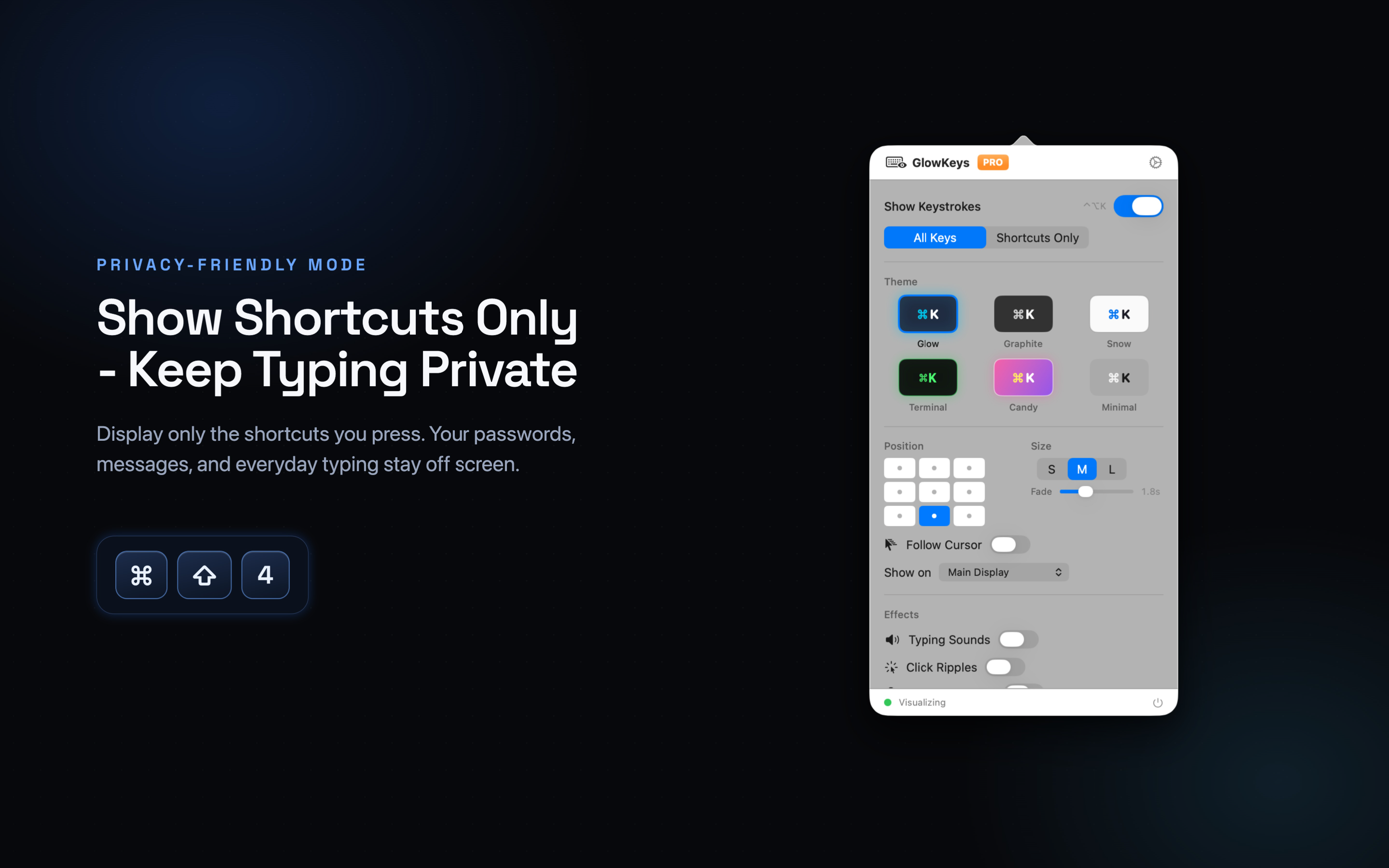
Shortcuts-Only Mode
Hide ordinary typing and surface just the shortcuts, so the overlay never gets in the way while you write.
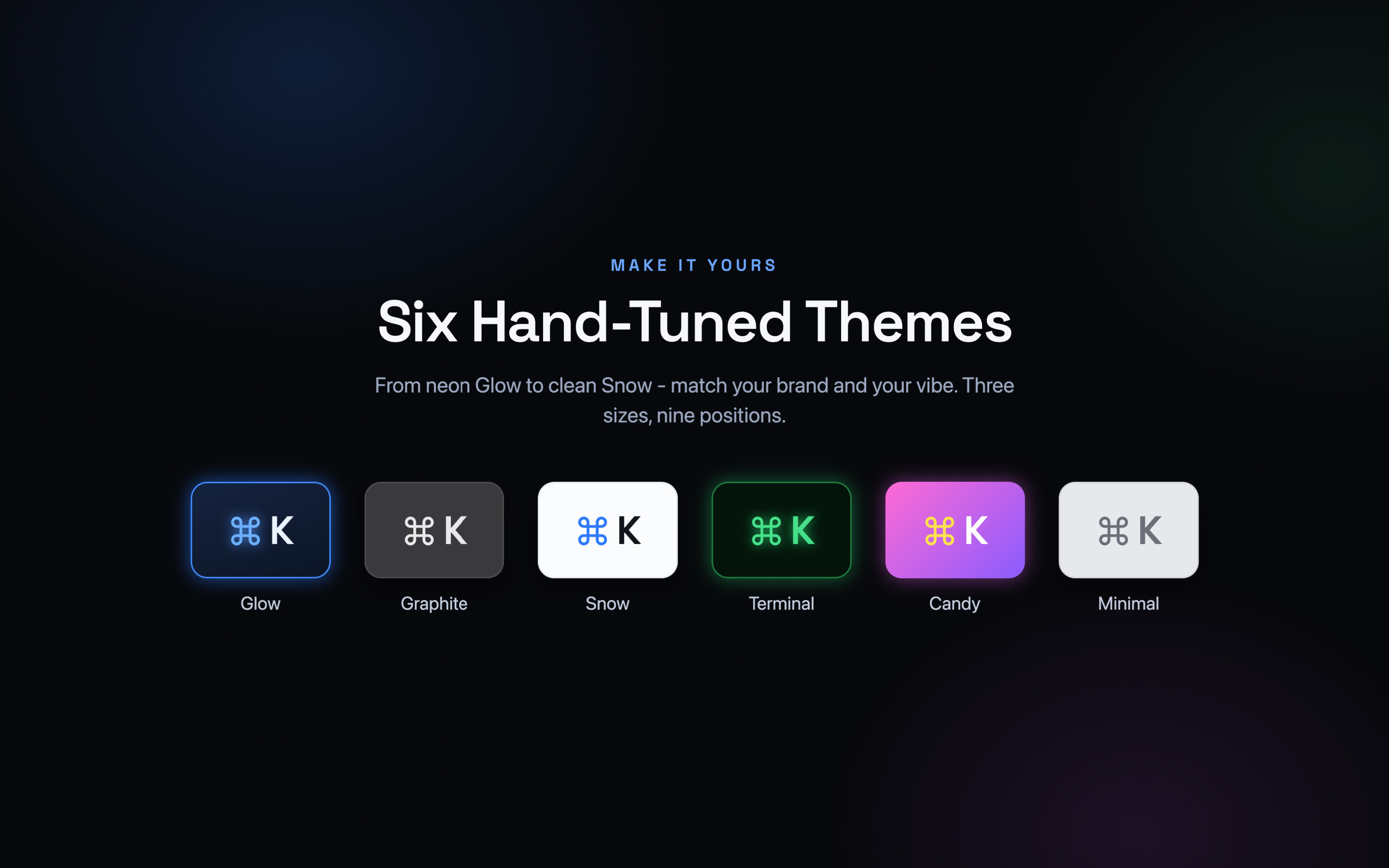
Six Overlay Themes
Pick a look that matches your recording - from bold neon to a subtle, minimal style that blends into any UI.
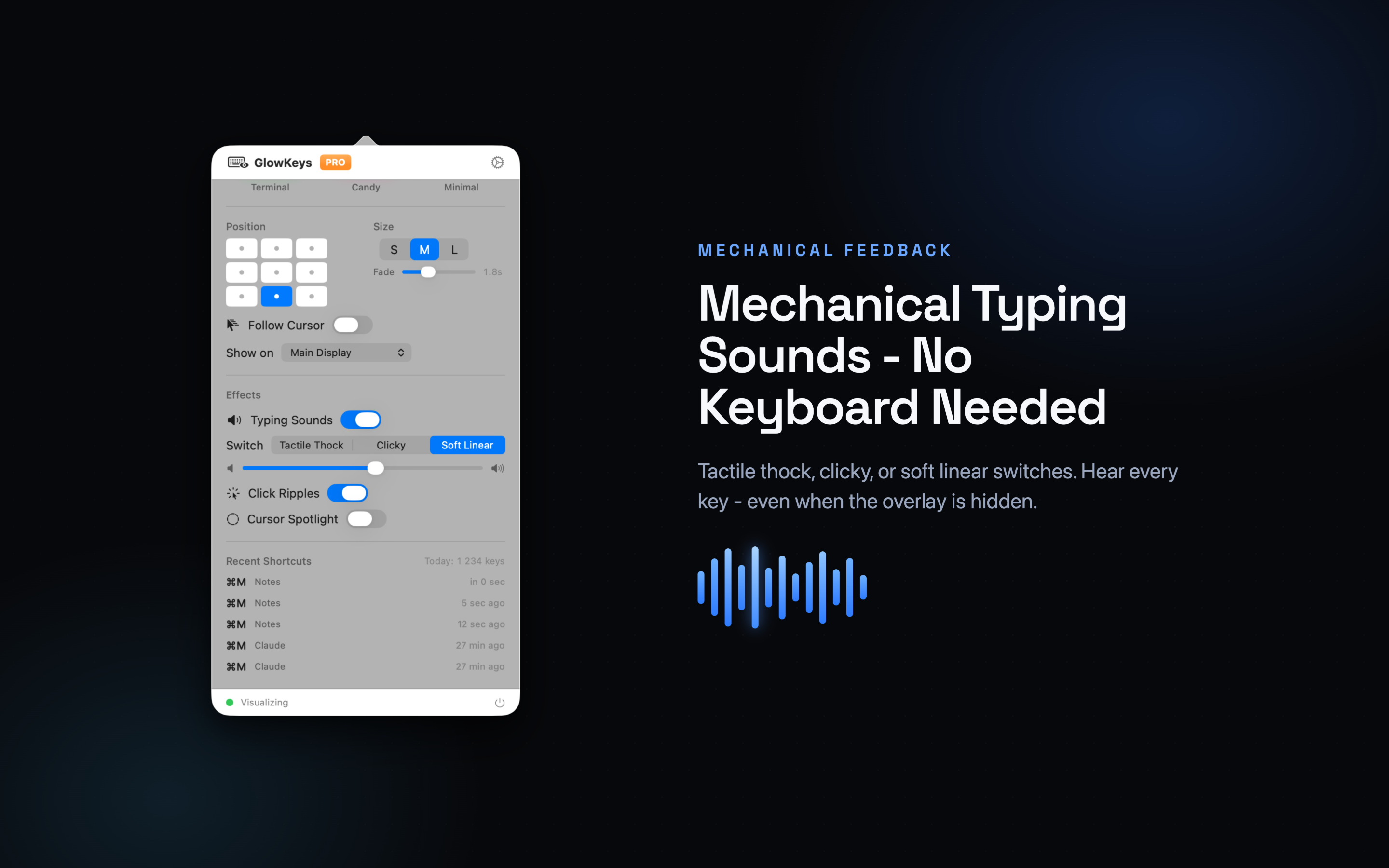
Typing Sounds
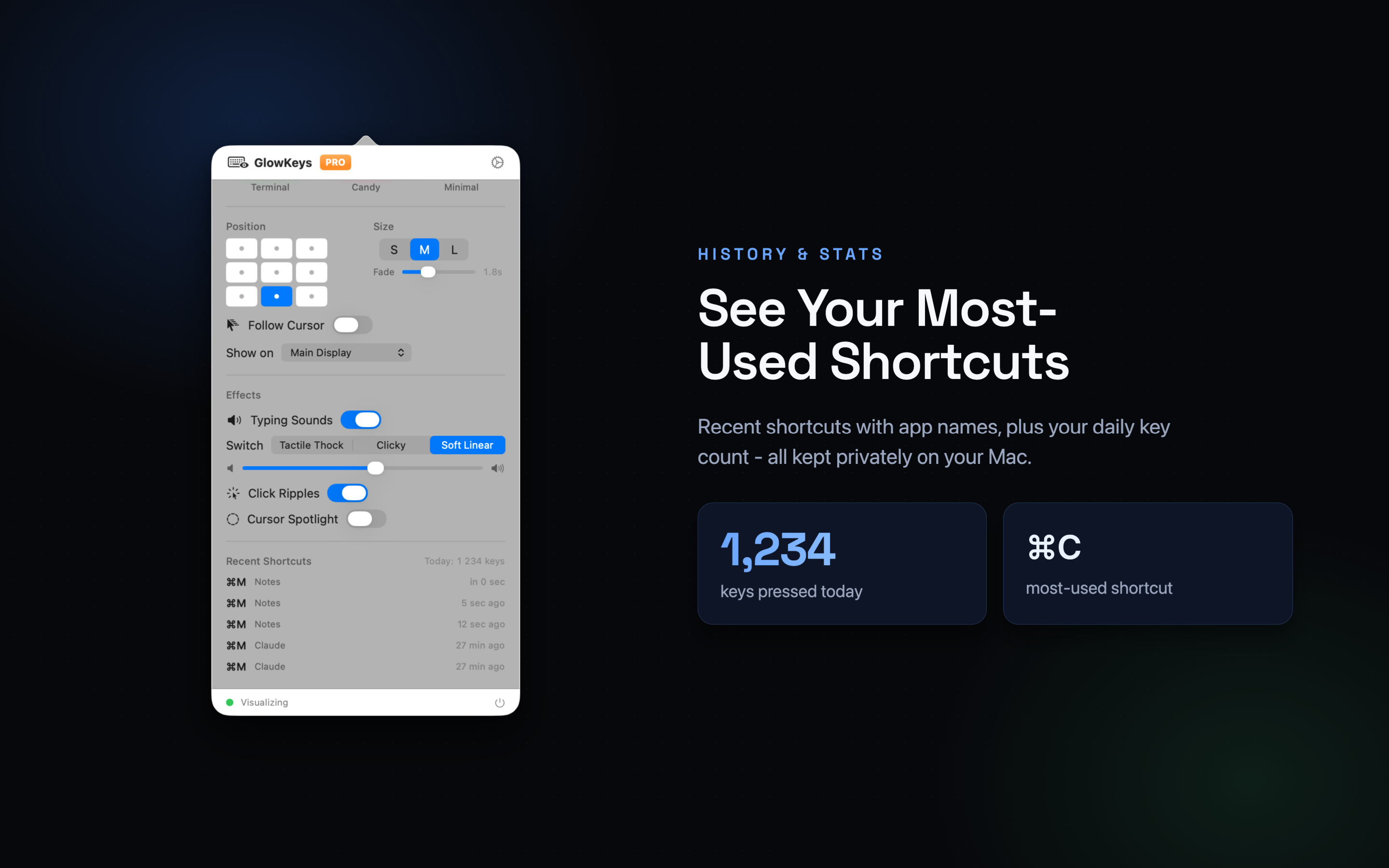
Optional mechanical key sounds add tactile feedback to silent screen recordings and live demos.
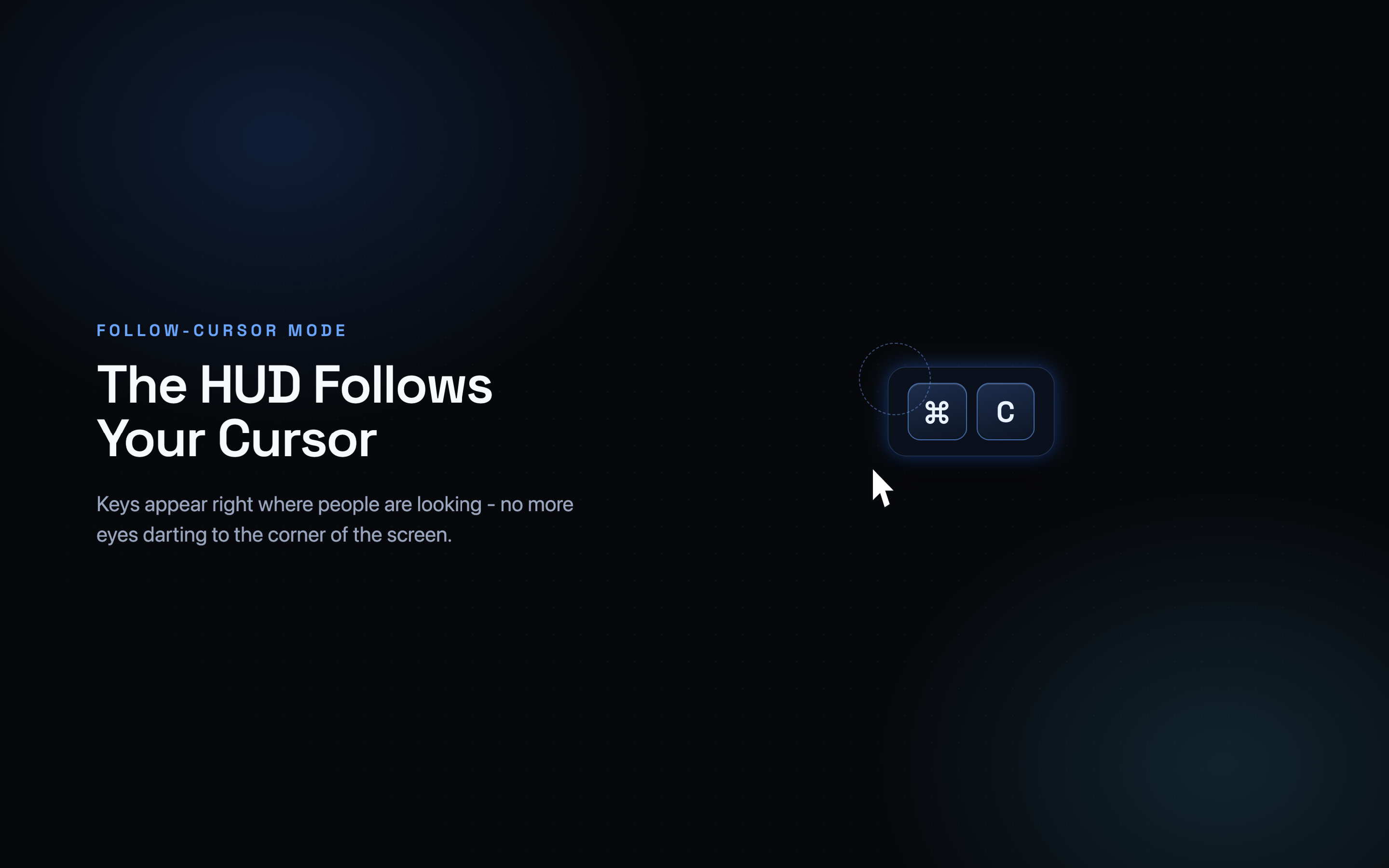
Follow the Cursor
Anchor the overlay to your pointer so it stays where the action is, instead of parked in a fixed corner.
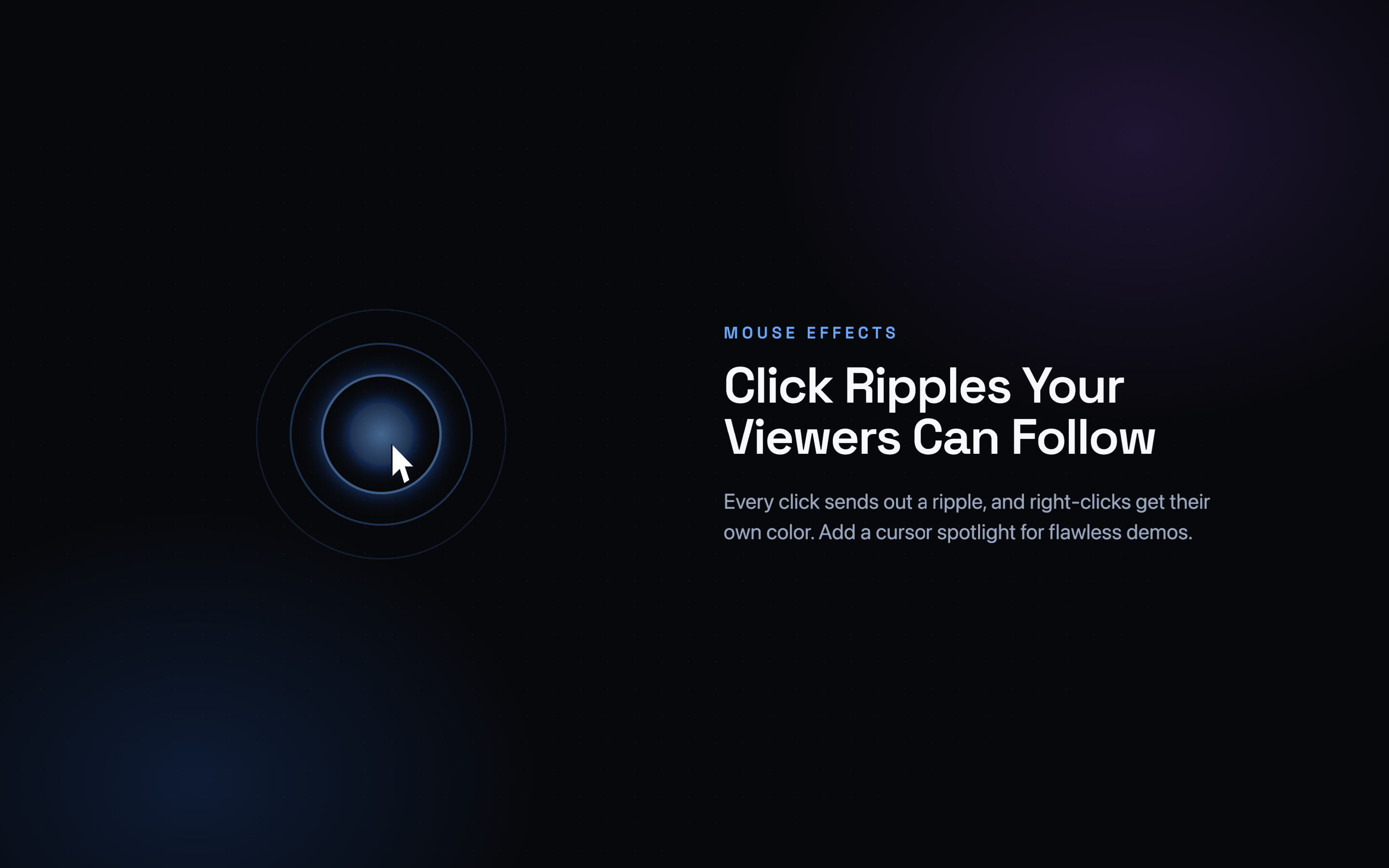
Click Ripples
Mouse clicks get a visible ripple, so viewers can tell a click from a keypress at a glance.
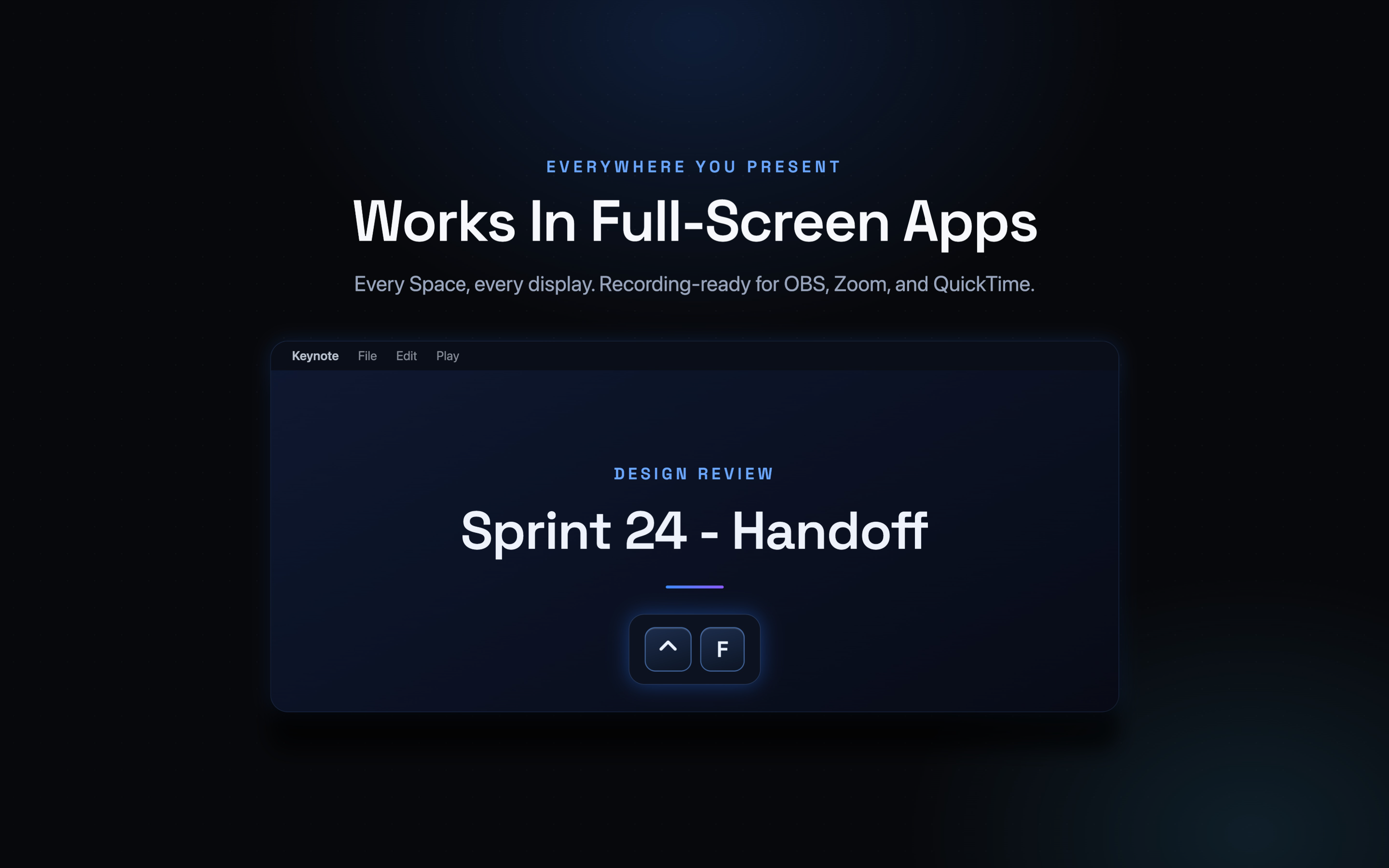
Works Fullscreen
The overlay floats above fullscreen apps and Spaces - Keynote, Xcode, Final Cut, anything you present in.
Typing Stats
See your keystroke counts and most-used shortcuts, handy for tuning a workflow or a lesson plan.
Menu Bar Control
Start, stop, and switch modes from the menu bar without breaking your recording or your train of thought.
Built for People Who Teach on Screen
If your audience needs to reproduce what you just did, they need to see the keys.
Course & Tutorial Creators
Record once and skip the "press Command-Shift-4" narration - the overlay says it for you, in every clip.
Streamers & Presenters
Live viewers follow along in real time, and chat stops asking which shortcut you used.
Teachers & Support Teams
Demo a workflow to a class or a colleague and let them copy the keys straight off the screen.
Tools at Your Fingertips
A focused feature set that makes your keyboard visible.
Keystroke OverlayShortcuts-Only ModeSix ThemesTyping SoundsFollow CursorClick RipplesFullscreen SupportTyping StatsMenu Bar Control
Mac Screens
A readable overlay that sits above whatever you are demonstrating, styled to match your recording.
Built for Mac
A native macOS overlay that stays smooth while you record, present, or stream.
Mac
macOS 13.0 or later
Perfect For
Course creators recording macOS tutorials where every shortcut has to be reproducible.
Streamers and presenters whose audience follows along live.
Teachers demonstrating software to a class or a lab.
Support teams recording a fix once and sending it to everyone who asks.
Developers showing off an editor workflow at a meetup or in a conference talk.
What Makes It Different
Shortcuts-only mode: show the commands that matter and hide the typing that does not.
Follows your cursor: the overlay goes where the action is, not to a fixed corner.
Click ripples: viewers can tell a click apart from a keypress instantly.
Fullscreen ready: floats above fullscreen apps and Spaces without breaking your recording.
100% on-device: keystrokes are drawn, never stored, never uploaded.
Let Your Audience See Every Shortcut
Download GlowKeys: Keystroke Visualizer and make your next screencast follow-along easy.