How do family members add items?
Each person installs the companion iPhone app and joins the same family room with a short code shown on Apple TV. From the iPhone they can post notes, tasks, and shopping items, which appear on the TV in seconds.
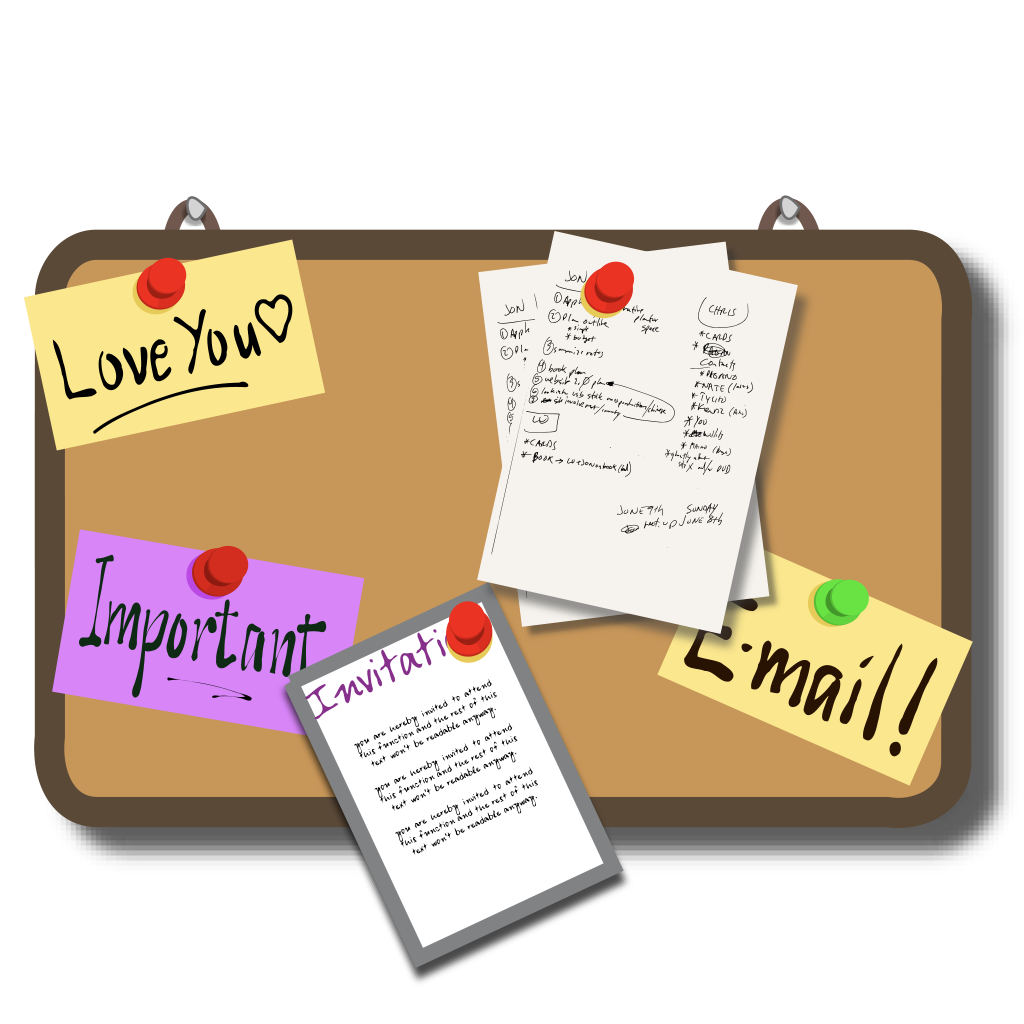
Turn your Apple TV into a kitchen-style family bulletin board. Add notes, tasks, and shopping lists from any iPhone in the house and watch them appear on the big screen.
Each person installs the companion iPhone app and joins the same family room with a short code shown on Apple TV. From the iPhone they can post notes, tasks, and shopping items, which appear on the TV in seconds.
Items sync via end-to-end encrypted iCloud containers tied to your shared family room code. Only members who have the code can read or post.
Yes. When posting a task you can pick a name from the family list, and the TV view shows whose turn it is. Marking a task done from any device updates the board for everyone.
Family Board is its own short-form board for shared household items, designed for at-a-glance use on a TV. It does not replace Apple Reminders for personal lists, but you can mirror specific Reminders lists into the board.
You can leave it running, but most families launch the app in the morning or set it as the screensaver during meal times. The board re-syncs whenever you reopen it.
Shared notes, tasks, and reminders bulletin board for Apple TV. Sync from any iPhone in the house.
Create a shared room and add your first family members.
Our support team usually replies within one business day.
Download Family Board: Notes & Tasks Contact supportYou’re browsing inside Instagram, and its built-in browser isn’t allowed to hand links over to the App Store. Open this page in Safari and the link will work.
Tap the three-dot menu at the top right, then choose Open in external browser.