The storage screen on an iPhone is one of the more misleading interfaces Apple ships. It updates late, it counts things you have deleted, and the largest category on most phones is labelled in a way that suggests it is not your fault. Working through it in the right order takes about ten minutes and usually returns rather more space than people expect.
One: Recently Deleted
Photos you delete are not deleted. They move to an album called Recently Deleted and stay there for thirty days, occupying exactly as much space as before. This is the single most common reason storage does not move, and it is by far the easiest to fix.
Photos → Albums → scroll to the bottom → Recently Deleted → Select → Delete All. On recent iOS versions the album is locked behind Face ID, which is sensible and also means people forget it exists.
Do this before anything else. Otherwise you spend an afternoon on the harder steps below while a few gigabytes sit in a folder you forgot to empty.
Two: iCloud Photos is doing what you asked
If iCloud Photos is on with Optimise iPhone Storage, deleting from the phone deletes from iCloud too - the library is synced, not backed up. That is intended behaviour and worth being certain about before a large clear-out, because there is no local copy waiting to save you.
The subtler effect: with optimisation on, your phone holds smaller versions of most photos and full-resolution copies only of the ones you have opened recently. So a library that reads as 60 GB in iCloud may occupy 12 GB on the device. Deleting a hundred old photos you have not looked at in a year frees the space of a hundred thumbnails, which is close to nothing.
Which explains the specific frustration of deleting a lot and gaining a little. You were deleting the cheap copies. The expensive ones are the recent photos you actually want to keep.
Three: the storage screen lags
iOS recalculates storage on its own schedule, and the figure can be a day out of date. If you have emptied Recently Deleted and the number has not moved, give it an hour, or restart the phone - a restart forces a recount and is the closest thing to a refresh button.
The "System Data" category is the same story from a different angle. It absorbs caches, logs and temporary files, it can be surprisingly large, and it is not directly manageable. It shrinks on its own when the system needs room. It is not a place to go looking for wins.
Where the space actually is
Once the three mechanisms above are dealt with, you are looking at a real library, and the honest answer for most people is duplicates and near-duplicates.
Not exact copies - those are relatively rare. What fills a phone is the burst of eleven shots of the same view, the four attempts at a group photo where someone blinked, the screenshot taken twice. Each is a full-size image. None of them is a duplicate in the strict sense, so nothing on the phone will ever suggest removing them.
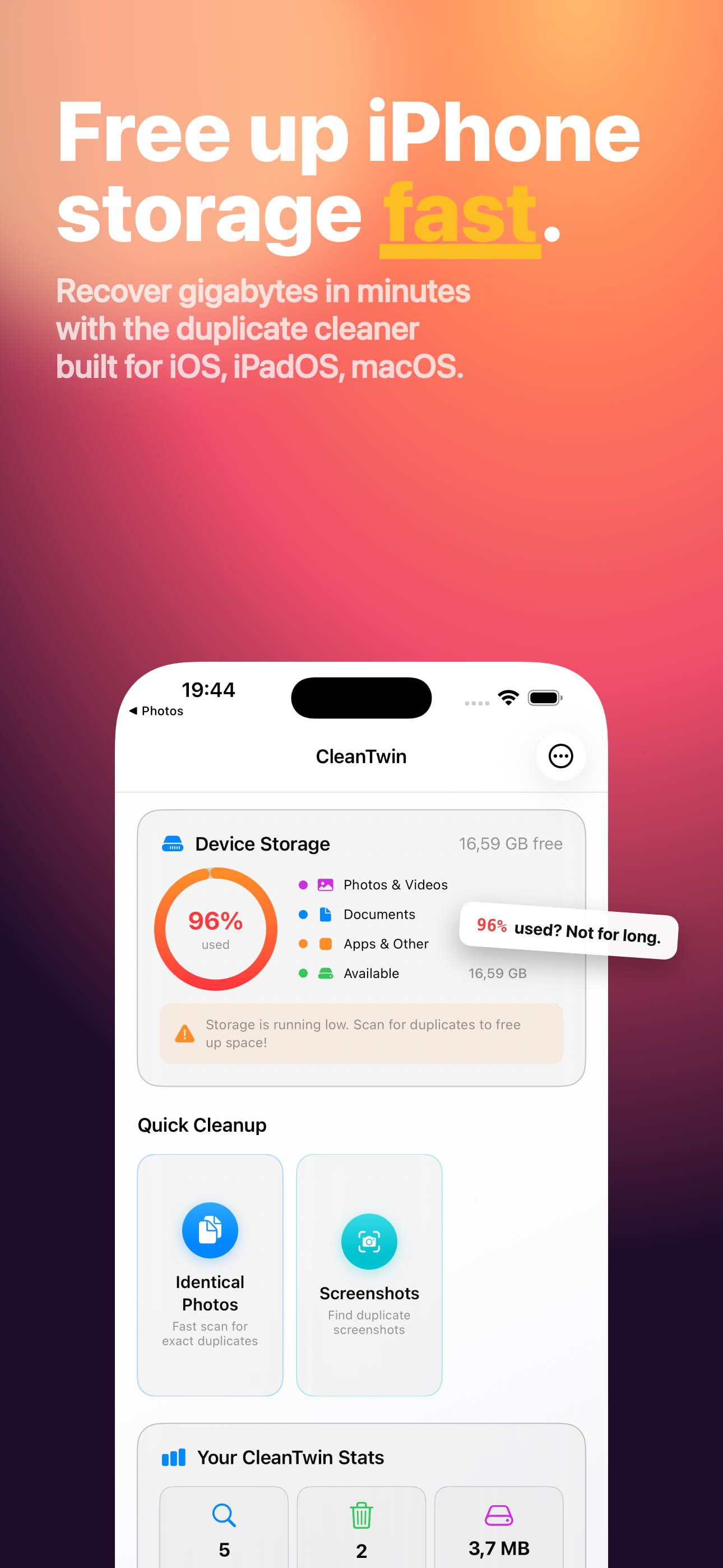
This is the gap CleanTwin works in: grouping photos that are visually similar rather than byte-identical, showing them side by side, and letting you keep the good one. On a library that has been accumulating for a few years it is routinely the largest single recovery available.
Doing it without regret
The reason people put this off is the fear of deleting something they wanted. Two habits remove that.
Compare before choosing. Out of eleven near-identical shots, one is sharper or better framed. Picking the first one by default is how you end up keeping the blurred version.
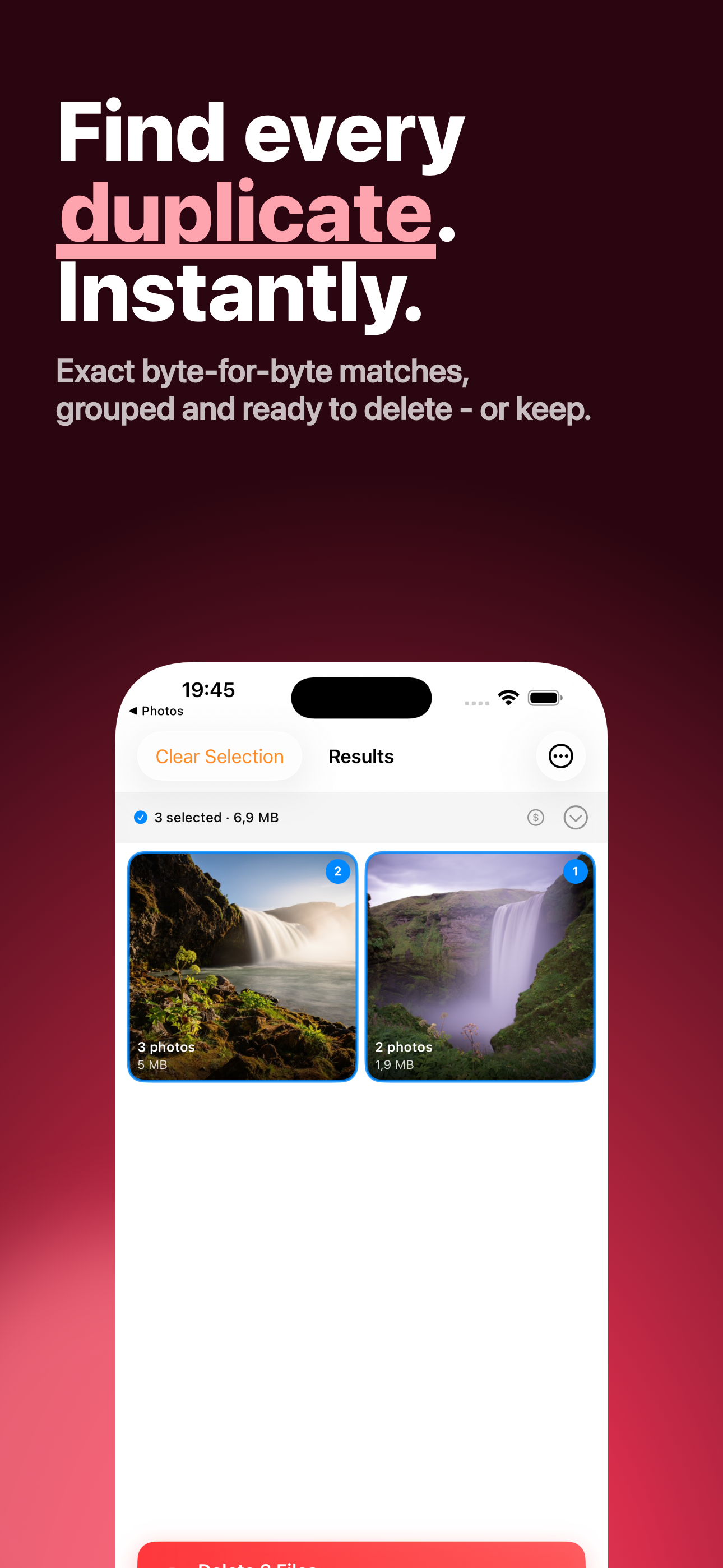
Work in passes. Do bursts and screenshots first - they are the easiest calls and often the bulk of the volume. Leave anything with people in it for a second pass when you are paying more attention.
And remember the thirty-day window works in your favour here too. Anything you remove sits in Recently Deleted until you empty it, so a mistake made this afternoon is recoverable for a month.
The other categories, briefly
If photos genuinely are not the problem, the usual runners-up:
- Downloaded video. Netflix, YouTube and podcast apps hold on to downloads indefinitely. A few episodes is several gigabytes.
- Messages with attachments. Years of photos and videos sent in group chats. Settings → General → iPhone Storage → Messages shows the largest, and there is an option to auto-delete after a year.
- Offloaded vs deleted apps. Offloading removes the app and keeps its data, which is often the larger half. If an app is genuinely finished with, delete it properly.
The ten-minute version
- Empty Recently Deleted. Check the number afterwards.
- Restart the phone so the figure is current.
- Clear video downloads and old Messages attachments.
- Then, and only then, go through duplicates and near-duplicates properly.
Done in that order, each step's result is visible before you start the next one - which is the difference between knowing what worked and deleting things hopefully for an hour.