"Your startup disk is almost full." macOS shows this when the boot volume drops below roughly ten percent free, and by the time you see it, some things have already started misbehaving quietly. Xcode refuses to build. Photos stops syncing. Time Machine skips a backup and does not make a fuss about it.
The instinct is to open Downloads and start deleting. Sometimes that works. More often you free four gigabytes, feel better for a day, and get the warning again on Thursday, because the actual problem was somewhere you never looked.
First: what macOS counts as full
Two numbers matter and they rarely agree. Finder shows available space including what it calls purgeable - old snapshots, cached files, iCloud content that can be re-downloaded. The system counts on being able to reclaim that when it needs to. So the number in "About This Mac" is optimistic, and the number an app sees when it tries to write a large file is the honest one.
That gap explains a common confusion: you delete twenty gigabytes and free space does not move. macOS quietly used the room to keep snapshots it had been holding back. Nothing is broken. You just paid off a debt rather than gaining anything.
Look before you delete
Storage settings in System Settings gives you the category view - Applications, Documents, Photos, "Other". It is enough to tell you that Documents is 180 GB and not remotely enough to tell you why. Documents is not one thing; it is a decade of downloads, an old virtual machine, three project folders and a video someone sent you in 2019.
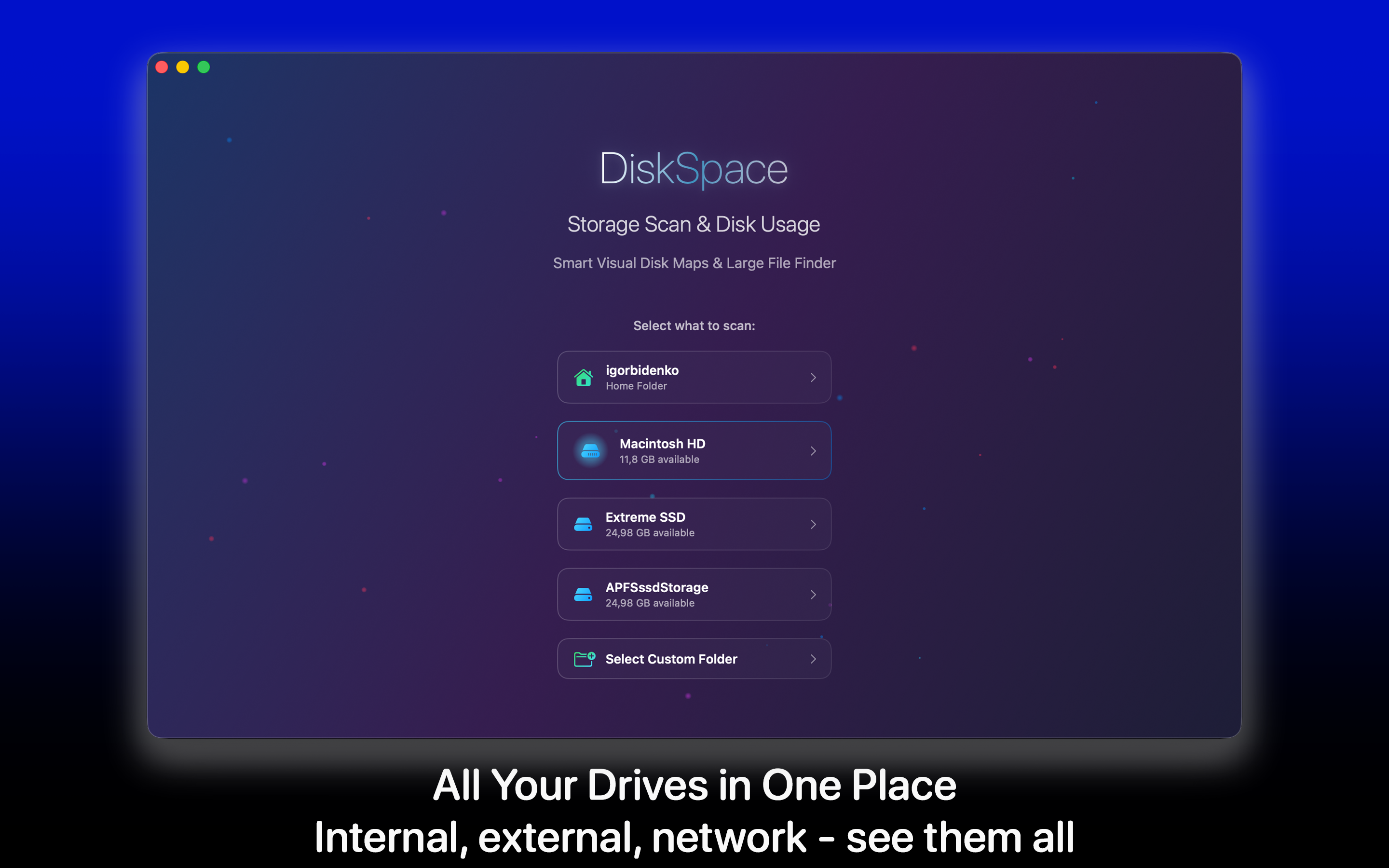
What you want is the same drive sorted by size, folder by folder, so the large things surface on their own. That is the entire job of a storage analyzer: DiskSpace scans the volume and lays it out largest-first, so you stop guessing within about thirty seconds of opening it.
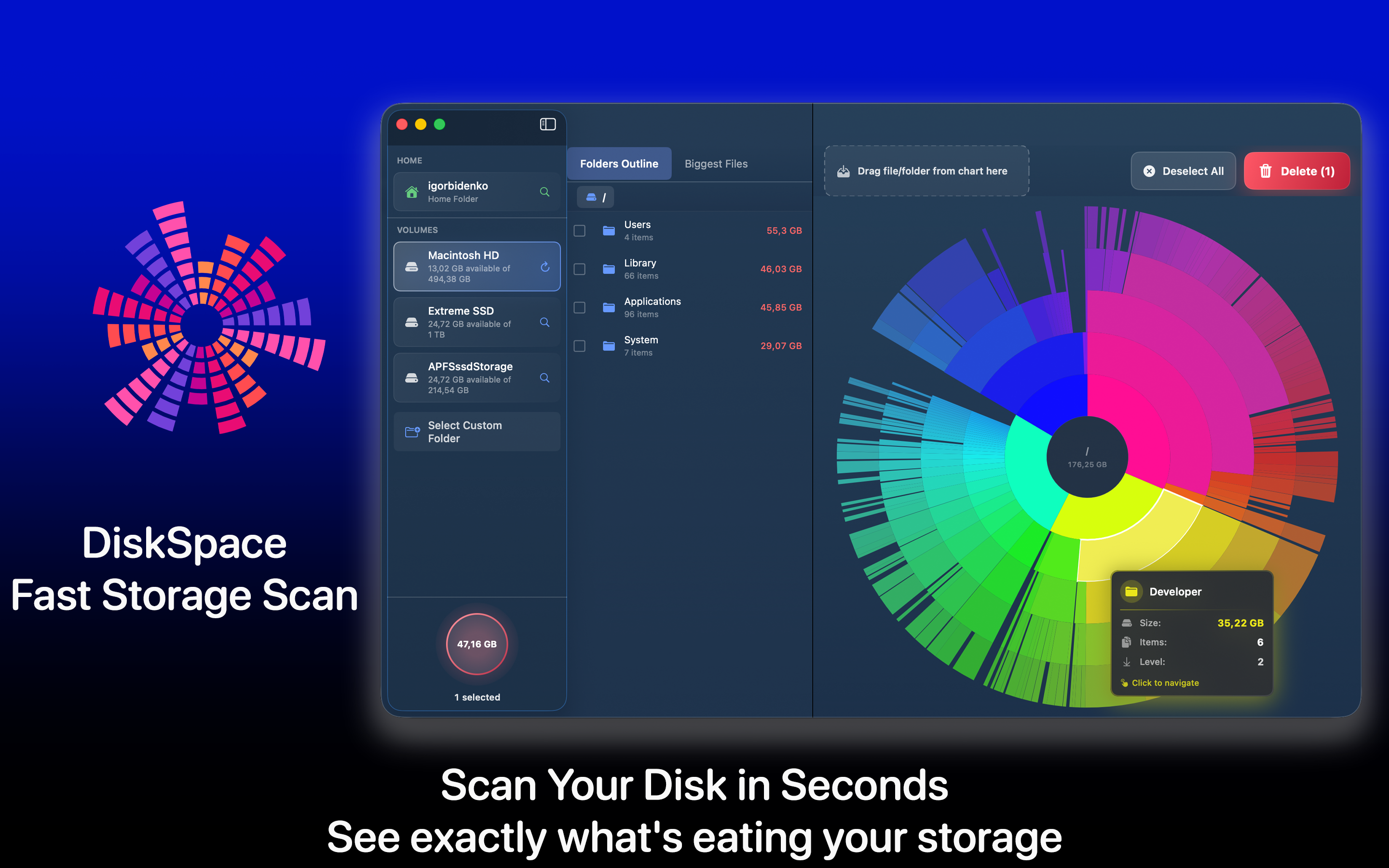
The pattern is nearly always the same. Ninety percent of the missing space sits in three or four folders. Everything else is noise, and time spent tidying it is time wasted.
The safe list, in order
These can go without much thought, roughly in order of how much they usually return.
Downloads
The obvious one, and it deserves its reputation. Sort by size rather than date - a single disk image from an app you installed two years ago can be several gigabytes on its own. Installers you already ran have no further use.
iOS device backups
If you have ever backed up an iPhone to this Mac, those backups are still there, and they are large. Each one can be tens of gigabytes, and old ones for devices you no longer own are pure waste. They live in ~/Library/Application Support/MobileSync/Backup, and Finder will show you the device and date for each.
Xcode, if you are a developer
Xcode is the single most reliable way to lose a hundred gigabytes without noticing. Derived data, device support files for iOS versions nobody runs any more, old simulator runtimes. The derived data folder in particular can be deleted outright - it rebuilds.
~/Library/Developer/Xcode/DerivedData
~/Library/Developer/Xcode/iOS DeviceSupport
Mail attachments
Mail keeps a local copy of every attachment it has ever downloaded, and there is no size limit on that behaviour. On an account you have used for years this is routinely twenty or thirty gigabytes of files you already have elsewhere.
The careful list
These are worth reclaiming but need a moment's thought.
Photos library. Usually the largest single item on a personal Mac. Do not go in with Finder - the library is a package with its own database, and moving files inside it will break things. Work inside the Photos app, or use a tool that understands the library structure.
Duplicate files. Genuinely worth doing, but only with checksums. Matching by name and size finds files that happen to look alike and misses real duplicates that were renamed. We wrote about why checksums are the only honest way to compare files if you want the reasoning.
Old virtual machines and disk images. A Parallels or UTM image is easily 60 GB. If you have not booted it in a year, you are storing an entire other computer for nothing.
Docker. If it is installed, its disk image grows and does not shrink on its own. docker system prune -a routinely returns tens of gigabytes.
What not to touch
A short list, because the internet is full of advice that will cost you a weekend.
- /System and /Library at the root level. These belong to macOS. On modern versions the system volume is read-only and signed, so you mostly cannot break it - but the parts you can reach are not worth the risk for the space they return.
- Caches, as a blanket action. Deleting
~/Library/Cacheswholesale frees space that comes straight back, and in the meantime apps re-download things and start slower. Clear a specific app's cache when that app is misbehaving, not as routine maintenance. - Anything a "cleaner" app flags as system junk without naming it. If a tool cannot tell you what a file is and which app put it there, it is not in a position to tell you it is safe to delete.
- Sleep image and swap. They come back immediately. You gain nothing and lose the ability to wake from hibernation cleanly.
Why the space comes back
If you free 50 GB and it is gone again within a fortnight, something is generating it. The usual suspects:
- Time Machine local snapshots. When the backup drive is not connected, macOS keeps snapshots on the internal disk. They are purgeable in principle, but they show as used space and they are the most common reason free space quietly evaporates.
- A sync client with an ever-growing cache. Dropbox, Google Drive and OneDrive all keep local copies of far more than people expect.
- Log files from a misbehaving app. Rare but dramatic. A crash loop writing to a log can produce a genuinely absurd file over a weekend.
The fix in each case is different, but finding out which one you have takes the same thirty seconds: scan, sort by size, look at what changed since last time.
A workflow that holds up
Once a quarter, in this order. It takes about fifteen minutes and it means you never see the warning again.
- Scan the volume and note the four largest folders. Only those.
- Empty Downloads, sorted by size rather than date.
- Delete iOS backups for devices you no longer own.
- If Xcode is installed, clear derived data and old device support.
- Check for duplicates with checksums, not names.
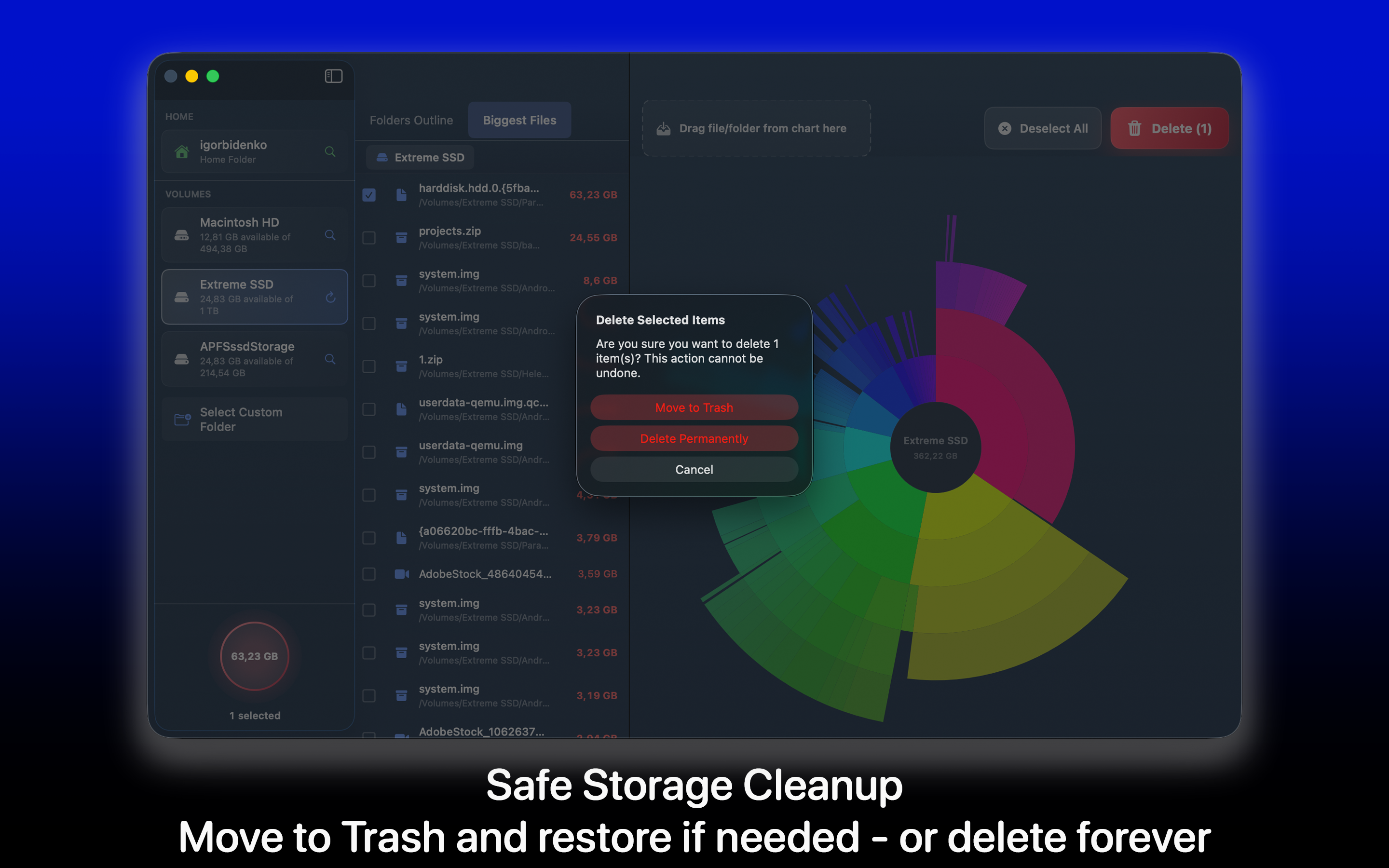
- Empty the Trash - and remember nothing above is actually gone until you do.
That last point catches more people than it should. Deleting a 40 GB video from a folder does not return 40 GB. It moves it, and the Trash lives on the same disk.