"Duplicate" turns out to mean four different things, and they need different detection methods. Confusing them is why cleanup tools disagree so wildly about how many duplicates a library contains.
The four kinds
1. Byte-identical files. The same file copied twice. Trivial to detect with a checksum, and rarer than you would think in a photo library - imports usually deduplicate these automatically.
2. Re-encoded copies. The same photograph, saved again. Sent through WhatsApp, exported at a different quality, downloaded from a shared album. Visually identical, byte-wise completely different, so a checksum finds nothing. Very common.
3. Edited versions. The original plus a cropped version plus one with a filter. Three files, all wanted at some point, usually only one worth keeping. No automated tool can decide this for you correctly.
4. Near-identical bursts. Nine frames of the same view, taken two seconds apart. Not duplicates by any technical definition. Comfortably the largest category by storage in almost every real library.
What the Photos app finds
Photos looks for kinds 1 and 2 - identical and visually identical images. It is conservative by design, because it merges automatically and Apple would rather miss duplicates than lose a photo you wanted.
That is the right trade for a built-in feature and it means the Duplicates album is not the answer to a full library. It also only sees inside the Photos library; files sitting in folders elsewhere on the disk are invisible to it.
Run it first anyway. It is free, it is safe, and it clears the easy category before you look at the harder one.
The category that actually holds the space
Kind 4. The burst, the three attempts at a group photo, the same view shot twice because you were not sure about the first.
Each of those is a full-size image. Nothing in the system will ever suggest removing them, because they are genuinely different photographs. And they are where a decade-old library's storage has gone.
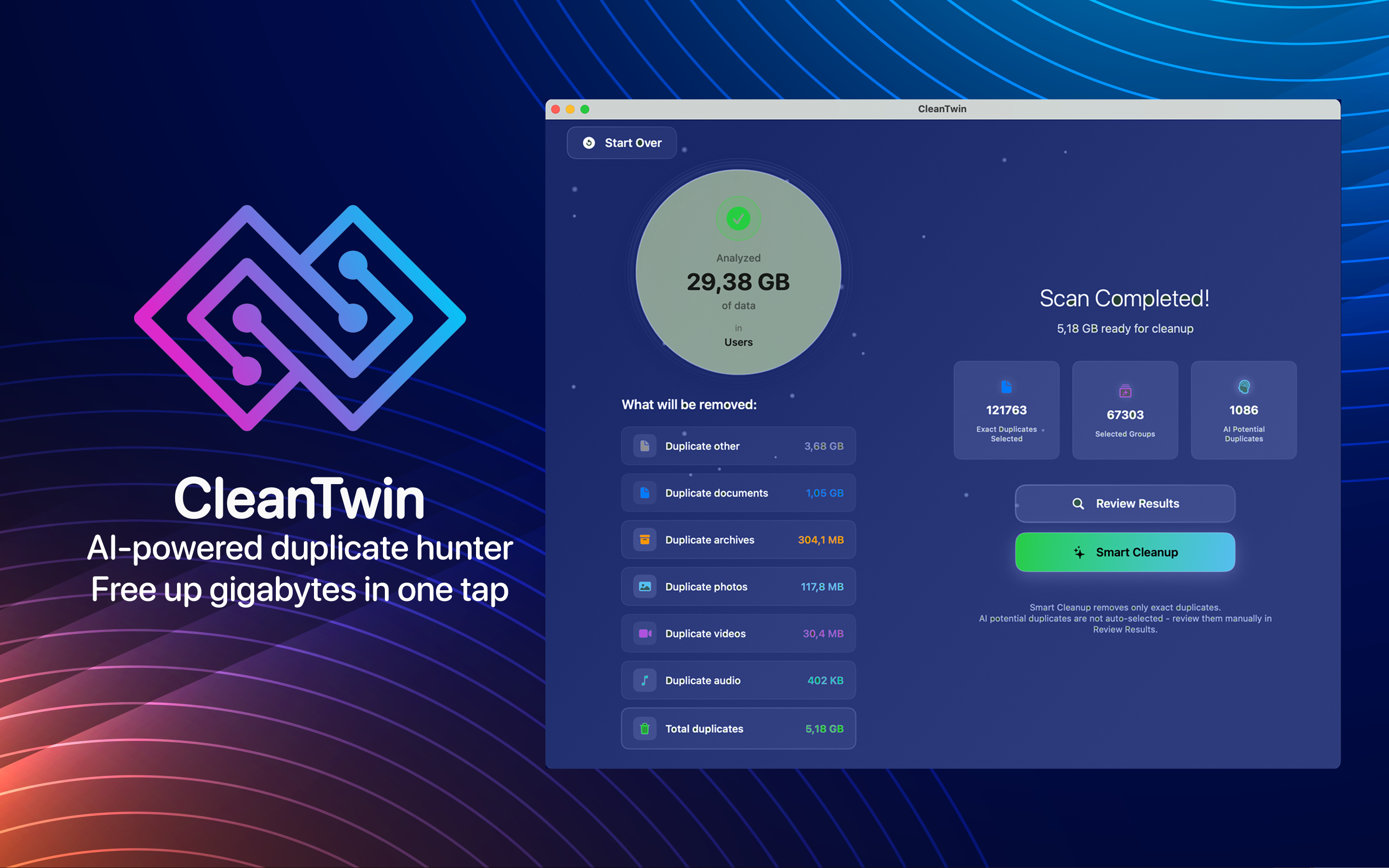
Detection here works on perceptual similarity rather than file content: the tool computes a fingerprint of what the image looks like and groups things that look alike. CleanTwin does this across the Photos library and loose folders, and groups them so you review a set at a time.
Reviewing without regret
The reason people abandon photo cleanup is fear of deleting the wrong one. Three habits remove that.
Compare, do not skim. Out of nine near-identical frames, one is sharper or better framed. Keeping the first by default is how you end up with the blurred version.

Do the easy categories first. Screenshots, receipts photographed twice, bursts of a stationary object. These are quick decisions and often most of the volume. Leave anything with people in it for a second pass.
Rely on the safety net, and know its limits. Photos keeps deletions in Recently Deleted for 30 days. That is a real undo. But if iCloud Photos is on, deleting on the Mac deletes everywhere - it is a synced library, not a backup, and the 30 days is all you get.
The trap of matching by name or size
Worth stating because a lot of cheap tools do it: matching filenames and sizes produces wrong answers in both directions.
Two entirely different photos from the same camera can share a size to the byte. Two identical photos renamed on import look unrelated. Neither is a rare edge case - both happen constantly in real libraries.
Checksums are correct for exact copies and useless for everything else, because changing one pixel changes the hash completely. We went into that in why checksums are the honest way to compare files - the summary being that checksums answer "are these the same file" and perceptual matching answers "are these the same photograph", and a photo library needs both.
A workflow that finishes
- Run the Photos app's own Duplicates album and merge what it offers.
- Scan for perceptual similarity across the library and any loose folders.
- Work through screenshots and bursts of objects first - fast decisions, high volume.
- Then photos of people, comparing rather than skimming.
- Empty Recently Deleted, or nothing you did returns any space.
- Check the storage figure the next day, once macOS has recalculated.
The order matters mainly because step one is free and reduces how much you have to look at in step two. And step five is the one people forget, then conclude the whole exercise did nothing.