A home network in 2025 has more members than anyone keeps track of. A rough count for an ordinary flat: two laptops, three phones, a tablet, a TV, a streaming stick, a printer, a couple of speakers, a thermostat, a doorbell, a robot vacuum, and however many smart plugs got bought in a moment of enthusiasm. Twenty-something devices, most of which have never displayed their own name to anyone.
So when you scan and see something called espressif_3f2a1b, the honest answer is that you probably do own it. But you should be able to tell.
What a scan actually does
A network scanner walks through the addresses on your local subnet and asks each one whether anything is there. Devices that answer get listed with three useful pieces of information: an IP address, a hardware address, and whatever name the device volunteers.
The hardware address is the interesting one. Its first half identifies the manufacturer, from a public registry. That is how a scanner turns a meaningless string into "Amazon Technologies" or "Espressif" - and how you get from an unidentifiable entry to a decent guess about what is sitting on your shelf.
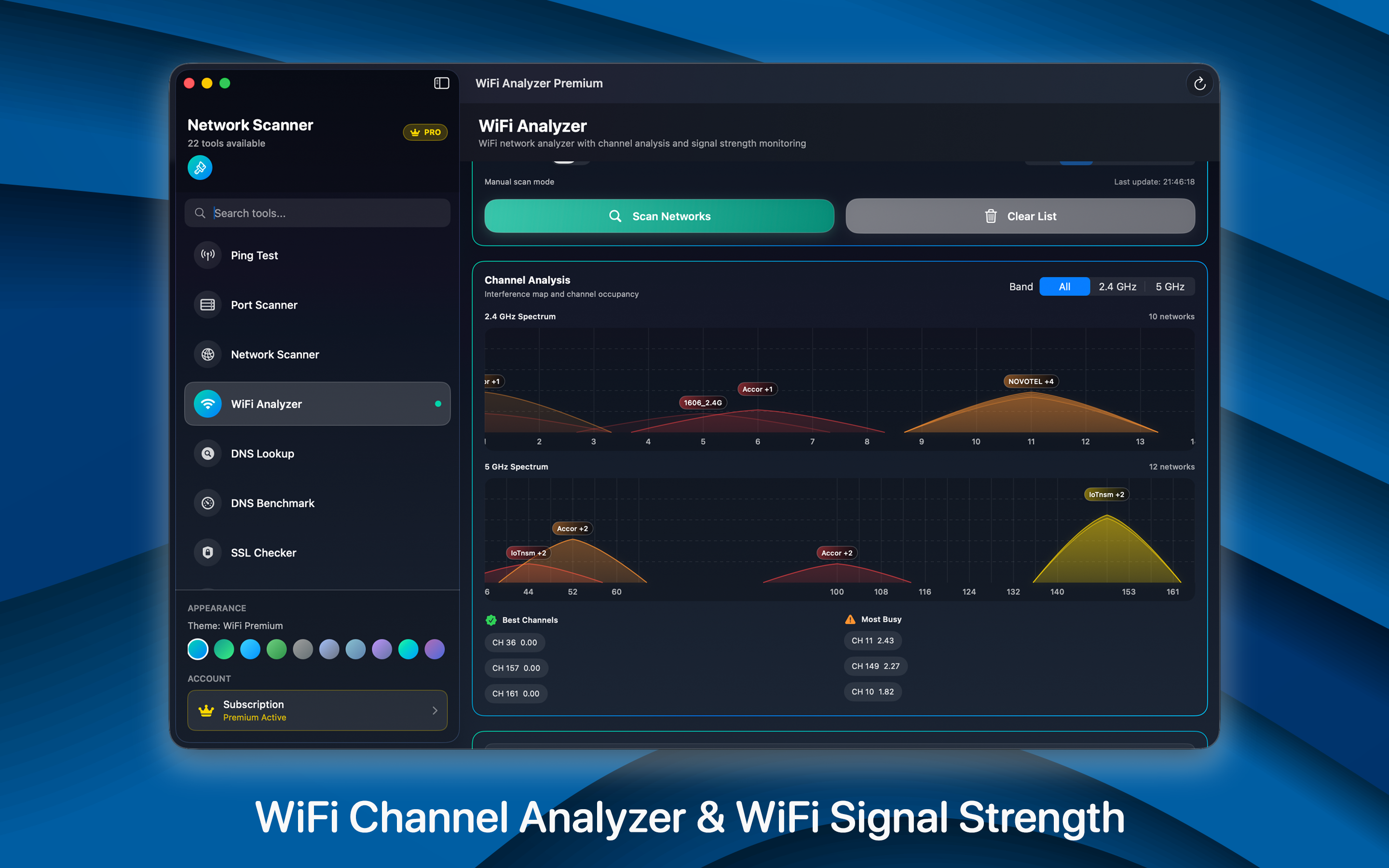
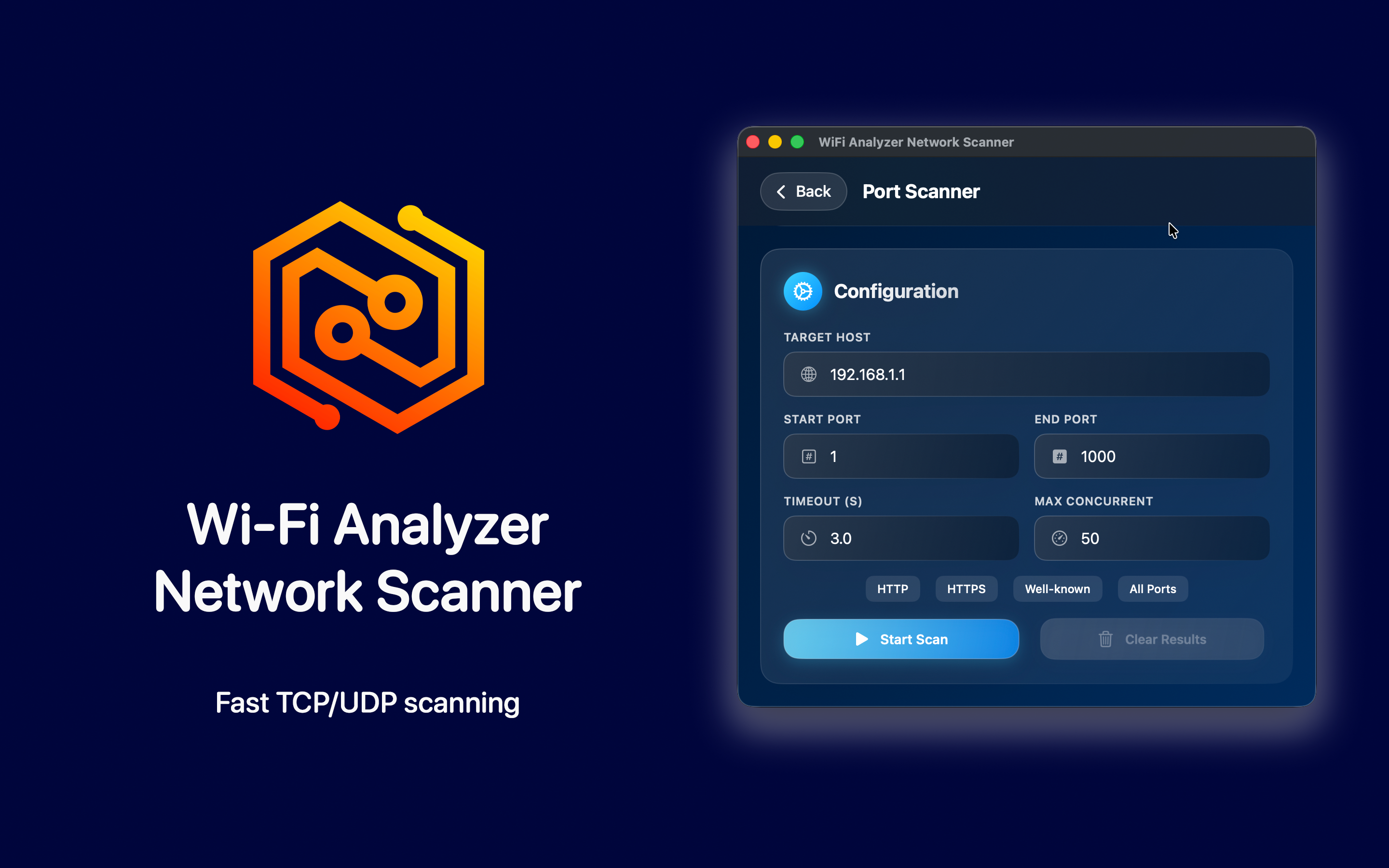
Wi-Fi Analyzer does this from your phone or Mac in a few seconds, and resolves the manufacturer for you rather than making you look up the prefix yourself.
Reading the list without alarming yourself
Almost everything unfamiliar falls into one of these.
Espressif. The most common mystery entry by a wide margin. Espressif makes the chip inside a very large share of cheap smart-home hardware - plugs, bulbs, sensors, humidifiers. If you own anything that connects to Wi-Fi and cost under twenty pounds, this is it.
Tuya, Shenzhen-something, Hangzhou-something. The same story. White-label smart-home gear sold under dozens of brand names, all built on a handful of platforms.
An Apple device you do not recognise. Private Wi-Fi addresses mean an iPhone can appear under a different hardware address on each network, and the manufacturer lookup will not resolve. If the device count matches your household, this is fine.
Two entries that are clearly one device. Anything with both Wi-Fi and Ethernet has two addresses. A printer or a games console plugged in and also on Wi-Fi shows up twice, legitimately.
Your router, appearing as a client. Mesh systems list their own nodes. A three-pack means three entries before you have connected anything at all.
Identifying the ones that remain
After the obvious matches, you are usually left with two or three genuine unknowns. The reliable method is unglamorous and takes about ten minutes.
- Scan and save the list.
- Unplug one suspect device - the smart plug in the hall, say.
- Wait a minute and scan again.
- Whichever entry disappeared is that device. Write it down.
Repeat for anything still unidentified. It feels tedious the first time and takes five minutes on every scan afterwards, because you now have a list of what belongs.
The faster version, if your router supports it: most admin interfaces let you assign a name to a device, and that name will follow it. Fifteen minutes spent labelling everything once means the next scan is instantly readable.
When it is genuinely someone else
Rare in practice, but the signs are specific rather than vague.
- A device that appears and disappears on a schedule - present in the evenings, gone during the day - and does not match anything in your home.
- A manufacturer that makes computers and phones rather than appliances, when your own count is already accounted for.
- Sustained traffic from an address you cannot identify. A smart plug sends a few kilobytes a day; someone streaming does not.
If you find one, the fix is not to block the individual device. Blocking by hardware address is trivially defeated, because addresses can be changed in software. Change the Wi-Fi password instead, which forces every device to re-authenticate, and set the network to WPA3 if your router offers it. Then reconnect your own devices one at a time - which, conveniently, also produces the labelled inventory you were meant to have.
The more likely answer: it is not a person
When someone scans because the internet feels slow, the cause is almost never an intruder. Two things are far more common.
Channel congestion. On 2.4 GHz there are three non-overlapping channels and every neighbour is on one of them. If your router picked the same channel as the flat next door, throughput suffers regardless of how few devices you own. A scan that also shows nearby networks and their channels tells you this immediately, and the fix is one setting.
One device using everything. A backup running, a console downloading a game, a TV pulling a 4K stream. That is a bandwidth question rather than a security one, and it is answered by looking at which device is busy rather than how many exist.
We went into the channel side in more detail in finding the best Wi-Fi channel from an iPhone, including what iOS will and will not let an app see.
Worth doing once a season
A network scan is not a security ritual that needs repeating weekly. Done once, carefully, with everything labelled, it gives you something more useful: a baseline. The next time you scan and there are twenty-seven entries instead of twenty-six, you will know within seconds whether that matters - which is the entire point, and impossible without having done the boring version first.