Open Activity Monitor, switch to the Network tab, and you will see numbers going up for processes you do not recognise. That is usually where the curiosity starts and where it stops, because Activity Monitor tells you how much data moved and nothing at all about where it went or why.
"Phoning home" covers a wide range of behaviour. Some of it is entirely reasonable: checking for updates, syncing your own documents, validating a licence. Some of it is analytics you never agreed to in any meaningful sense. The problem is not that apps use the network - it is that you cannot easily tell which kind you are looking at.
What the built-in tools actually tell you
macOS gives you three partial answers, and it is worth knowing where each one stops.
Activity Monitor shows bytes sent and received per process. Useful for spotting a heavy consumer, useless for identifying a destination. A process sending 400 MB could be uploading your photo library or streaming a video - the column looks identical.
The macOS firewall in System Settings is primarily about incoming connections: what can reach your Mac from outside. That is a real protection, but it is the opposite direction from the one that surprises people. Outgoing traffic is where the interesting behaviour lives.
Terminal will get you further. lsof -i -n -P lists open network connections with the process behind each one, and nettop gives a live view. Both work. Both also produce a wall of output that scrolls faster than you can read, list connections by IP address rather than by anything human-readable, and tell you nothing about what happened thirty seconds ago. They answer "what is connected right now", not "what has this app been doing all week".
The three questions worth answering
In practice you want to know three things, and they build on each other.
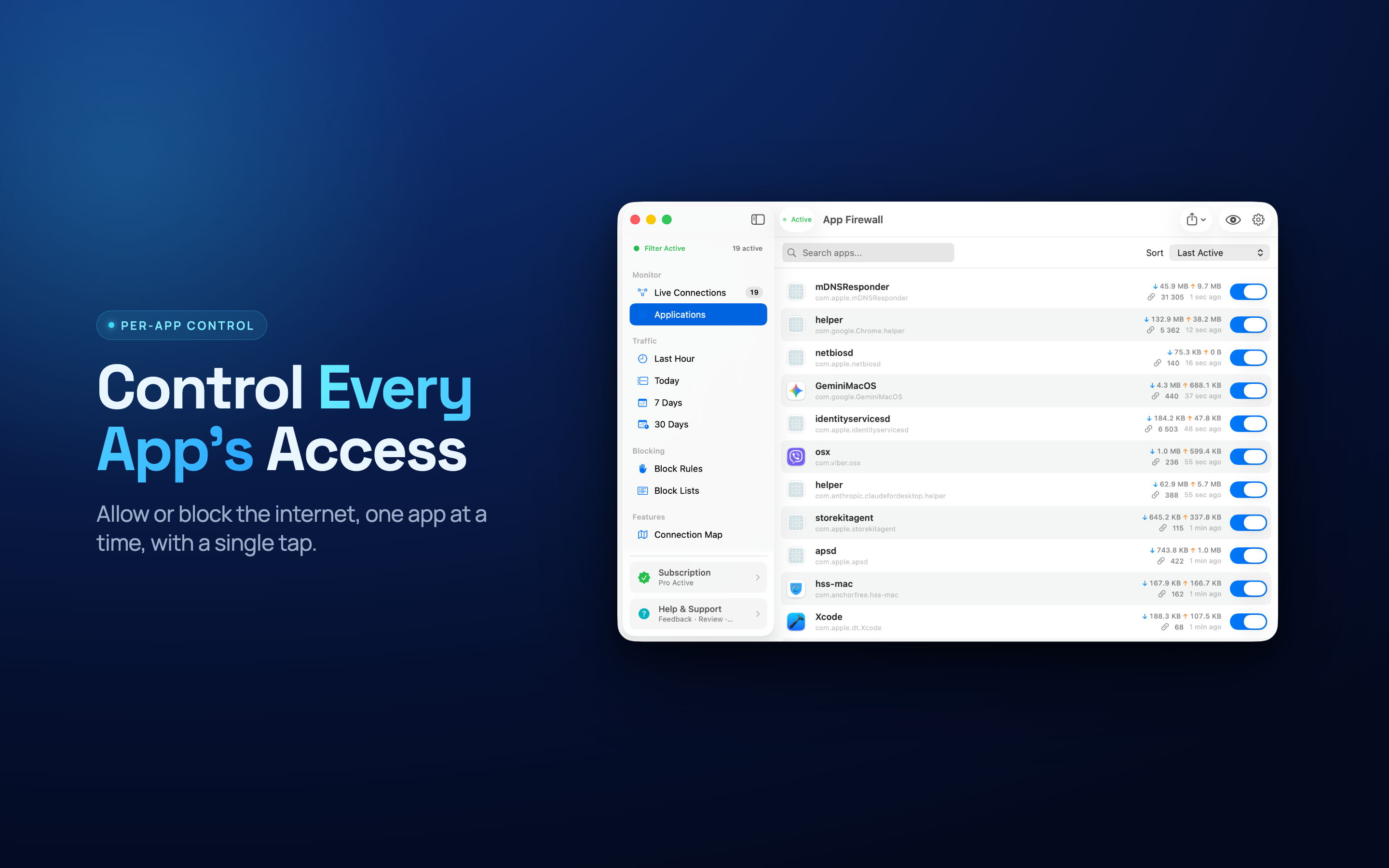
- Which apps connect at all? The list is usually longer than expected. Menu bar utilities, updaters, and apps you have not opened in months all show up.
- Where does the traffic go? An app reaching a server on another continent is not automatically suspicious - CDNs are everywhere - but an offline-first app doing it is worth a look.
- How much data is involved? A licence check is a few kilobytes. A background upload is hundreds of megabytes. Those need very different reactions.
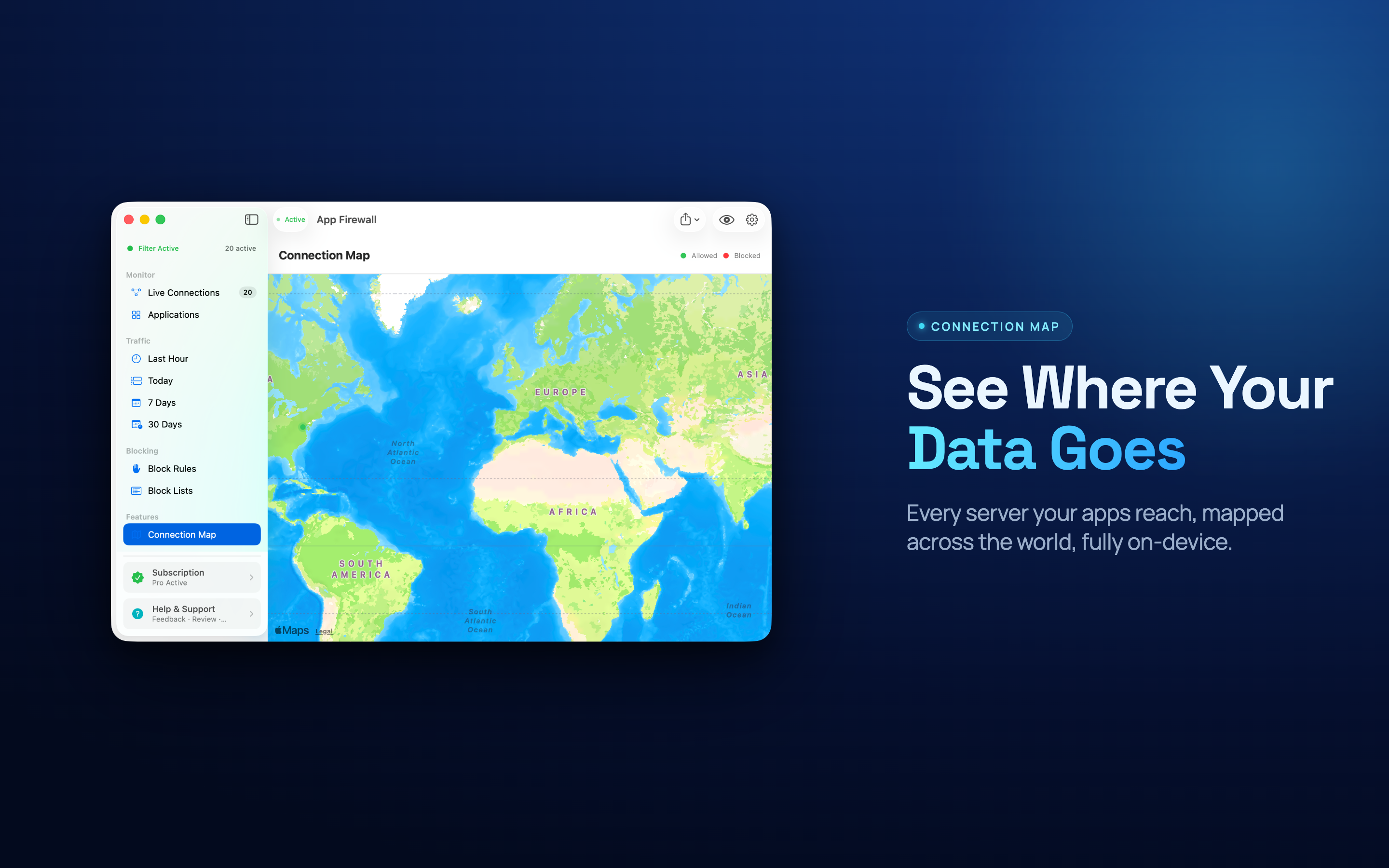
A per-app network monitor answers all three in one view. App Firewall lists every app that opens a connection, plots destinations on a map, and totals data sent and received per app, so you can go from "something is using the network" to "it is this app, talking to this place, this much" in a couple of clicks.
Approving the network filter
Any tool that inspects or blocks traffic needs your explicit approval first, and macOS enforces this. On first launch you are asked to allow the app to filter network content. Until you approve it, the system does not route traffic through the filter, so the app genuinely has nothing to show you - which is a common reason people think a monitor is broken on day one.
It is worth being deliberate about what you are approving. A filter that inspects traffic can, in principle, see a great deal. The distinction that matters is between metadata and contents: which app, which destination, which port, how many bytes - versus what is actually inside your encrypted connections. App Firewall works with the former. It does not install a root certificate, does not decrypt anything, and does not sit in the middle of your TLS sessions. If a tool asks you to install a certificate to "see more", understand that you are being asked to let it read your traffic in the clear.
Reading the list without panicking
The first time you see every connection your Mac makes, the instinct is to assume the worst. Resist it. Most of what you see falls into a few ordinary buckets:
- Apple system services - iCloud, software update, notification delivery. These connect constantly and blocking them breaks things you rely on.
- Sync clients - Dropbox, Google Drive, photo backup. High data, entirely expected, worth watching on a metered connection.
- Updaters - Sparkle-based checkers and vendor helpers. Small, periodic, harmless.
- Analytics and crash reporters - small, frequent, and the category most people actually want to switch off.
- Genuinely surprising - an offline utility with no reason to connect, or an app you uninstalled a year ago leaving a helper behind.
The last two are where blocking earns its keep.
Block one app, then check
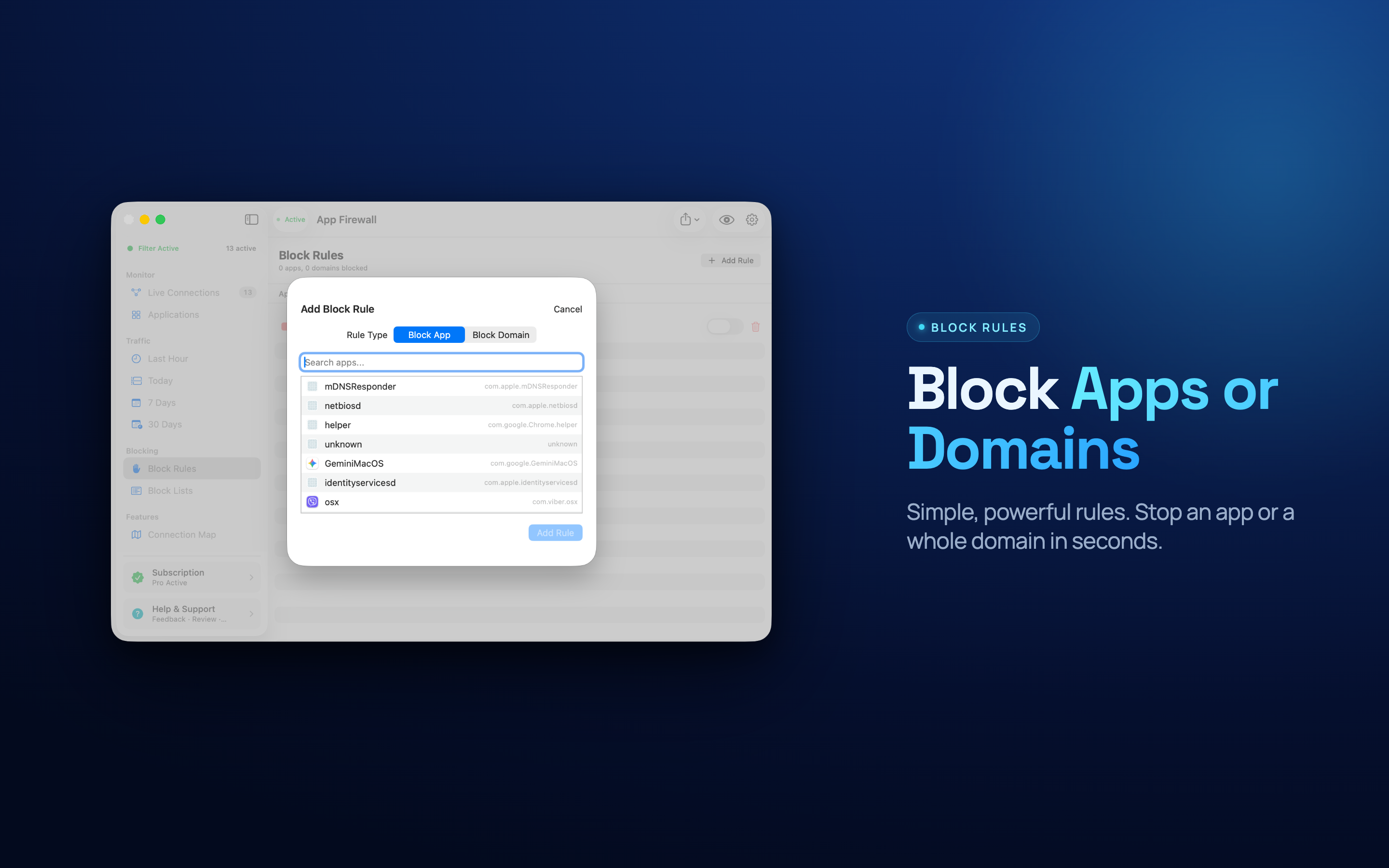
Per-app blocking is more useful than port rules for a simple reason: you already think in terms of apps. You do not want to allow port 443 to a particular address range, you want this app to stop connecting. A per-app rule is a switch, holds across restarts and updates, and needs no syntax.
The discipline is to block one app at a time. If you switch off six apps in one sitting and something stops working an hour later, you have no quick way to know which rule did it. Block one, use your Mac normally, and move on to the next. Blocking is reversible, so the cost of being wrong is a single toggle.
Expect some apps to degrade. Anything whose purpose is online will visibly stop working. An app that only phones home for telemetry usually carries on exactly as before - which tells you something useful about how necessary that traffic was.
The metered connection case
All of this becomes concrete the moment you are tethered to a phone or on hotel Wi-Fi with a cap. Background sync does not know or care that your connection is expensive. A photo library catching up can consume an allowance in minutes, while you sit there wondering why a web page will not load.
Per-app data usage turns that into a decision you can make: sort by data sent, find the app catching up in the background, and pause it until you are back on a connection you are not paying for by the gigabyte. For sync tools, pausing is usually the right call rather than a permanent block - you want them working again the moment you get home.
What to do with what you find
The point of all this is not to end up with forty blocked apps. It is to replace an assumption with a fact. Most of what your Mac sends is mundane. A small amount is not, and until you look, you cannot tell which is which.
Watch for a week, block the two or three things that had no reason to connect, and leave the rest alone. That is the whole exercise.