System Data is a bucket. It holds everything macOS could not confidently file as Applications, Documents, Photos, Mail or Messages, which turns out to be a great deal.
It is not corruption, it is not a bug, and clearing it is not maintenance. But some of what sits in it is genuinely reclaimable, and knowing which parts saves you from deleting things that come straight back.
What is in the bucket
Time Machine local snapshots. Usually the largest single contributor. When your backup drive is not connected, macOS keeps hourly snapshots on the internal disk so you can still restore. They are marked purgeable, so the system will delete them when it needs room - but until then they occupy space and count as System Data.
Caches. Browser caches, app caches, the font cache, the icon cache. Individually small, collectively several gigabytes on an old install.
Logs and diagnostic reports. Normally trivial. Occasionally not: an app in a crash loop can write an astonishing amount over a weekend.
Swap and sleep image. Virtual memory paged to disk, and a copy of RAM for hibernation. On a 32 GB machine the sleep image alone is 32 GB.
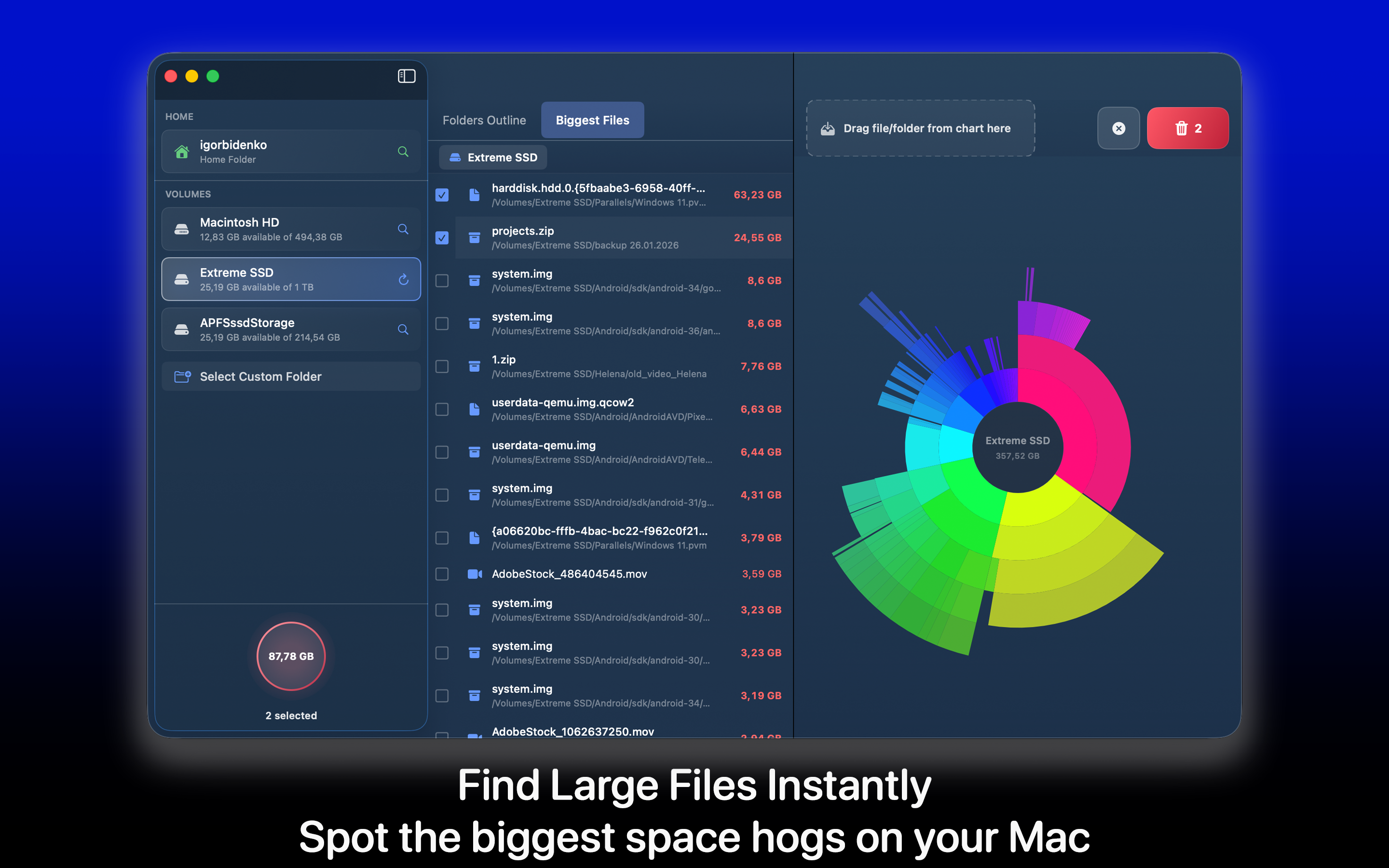
Container data for apps macOS cannot categorise. This is the sleeper. Docker's disk image, virtual machines, iOS simulator runtimes, Xcode's derived data - all land here, and all can be enormous.
Mail attachments and message media, depending on version, sometimes counted here rather than under Mail.
Why the number jumps around
Two things confuse people more than the size itself.
First, purgeable space. Finder reports available space including what the system could reclaim. So you delete 20 GB, free space does not move, and System Data does not shrink - because macOS quietly used the room for snapshots it had been holding back. Nothing is broken; you paid off a debt.
Second, the number lags. macOS recalculates on its own schedule. If you have deleted something large and the bar has not moved, wait an hour or restart before concluding it did not work.
What you can actually reclaim
In order of return, and all safe.
Connect the Time Machine drive. The single most effective action. Once a real backup completes, the local snapshots become redundant and macOS clears them. People spend an afternoon deleting files when plugging in a drive for twenty minutes would have done it.
Xcode, if installed. Derived data can be deleted outright - it rebuilds. Old iOS device support and unused simulator runtimes are frequently tens of gigabytes:
~/Library/Developer/Xcode/DerivedData
~/Library/Developer/Xcode/iOS DeviceSupport
Docker. Its disk image grows and never shrinks on its own. docker system prune -a routinely returns tens of gigabytes.
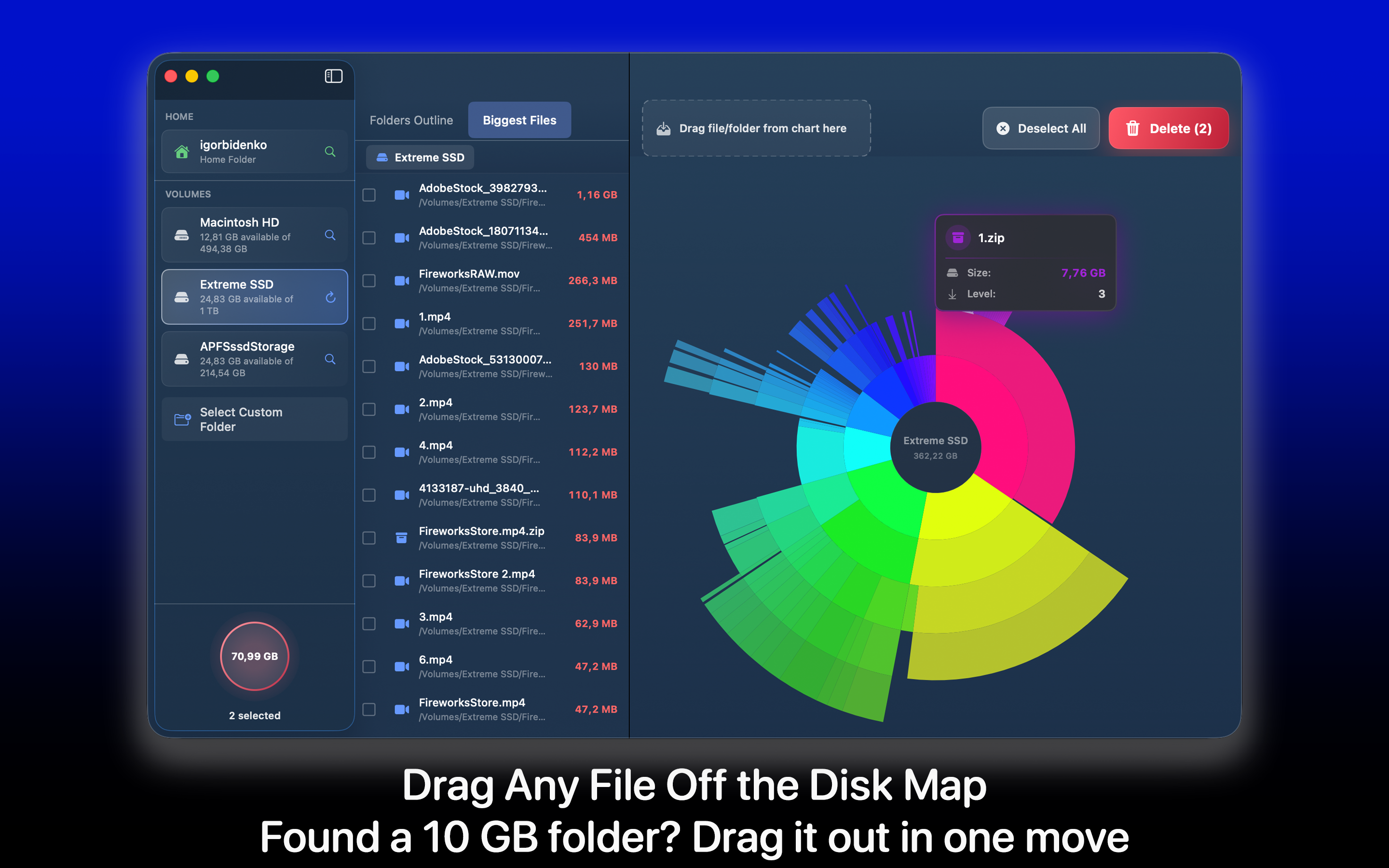
Virtual machines you have stopped using. A Parallels or UTM image is an entire other computer, at 60 GB or more.
Mail attachments. Mail keeps a local copy of everything ever downloaded, with no size limit.
What not to do
Do not delete ~/Library/Caches wholesale. The space returns within days, apps re-download what they lost, and everything starts slower in the meantime. Clear one app's cache when that app misbehaves.
Do not disable swap or delete the sleep image. Both regenerate immediately, and you lose hibernation in exchange for nothing.
Do not trust a cleaner that will not name files. If a tool reports "12 GB of system junk" without telling you what it is or which app created it, it is not in a position to say deleting it is safe.
Seeing it properly
The category view is the problem: it tells you System Data is 90 GB and gives you no way in. A folder-level scan sorted by size answers the question in about thirty seconds, because the offenders are always specific and always named.
DiskSpace does that - the whole volume, largest folder first, so you find the Docker image or the derived data rather than guessing at categories.
In practice, one machine's System Data is a stale Docker image and another's is Time Machine snapshots. They look identical in Storage settings and need completely different actions, which is the entire argument for looking rather than following general advice.
What a normal size looks like
For calibration: 10 to 20 GB on a machine used for ordinary work is unremarkable. 30 to 50 GB with development tools installed is expected. Anything above 80 GB has a specific cause worth finding, and it is nearly always one of the five items above rather than a general accumulation of rubbish.
We covered the wider clear-out, in the order that works, in what to actually delete when the startup disk is full.