Windows has had a metered connection setting for a decade. macOS has Low Data Mode, which is newer, less thorough, and off by default - and most of what consumes an allowance is not covered by it.
What starts the moment you connect
In rough order of appetite:
- iCloud Photos. Uploading whatever you shot since the last good connection. Video makes this enormous.
- Time Machine to a network destination, if you have one.
- Dropbox, Google Drive, OneDrive. Syncing in both directions, including things a colleague changed.
- macOS and App Store updates. Several gigabytes, downloaded silently, ready to install.
- Mail, fetching every attachment across every account.
- Backup tools like Backblaze or Arq, which are designed to use whatever is available.
Any one of these will exhaust a small allowance on its own. Together they are why the four gigabytes vanish before you have finished writing the email.
Turn on Low Data Mode first
Settings → Wi-Fi → the network → Details → Low Data Mode. It is per network, so setting it once on your phone's hotspot is permanent for that hotspot.
What it does: pauses automatic updates and iCloud sync, reduces background activity, stops some prefetching.
What it does not do: control third-party apps. Dropbox, Backblaze, Slack and everything else keep working exactly as before, because they never learn the connection is metered.
Which is the whole gap. Low Data Mode handles Apple's own services and nothing else.
Quit the obvious ones
Before tethering, quit properly - not just close the window:
- Cloud storage clients.
- Any backup software.
- Mail, if you have large accounts.
- Anything running a container or a virtual machine, which pull images without warning.
Crude and effective. The problem is that it relies on remembering every time, and the one occasion you forget is a Backblaze catch-up.
The version that does not need remembering
Per-app network rules are what make this permanent. Set once, and the app cannot use the connection regardless of which network you are on.
App Firewall does this on macOS: block a specific app, and the rule survives restarts and updates. For a backup client that has no business running on a phone connection, that is a decision you make once rather than every time you tether.
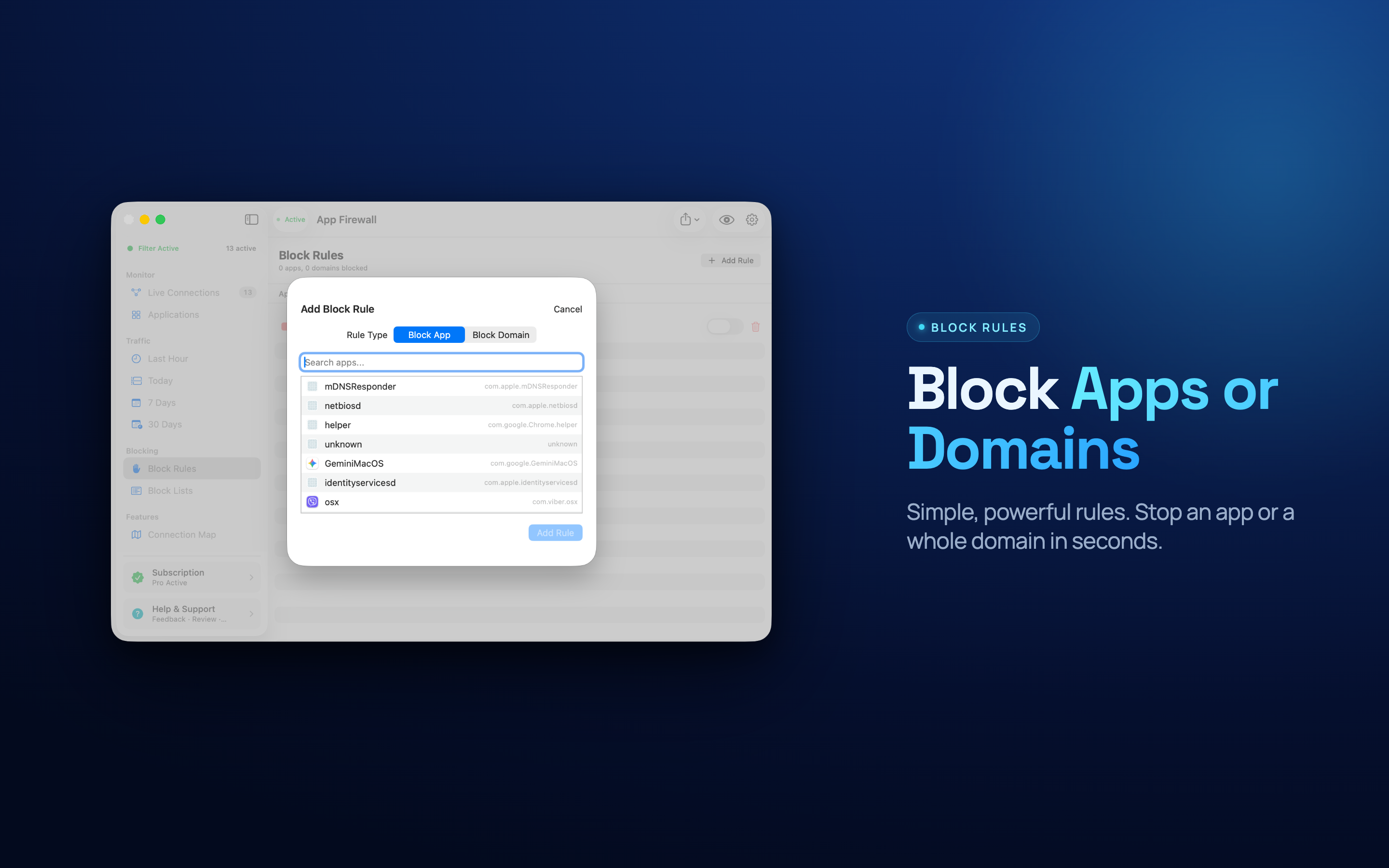
Blocking is reversible, so the workflow is: block, use the Mac normally, and unblock anything you find you actually needed.
Finding out where it went
The useful part after the fact, and the thing macOS gives you no way to answer.
Activity Monitor has a Network tab showing bytes per process since boot. It is better than nothing and it resets, has no history, and does not tell you which of those bytes went over the hotspot rather than home Wi-Fi.
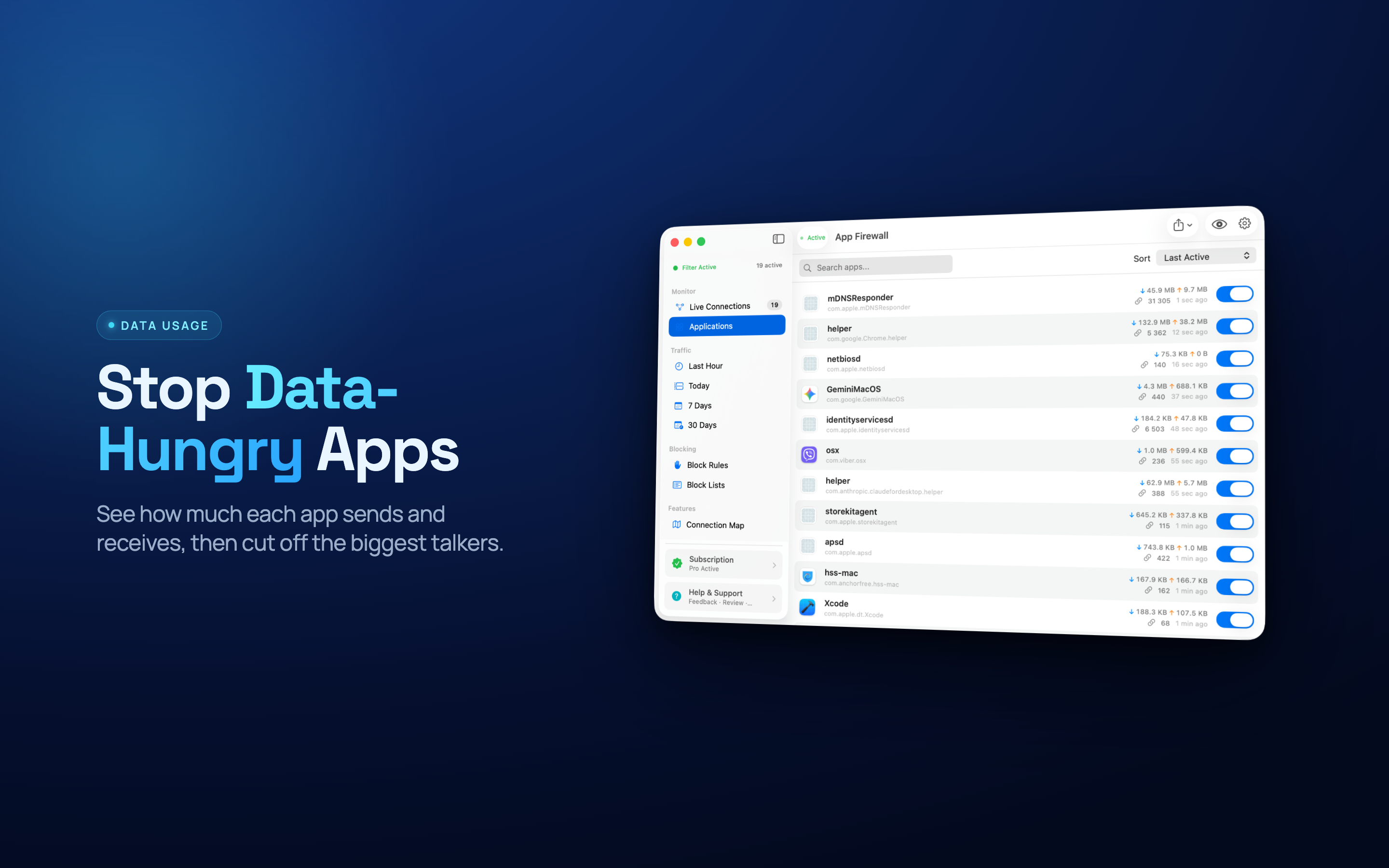
Per-app data totals over time turn "four gigabytes disappeared" into "Photos uploaded 3.1 GB". Which is actionable, where the aggregate figure your carrier shows is not.
The rest of the setup
- Set video streaming to standard definition before you tether. One 4K stream is roughly 7 GB an hour; the same content at 480p is under 1 GB.
- Pause automatic downloads in the App Store. Settings → App Store → turn off automatic downloads and updates.
- Watch out for AirDrop and Handoff, which do not use the hotspot data but do keep Wi-Fi and Bluetooth busy, and drain the phone doing it.
- Check for a second Mac on the same hotspot. Two machines catching up is exactly twice the problem.
A tethering setup worth having permanently
- Low Data Mode on the hotspot network, once.
- Block cloud backup and sync clients with a persistent rule.
- Automatic App Store downloads off.
- Streaming quality dropped before you connect.
- Per-app data usage available, so you can check after a session rather than guess.
Four of those are one-time changes. The point is to stop this being something you remember to do, because the time you forget is the time it costs you.