System Settings → Network → Firewall. On a Mac out of the box, that switch is off.
This alarms people, and the reason it is off is more reasonable than it looks: macOS does not run network services by default. Nothing is listening, so there is nothing for an incoming firewall to protect. The switch matters the moment you turn on file sharing, screen sharing, a local web server for development, or plug into a network you do not control.
What the built-in firewall actually does
It is an application firewall, not a port-based one. Rather than "block port 445", it works in terms of "allow this program to accept incoming connections". When an app first tries to listen, macOS asks you.
Two settings worth knowing:
Block all incoming connections. Stricter than it sounds - it blocks sharing services and some things you rely on, like AirDrop behaving normally. Useful on hostile networks, irritating at home.
Stealth mode. Stops the Mac replying to pings and probes, so it does not announce itself to a scan. Small benefit, no real cost, worth enabling.
The honest summary: turn it on. It costs nothing, and it covers you the first time you enable sharing and forget.
The direction it ignores
Here is the gap. The built-in firewall governs connections coming in. Nearly everything people are actually worried about in 2025 goes out.
An app you installed does not need to be attacked from outside. It is already running, with your permission, and it can open a connection to anywhere it likes. Analytics on every action, a crash reporter with more context than you would expect, a "free" utility monetising usage data, an updater checking in hourly - none of these are blocked by an incoming firewall, because none of them are incoming.
This is not primarily a malware concern. It is ordinary commercial software doing ordinary commercial things, at a volume most people would decline if asked each time.
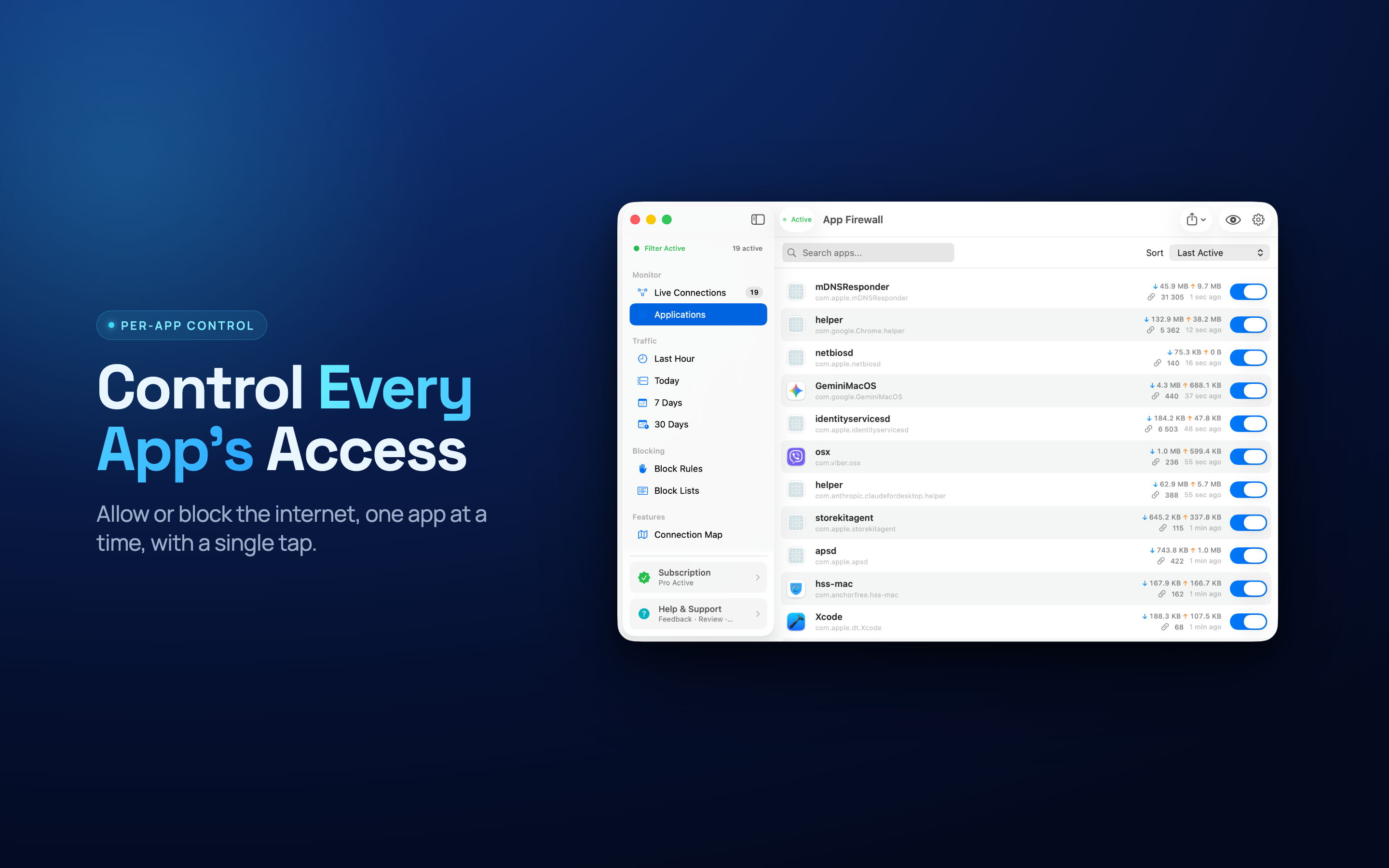
What outgoing control adds
Three things, in ascending order of usefulness.
Visibility. Simply knowing which apps connect, and where. Most people are surprised the first time - not by anything sinister, but by how many programs on an idle Mac are talking to something.
Per-app blocking. Being able to say: this image editor never needs the internet. Blocking it costs nothing and closes the question permanently. Rules survive restarts and updates.
Destination detail. Where traffic actually goes. An app you assumed was local talking to a server on another continent is the kind of thing that stands out on a map and is invisible in a log.
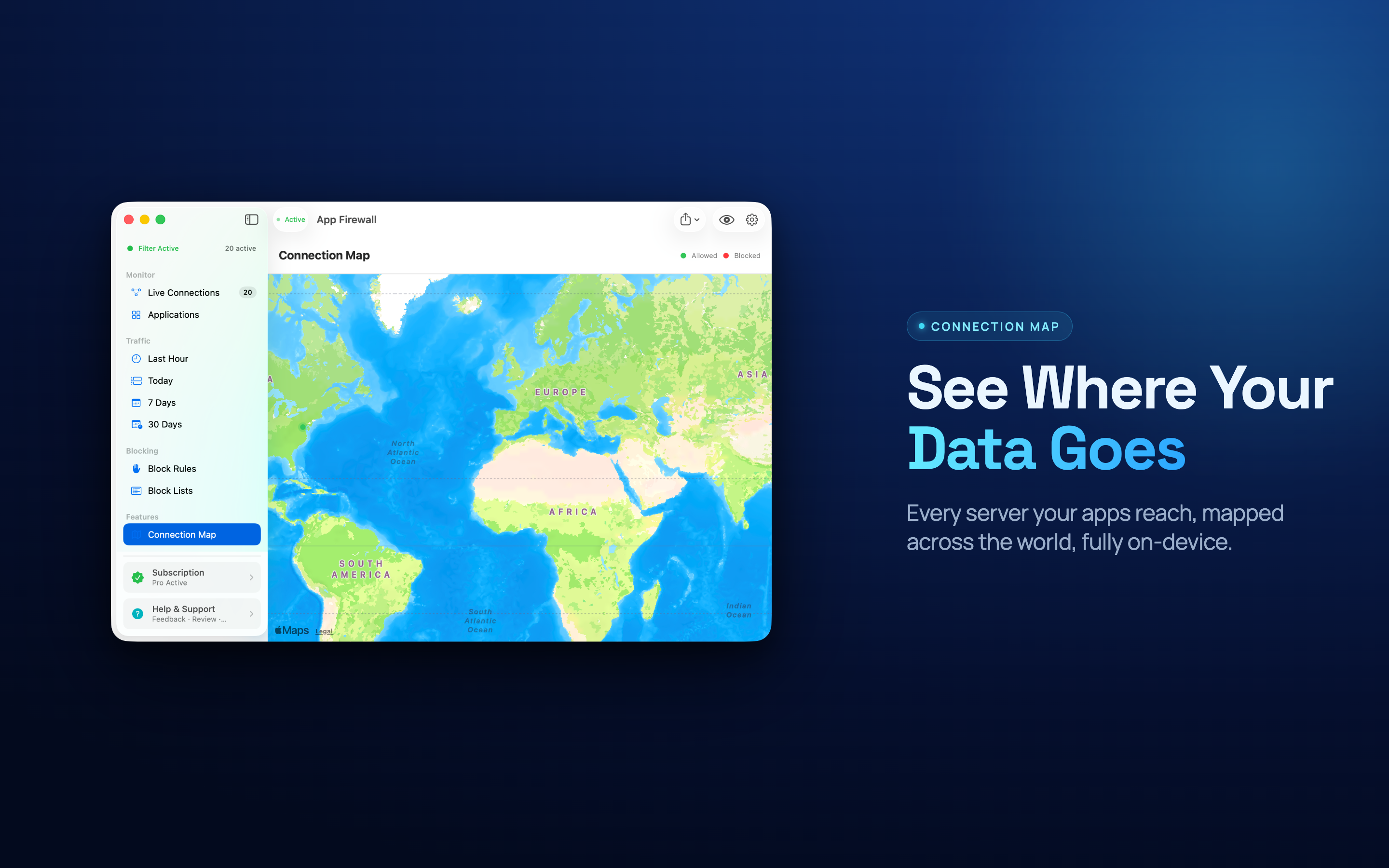
App Firewall does this on macOS: a per-app list with a switch each, a live monitor, the connection map, and data usage per app. Everything is evaluated locally - it does not decrypt traffic, install a certificate, or send anything anywhere.
What a firewall cannot do
Worth stating, because the category is oversold.
- It does not read your encrypted traffic, and you should be suspicious of anything claiming it can - that requires a certificate on your machine and man-in-the-middle interception, which is a larger imposition than the problem it solves.
- It does not stop data leaving through a channel you allowed. If you permit a sync client, the sync client syncs.
- It is not antivirus. Different job.
- It does not make you anonymous. That is a VPN question, and a different one again.
What it does is answer "which of my programs are talking to the internet, and which of them should stop". That is a narrow question with a genuinely useful answer.
A reasonable setup
- Turn on the built-in firewall. Enable stealth mode. Leave "block all incoming" off unless you are on a network you distrust.
- Watch outgoing connections for a week without blocking anything, so you learn what normal looks like on your machine.
- Block the obvious cases - offline tools that connect anyway, apps you uninstalled that left a helper behind.
- Block one at a time and use the Mac normally, so if something breaks you know which rule did it.
- Leave Apple system services alone unless you have a specific reason. Blocking them breaks things in ways that are hard to trace back.
We went through the reading-the-list part in more detail in how to find out which Mac apps are phoning home, including which categories are ordinary and which are worth a second look.