Merging PDFs sounds like it should be one operation with one outcome. It is not. A PDF is a container that can hold vector text, scanned images, embedded fonts, form fields, annotations and an invisible text layer from OCR - and every merge method treats those differently.
Here are the four ways to do it on macOS, and what each one costs.
Preview: fine, with one trap
Open the first PDF, show the sidebar as thumbnails, then drag the second PDF's icon into the sidebar where you want it to land. Save. Done, and it preserves text, links and bookmarks properly.
The trap is the drop target. Drop the file onto a thumbnail rather than between two, and instead of inserting pages you attach the whole document as an annotation to that page. The result looks merged in Preview and is not - open it anywhere else and the second document has vanished. If your merged file is suspiciously the wrong length, this is why.
The second limitation is scale. Two documents is comfortable. Fifteen scanned receipts is twenty minutes of dragging.
Quick Actions: fast and blunt
Select several PDFs in Finder, right-click, Quick Actions → Create PDF. It combines them in the order they appear in the window, which is alphabetical by default and rarely the order you want. Rename first, or reorder afterwards - there is no interface for it in the middle.
Worth knowing for three files and not much more.
Terminal, for repeatable jobs
macOS ships a Python script for this, buried where nobody would find it:
/System/Library/Automator/Combine\ PDF\ Pages.action/Contents/Resources/join.py \
  -o merged.pdf file1.pdf file2.pdf file3.pdf
Ugly, and genuinely useful if you merge the same set of documents every month, because it goes in a script and stops being a task. It preserves text properly and does nothing about size.
A dedicated app, when the details matter
The three above merge. They do not compress, do not reorder comfortably, and do not tell you what happened to the file. For anything you are sending to a client or uploading to a portal with a size limit, that missing information is the whole problem.
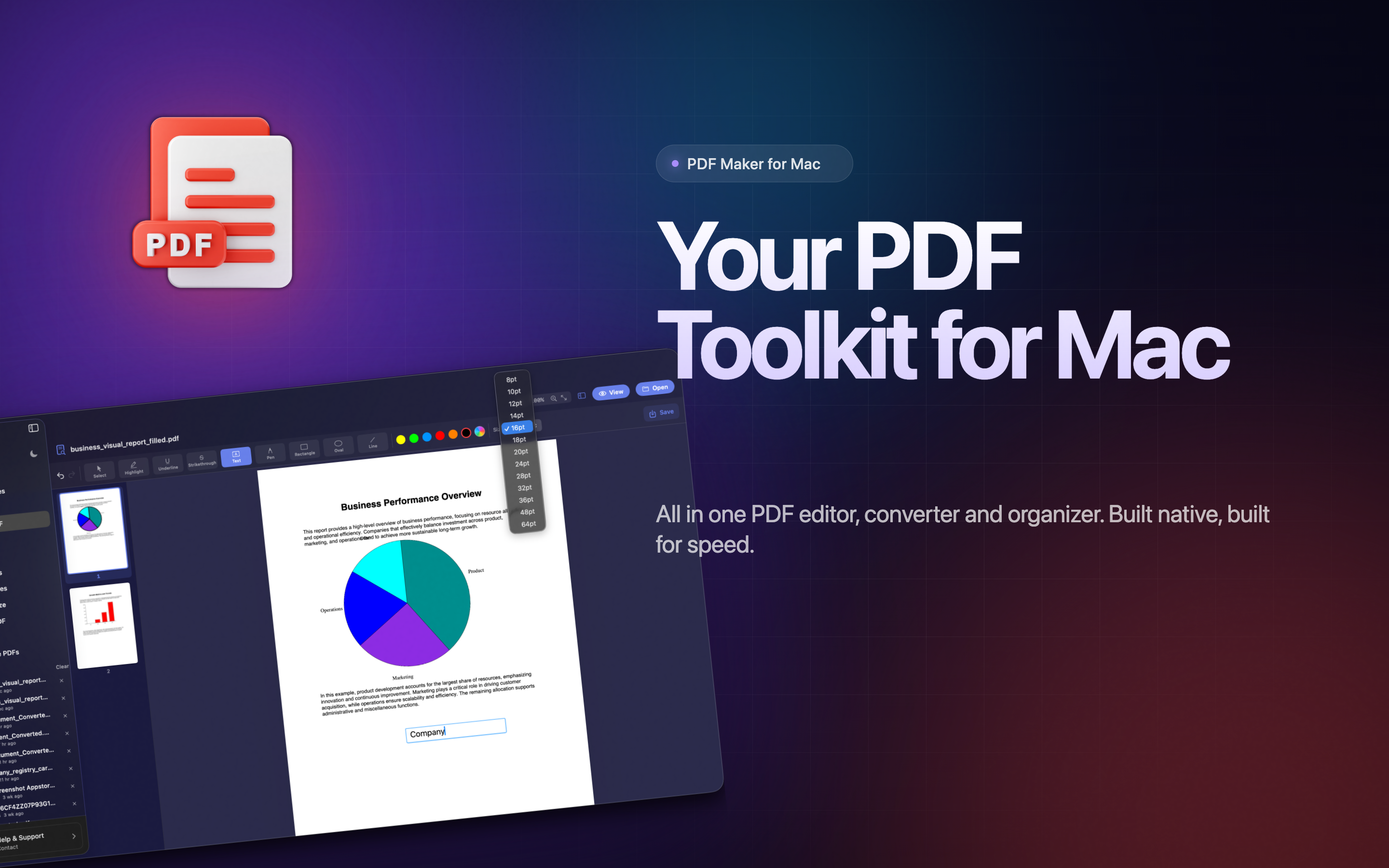
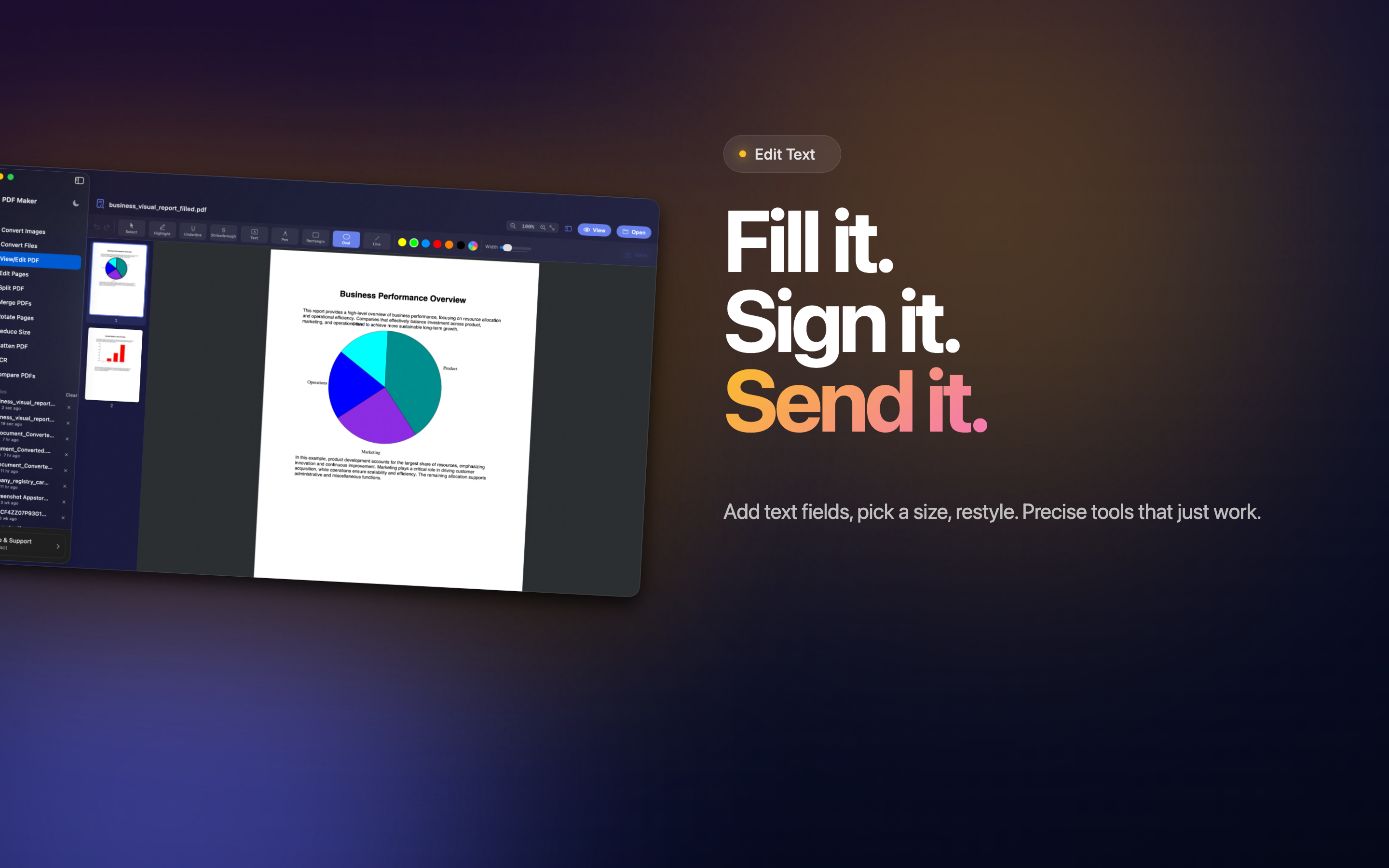
PDF Maker handles the merge along with the parts that usually come next: page order, rotation, compression with a visible quality choice, and splitting back out again.
Why the merged file is enormous
This is the most common complaint and it has a specific cause. Merging does not recompress anything - it copies each source document's content into one container. So a merged file is roughly the sum of its parts, and if one of those parts was a photo of a document taken on a phone, it is carrying a 12-megapixel image.
Three things bloat a merged PDF:
- Phone photos used as pages. A scan taken with the Camera app is an enormous JPEG with a PDF wrapper. Ten of them is 90 MB.
- Embedded fonts, repeated. Each source document brings its own copy. Merging five documents that all use the same font embeds it five times unless the tool deduplicates.
- Everything the original kept. Deleted-but-retained revisions, unused resources, metadata from whatever produced the file.
The fix is a compression pass after merging, with a real quality setting rather than a preset called Reduce File Size - which on macOS is notoriously aggressive and turns readable scans into artefacts.
What merging can quietly destroy
Two things worth checking on the output before you send it.
Form fields. A fillable PDF has an interactive layer. Most merge operations flatten it, or keep only the first document's fields, or produce duplicate field names that break the form silently. If either input was fillable, open the result and try typing in it.
The OCR text layer. A searchable scan is an image with invisible text behind it. Merge tools that rasterise pages - anything that "prints to PDF" - discard that layer, and you get a document that looks identical and cannot be searched or copied from. Test by selecting a word in the output. If nothing highlights, the text layer is gone and no amount of re-saving brings it back.
Choosing
- Two or three documents, no size concern: Preview. Watch the drop target.
- A handful, order does not matter: Quick Actions.
- The same job every month: the Terminal script, in a shell function.
- Anything with scans, forms, a size limit, or a recipient who matters: a tool that shows you page order and compression before you commit.
And regardless of method: open the result and scroll through it. Merging is one of those operations that fails in ways which look fine in a thumbnail and are obvious on page four.