Press Command-Shift-5 and you have a screen recorder. It works, it is free, and it produces a technically correct video of your display that is frequently useless as a tutorial.
The gap is not production value. It is a short list of decisions, each of which is invisible while recording and obvious to whoever watches.
Resolution: record smaller than you think
The most consequential setting, and it is not in the recorder.
Recording a 5K display produces a 5K video. Played back in a window on someone's laptop, or on a phone, the interface is scaled down until menu text is a few pixels tall. You know what it says because you wrote it. Nobody else does.
Set the display to a lower scaled resolution before recording - 1440×900 or 1280×800 works for most tutorials. Everything gets larger relative to the frame, and the recording is legible at the size people actually watch it.
If you cannot change resolution, record a region rather than the whole screen. A window at 1200 points wide beats a full desktop at 3000 every time.
The cursor, and the thing the cursor cannot tell you
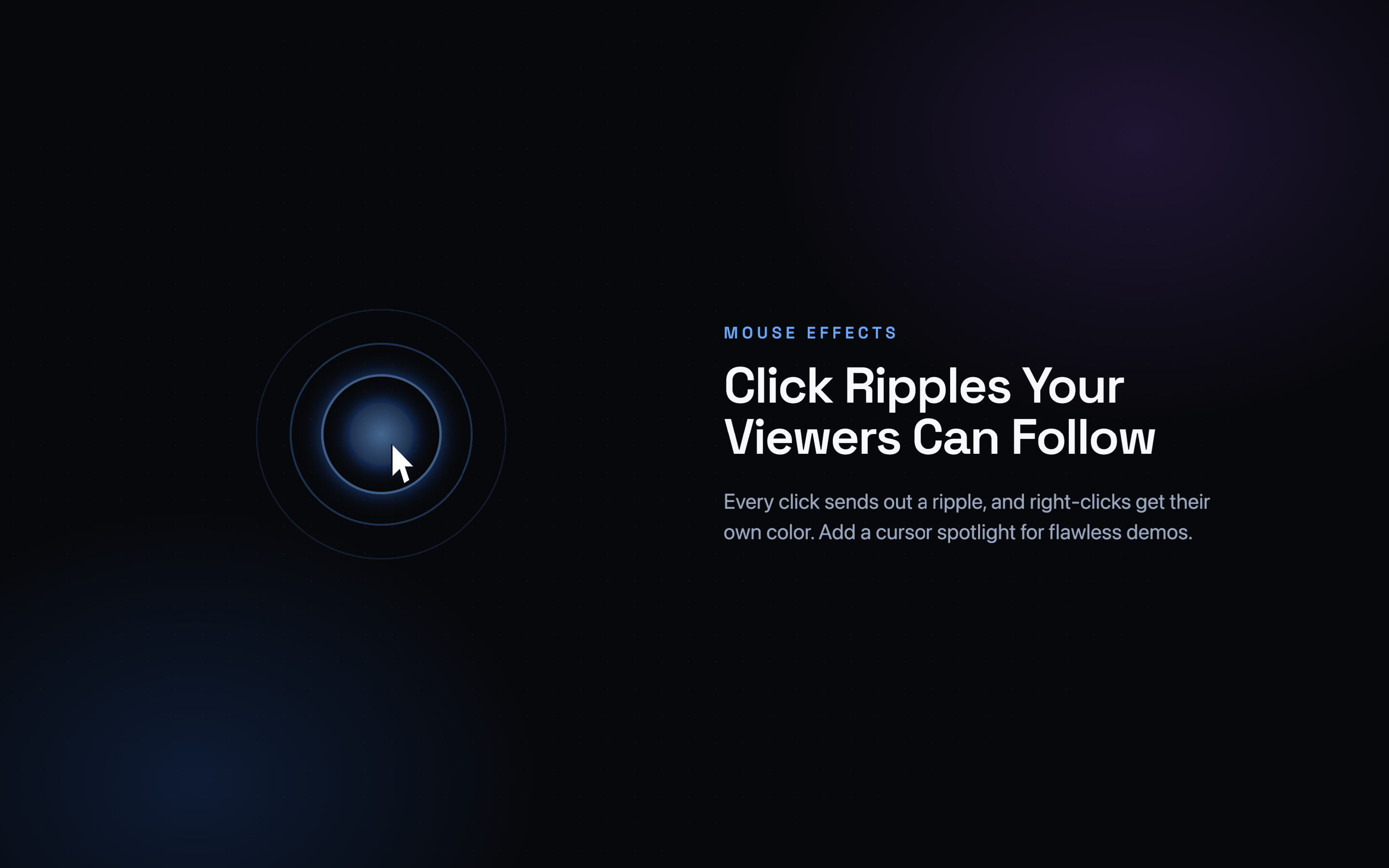
Turn on Show Mouse Clicks in the recorder options. Without it, a click is invisible - the interface simply changes, and the viewer has to infer that something was pressed and guess where.
That covers the pointer. It does not cover the keyboard, and on a Mac the keyboard is most of the interesting part. Every shortcut you use is invisible in the recording. You say "and then we just do this", the window closes, and the viewer rewinds twice.
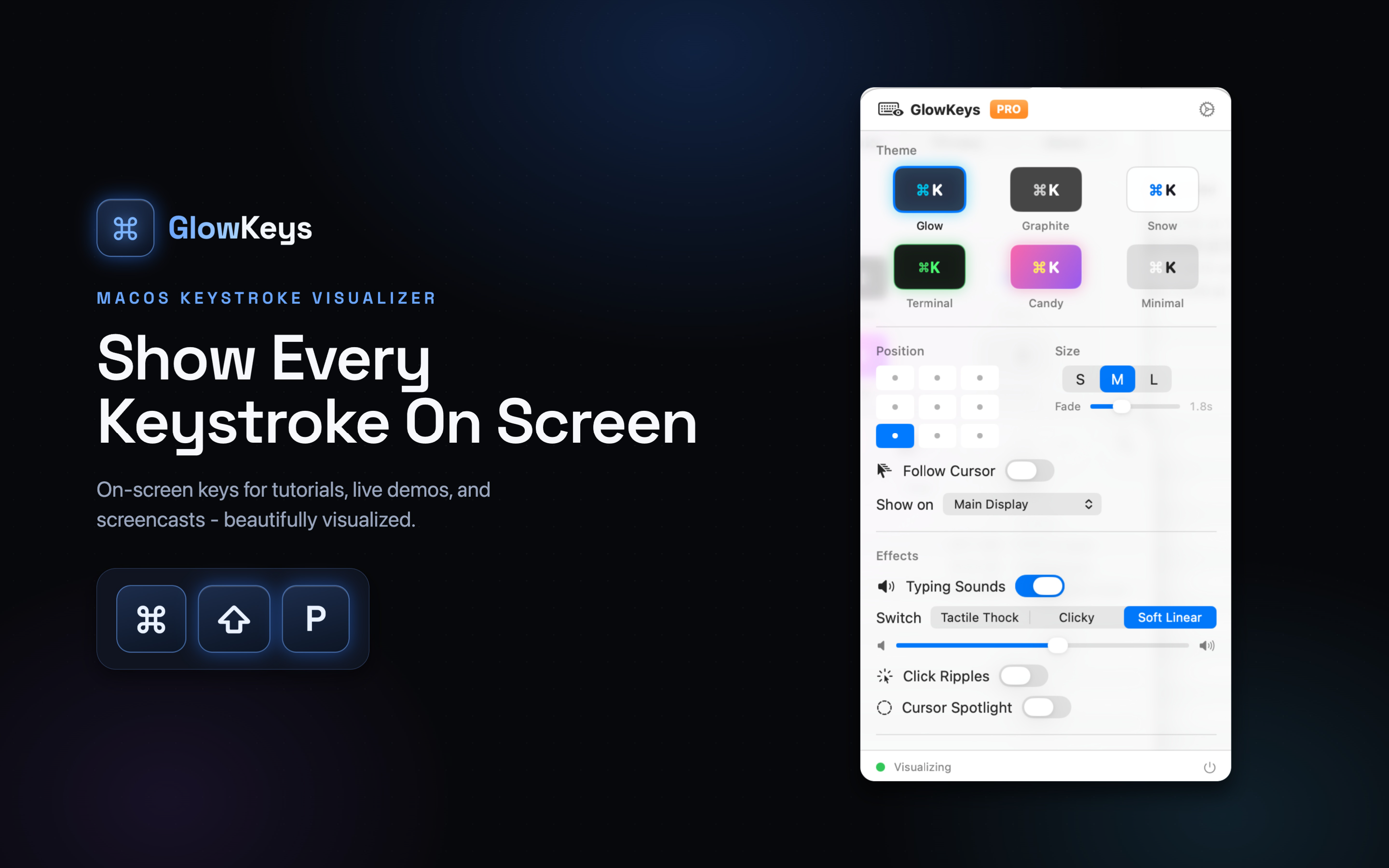
Putting the keys on screen closes that gap. GlowKeys draws each combination as you press it, and we went through the settings that make an overlay help rather than distract in a separate piece on keystroke overlays - the short version is shortcuts-only mode, and putting the overlay somewhere it does not sit on top of what you are demonstrating.
Audio, which macOS makes harder than it should
The built-in recorder captures the microphone. It does not capture system audio - so a demonstration involving anything that makes a sound records your voice and silence where the sound should be.
On macOS 13 and later, screen recording via ScreenCaptureKit can include system audio, and some apps expose it. The built-in Command-Shift-5 flow still does not. If you need both, you need either an app that supports it or a virtual audio device routing system output back in as an input.
Whatever the route, check it before recording twenty minutes. Discovering silent system audio afterwards means recording it again.
Cleaning up the desktop
Unglamorous and worth two minutes.
- Turn on Do Not Disturb. A message notification mid-recording is either a re-record or an edit, and sometimes a privacy problem.
- Hide desktop icons.
defaults write com.apple.finder CreateDesktop false; killall Finder. Reverse withtrue. - Use a plain wallpaper. Detailed photographs compress badly and pull attention.
- Check the menu bar. It is in every frame. Battery percentage, a VPN icon, the name of the Wi-Fi network you are on, a calendar event title - all readable at full resolution.
- Use a fresh browser profile if a browser appears. Bookmarks bars are a common accidental disclosure.
Pace
The most common editorial mistake is moving at the speed of someone who knows where everything is.
Pause on menus for a second before selecting. Move the pointer deliberately rather than flicking it. After a step that changes the interface, stop for a beat before starting the next one - viewers need a moment to register what happened, and there is no way to build that in afterwards.
Recording in short takes rather than one continuous pass helps more than it sounds. A mistake costs thirty seconds instead of restarting the lot, and the natural pause between takes lands as a section break.
Before you hit record
- Display set to a scaled resolution, not native.
- Do Not Disturb on, desktop icons hidden.
- Show Mouse Clicks enabled.
- Keystroke overlay running, in shortcuts-only mode.
- Audio route tested - both microphone and system, if you need both.
- Menu bar checked for anything you would not put in a screenshot.
Six items, two minutes, and it is the difference between a recording that teaches the thing and a video of a screen.