Unused RAM is wasted RAM. Every modern operating system works on that principle: memory sitting empty is doing nothing for you, so the system fills it with file caches, recently closed apps and anything else that might save a disk read later. macOS is unusually aggressive about it.
Which means "memory used: 15.2 GB of 16 GB" is not a warning. It is the system doing its job. If you quit every app, that number would fall for a moment and then climb straight back as macOS refilled the space with cache.
The number that matters
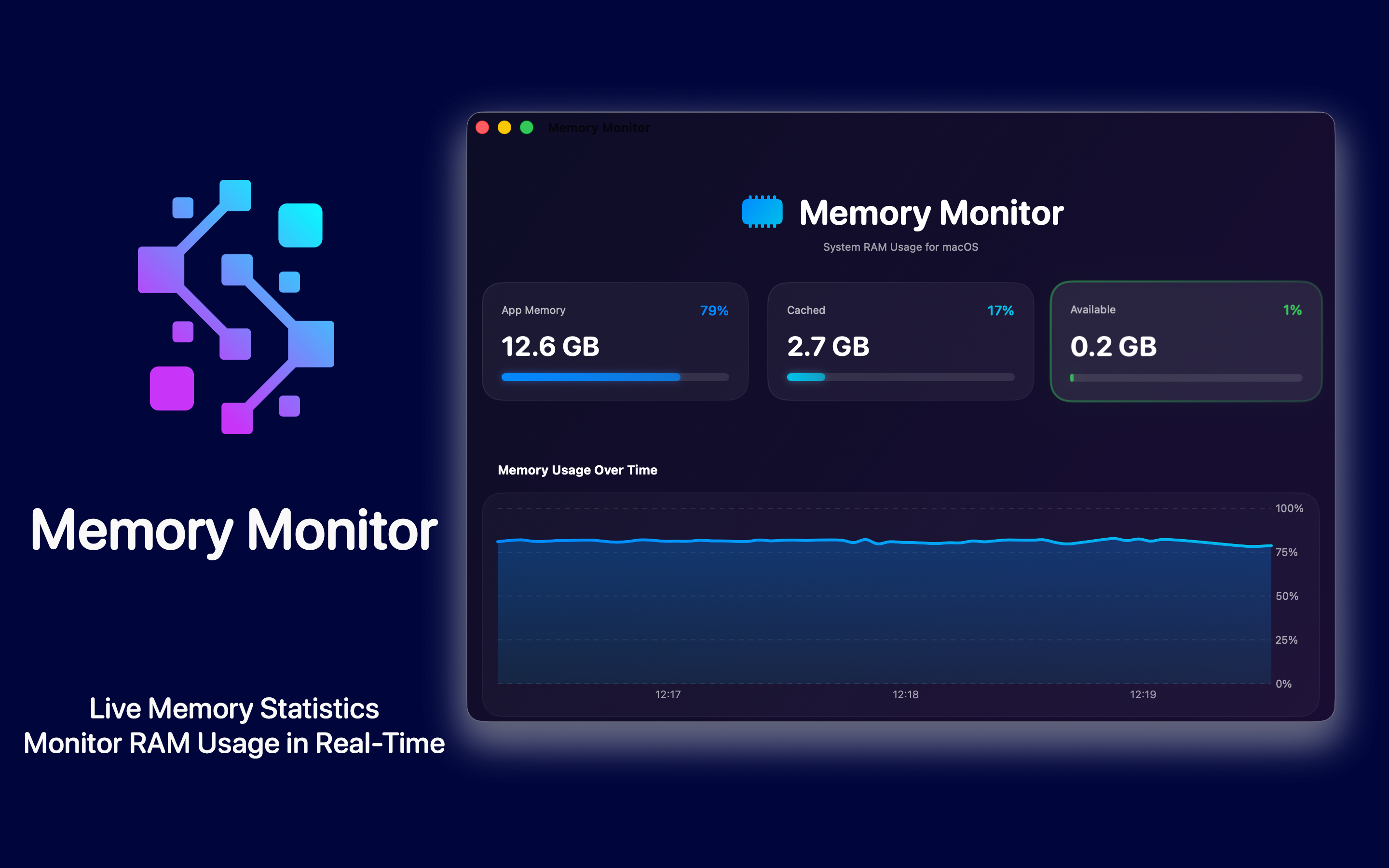
Memory pressure is macOS's own summary of whether it is comfortable. It accounts for how much memory is genuinely committed, how much can be reclaimed instantly, and how hard the compressor is working. It comes out as a graph with three states.
- Green. Everything is fine. Your used-memory figure is irrelevant here, whatever it says.
- Yellow. The system is compressing memory to keep up. Usually still fine - compression is fast, and on Apple Silicon it is very fast - but you are near the edge of comfort.
- Red. Actual shortage. macOS is swapping to disk, and that is where the slowdown you can feel comes from.
Green pressure with 95% memory used is a healthy machine. Yellow pressure with 60% used means something is wrong with a specific app. The used figure alone tells you almost nothing.
Swap: the honest slowdown signal
Swap is memory the system pushed out to disk because RAM ran out. Reading it back is orders of magnitude slower than RAM, and that is the lag you notice when switching apps - a beachball for a second while the window you clicked is fetched back.
A few hundred megabytes of swap after a long uptime is ordinary and harmless: it is mostly things you have not touched in hours. Several gigabytes, accumulating during normal work, means you genuinely do not have enough RAM for what you are doing.
So the two-number test, which takes five seconds:
- Pressure green, swap under a gigabyte: you are fine. Ignore the used figure.
- Pressure yellow or red, swap growing through the day: real problem, worth investigating.
Unified memory changed the arithmetic
On Apple Silicon, RAM is shared between CPU and GPU on the same package. There is no separate video memory to allocate, which means graphics work draws from the same pool - and it means the old habit of comparing Mac RAM directly against a PC spec sheet does not translate cleanly.
Two consequences worth knowing. Memory bandwidth is far higher, so compression and paging are much less painful than they were on Intel. And you cannot upgrade later - the memory is part of the chip. Whatever you buy is what you have for the life of the machine, which makes getting the decision right at purchase time unusually consequential.
What is actually enough
Rather than repeat the marketing tiers, here is what tends to hold in practice.
8 GB. Genuinely adequate for browsing, mail, documents, video calls and light photo work. It was written off too quickly when Apple Silicon launched. It is real, and it is also unforgiving: one heavy app - a large Lightroom catalogue, a virtual machine, forty browser tabs with a video conference among them - will push it into swap, and you cannot do anything about it afterwards.
16 GB. The sensible default for most people who use a Mac for work. Handles serious browser habits, Xcode, Docker with a couple of containers, Photoshop on reasonable files, all at once, without going yellow.
32 GB and up. Justified by specific workloads rather than general comfort: virtual machines, large video projects, big datasets, running a local language model. If you cannot name the workload that needs it, it will sit there being cached file data.
The useful move before buying: watch your current machine for a week. If pressure never leaves green, more RAM will change nothing you can perceive. If it is yellow every afternoon, the next tier will pay for itself immediately.
When one app is the whole problem
Before concluding the machine is too small, check whether it is one process. This is more common than a genuine shortage, and it has a signature: memory that climbs steadily through the day and never falls, even when the app is idle.
The usual offenders are a browser accumulating tabs, a design tool that never releases what it loaded, and Electron apps with a leak. Quitting and reopening the app returns the memory instantly, which is also how you confirm the diagnosis - a real shortage does not resolve by restarting one program.
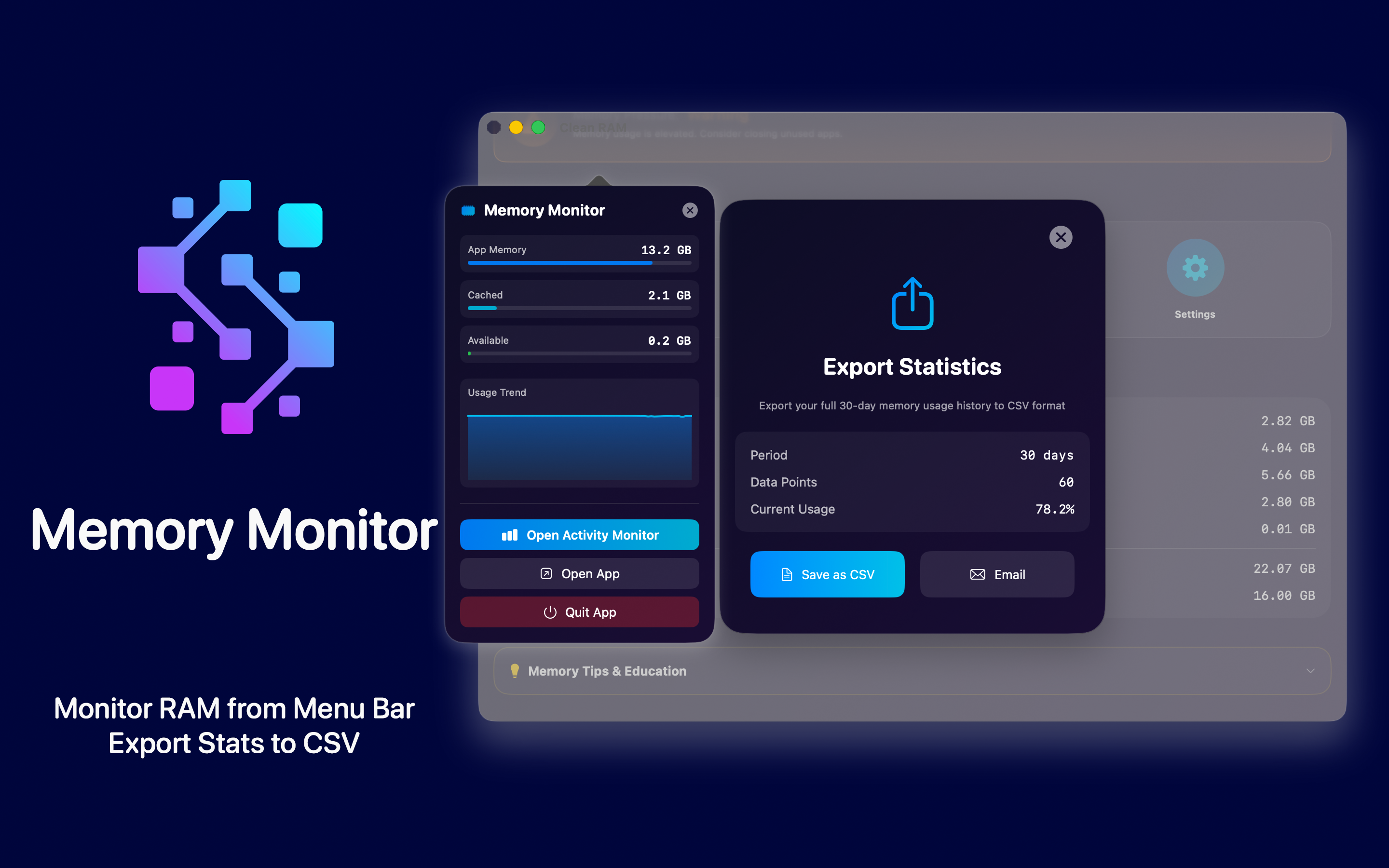
Memory Monitor keeps this in the menu bar with the top consumers listed, so a leak is visible as it develops rather than discovered after an hour of things feeling slow.
What not to do about it
Three things that circulate as memory advice and are not.
"Memory cleaner" apps. They work by allocating a large block, forcing macOS to purge cache to make room, then releasing it. The used-memory figure drops, which is what they are selling. What actually happened is that you threw away a cache the system had built deliberately, and everything is slower until it is rebuilt.
Running purge in Terminal. The same thing without the interface. Occasionally useful when benchmarking. Not maintenance.
Disabling swap. Sometimes suggested to "force" the system to use RAM. It removes the safety valve, and the result is not a faster Mac but apps being killed when memory runs out.
The honest summary is that macOS memory management does not need help. It needs to be read correctly - and the only two numbers involved are pressure and swap.