1. Pick a wallpaper that works with your windows
A Halloween wallpaper is the obvious start. The one rule: choose something mostly dark with the interesting part near the middle or top. Your windows will cover a lot of it, and a busy, bright image makes icons and text on the desktop hard to read.
Change it in System Settings, under Wallpaper. You can drag your own image onto the preview or add a folder of images and let macOS rotate through them.
2. Switch to Dark Mode with an orange accent
Dark Mode alone does half the work. Then open System Settings, choose Appearance, and set the accent colour to orange. Buttons, checkboxes, selected items and highlighted text all turn pumpkin orange across the system and in most apps.
3. Make the pointer pumpkin-coloured
Few people know macOS lets you recolour the mouse pointer. Open System Settings, then Accessibility, then Display, and look for Pointer. Set the outline to orange and the fill to black, and make it a little larger while you are there. It is surprisingly festive, and easier to find on a dark wallpaper.
4. Give your folders Halloween icons
Copy any image, select a folder in Finder, press Command-I to open Get Info, click the small icon at the top left and paste. The folder now shows that picture. A pumpkin for the Downloads folder is reason enough. To undo it, select the icon in Get Info and press Delete.
5. Hang lights on the menu bar and Dock
This is the part settings cannot do. A decoration app can hang a string of lights just below the menu bar and along the Dock, put spider webs in the screen corners and let a few bats or black cats walk above the Dock - all without getting in the way of a single click.
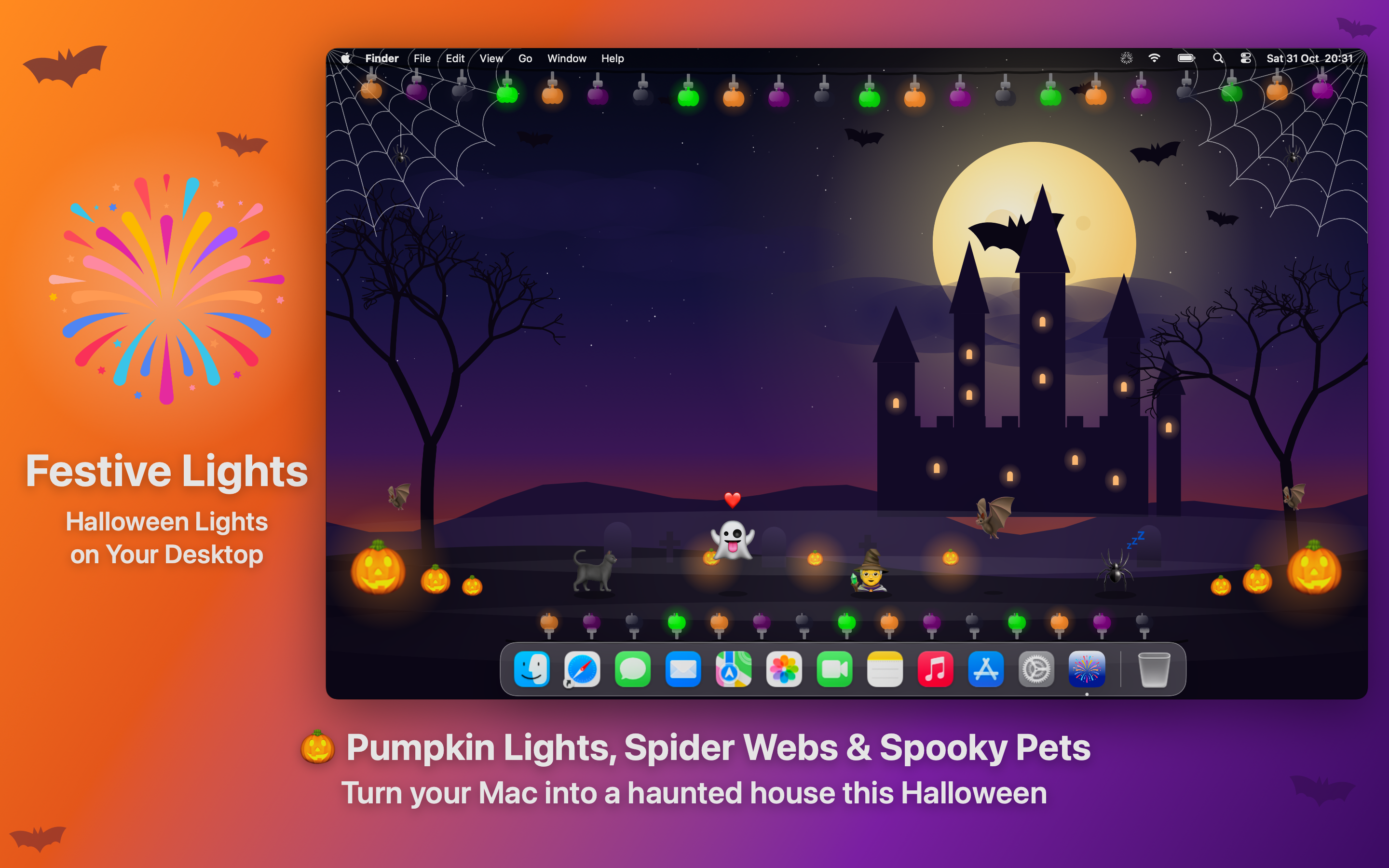
Look for one that pauses itself when windows go full screen or the Mac is locked, so the decorations never cost you battery while you are not looking at them.
6. Add a spooky screen saver
A screen saver that shows a folder of Halloween photos is easy to set up: in System Settings, choose Screen Saver, pick a photo style and point it at your folder.
7. Know how to undo it all
On November 1st you will want your normal Mac back quickly. Make a note of what you changed: wallpaper, accent colour, pointer and any folder icons. Decoration apps that switch theme by season save you one step - the pumpkins can give way to snowflakes on their own.
A few cautions
- Keep work machines tasteful if you share your screen in meetings. A "hide decorations" shortcut is worth having.
- Very dark wallpapers and Dark Mode can make low-contrast text harder to read in bright rooms. Raise the brightness rather than fight it.
- Download wallpapers and icons from sources you trust. "Free Halloween theme" installers are a classic way to hide adware.