Start with the wallpaper
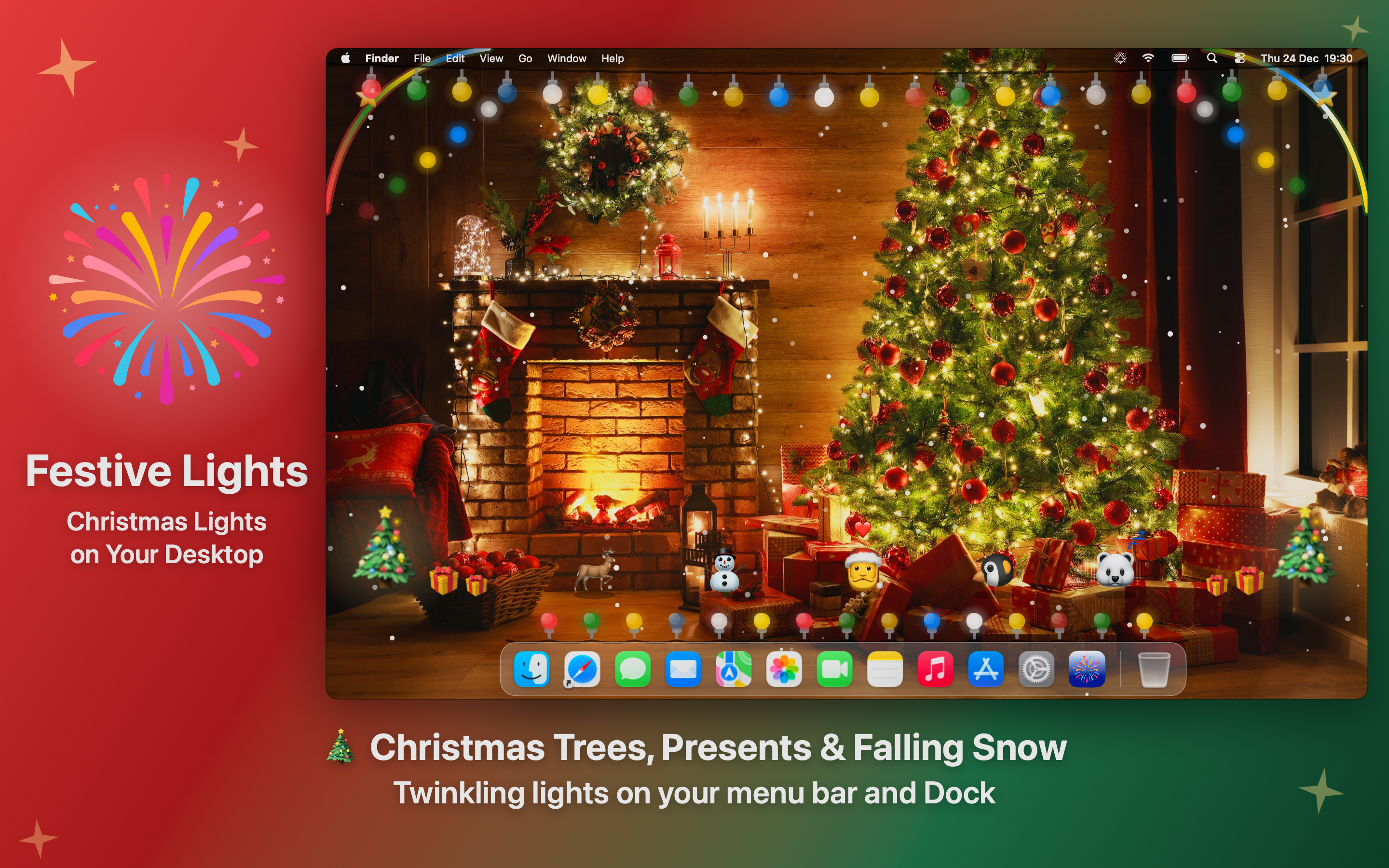
A warm interior - a fireplace, a tree, a window with snow outside - works better than a bright red-and-green pattern. Your windows sit on top of it all day, so choose an image where the detail is around the edges and the middle is calm. Set it in System Settings, under Wallpaper.
A red accent colour
In System Settings, under Appearance, set the accent colour to red. Selected items, buttons and highlights pick it up across macOS. Pair it with Dark Mode in the evening and a fireplace wallpaper, and the whole system feels cosier.
Lights under the menu bar
The single most Christmassy thing you can do to a Mac is hang a string of lights below the menu bar. A good decoration app adds them along the Dock too, lets them twinkle or chase, and sways them when you push them with the pointer.
Three settings decide whether they look real or cheap:
- Number of lights. Fewer, larger bulbs look more like a real string than a dense row of dots.
- Sag. A little droop between bulbs reads as a cable hanging under its own weight.
- Animation. A slow twinkle is pleasant all day. A fast chase is fun for ten minutes.
Snow on the desktop
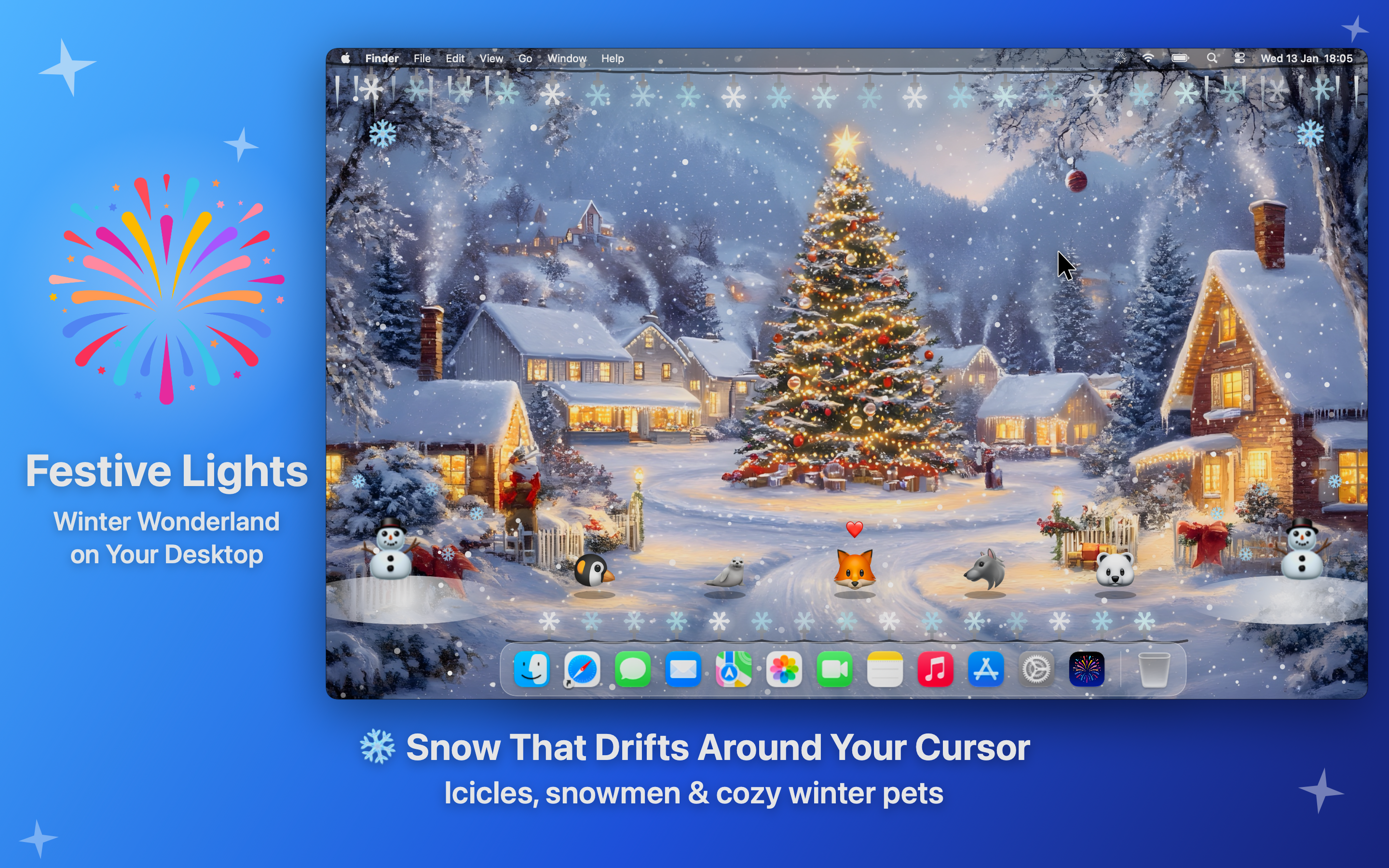
Falling snow is lovely and, done badly, very annoying - flakes drifting across a spreadsheet you are trying to read. Look for snow that moves out of the way of the pointer, adjustable intensity, and an option to make it fall only when it is really snowing outside.
Keep it out of the way
Desktop decorations should never cost you anything. Before installing an app, check that:
- it never blocks clicks on the menu bar, the Dock or your windows;
- it pauses when the screen is locked, asleep or covered by a full-screen app;
- it can be hidden in one step, ideally from a keyboard shortcut, before a screen-sharing call;
- it works on all your displays, not just the main one.
Only in the evening
If your Mac is a work machine, a schedule is the neatest answer: decorations from 5 PM until bedtime, a plain desktop during the working day. Shortcuts actions make the same thing possible with automations, or with a single keyboard shortcut.
From Christmas to New Year
The week after Christmas has its own look: star lights, champagne and fireworks for New Year's Eve, then a quieter winter theme with snowflakes and icicles for January. An app that changes theme with the calendar saves you from redecorating on December 26th.