Which controllers work
Apple TV supports wireless controllers over Bluetooth. The main families are:
- Xbox Wireless Controllers with Bluetooth - the ones that came with Xbox One S and later, and the Xbox Series X|S controller. The Xbox Elite Series 2 and the Xbox Adaptive Controller work too.
- PlayStation controllers - the DualShock 4 from the PS4 and the DualSense from the PS5.
- MFi controllers - third-party gamepads made for Apple devices, often sold for iPhone and iPad.
Very old Xbox controllers without Bluetooth, and wired-only controllers, will not connect. Apple keeps the current list of supported models on its support site, which is worth checking for anything unusual.
How to pair a controller
- Put the controller into pairing mode. On an Xbox controller, hold the small pair button on the top until the Xbox button flashes quickly. On a PlayStation controller, hold the PS button and the Share (or Create) button together until the light bar flashes.
- On Apple TV, open Settings, then Remotes and Devices, then Bluetooth.
- Select the controller when it appears in the list.
Once paired, it reconnects when you switch it on. To use it with a game console again later, you may need to pair it back there, since many controllers remember only one Bluetooth device at a time.
Do you need one at all?
For many Apple TV games, no. The Siri Remote has a clickpad and buttons, and games designed for it keep the controls simple. A controller helps most when a game needs several actions at once, precise analog movement, or long sessions - a remote is not shaped for an hour of holding.
Check what a game supports before you buy one. Most list "game controller" support on their App Store page.
A game that works with both
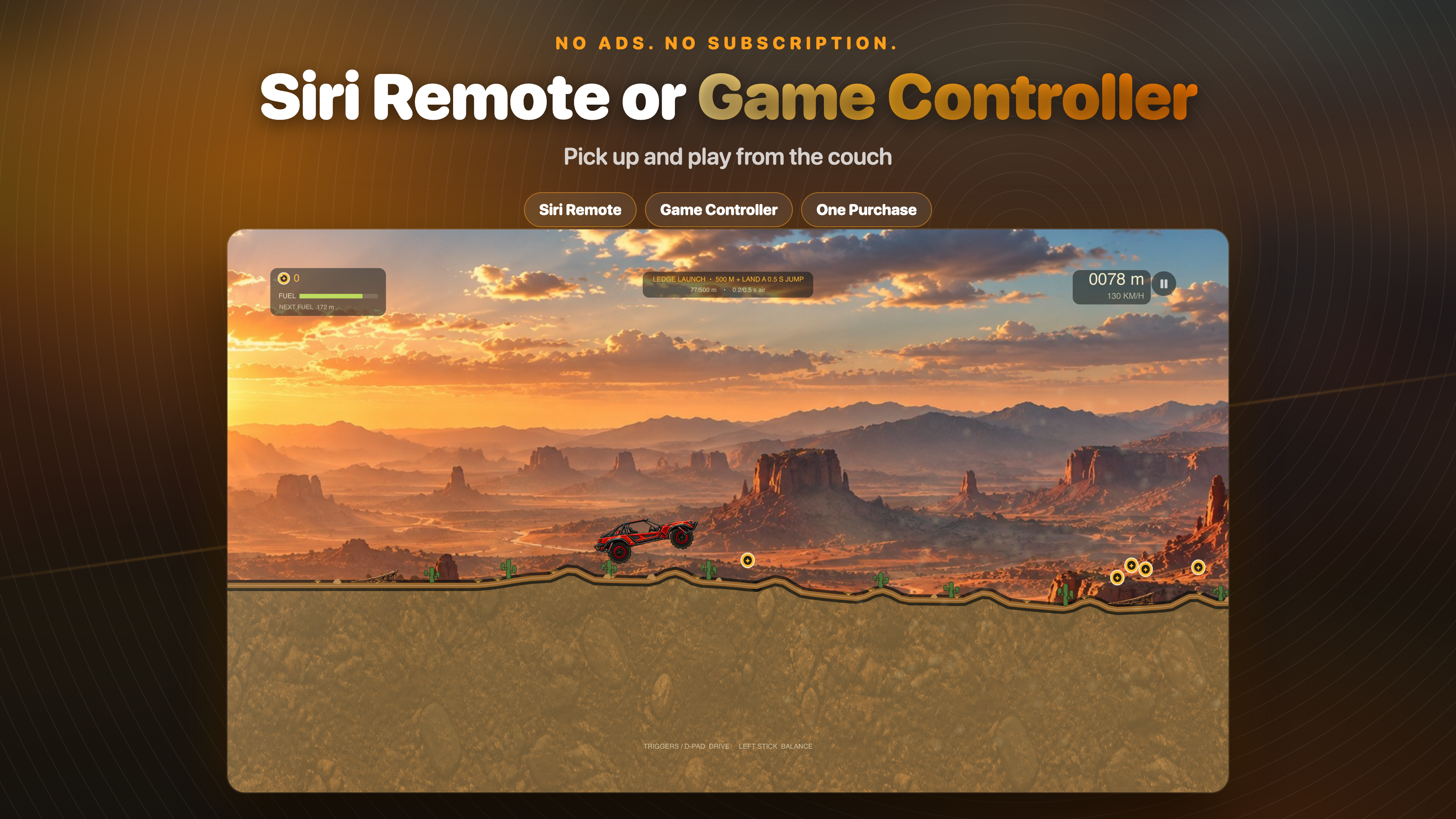
Dirt Climb is a physics hill-climbing game for Apple TV that plays with the Siri Remote or any game controller. The controls are just forward, back and lean, so the remote is enough for a quick run on the couch, and a controller is there for longer sessions.